
The most anticipated moment of the year is approaching: the holidays . We use apps and websites to organize them, we consult AI , we download VPNs , and we configure Google Maps . Sometimes we forget the most important aspect: the holidays are a time to disconnect . That’s why I have maintained “vacation mode” on my mobile device for years, ensuring minimal interruptions during my downtime.
My Vacation Mode
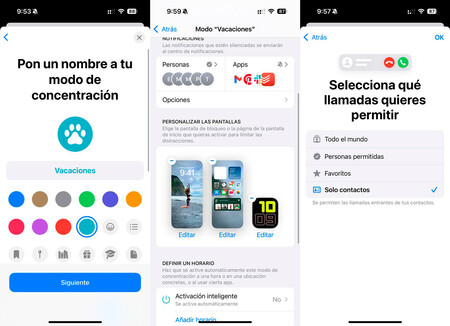
Creating holiday mode on the iPhone
I use an iPhone, which allows me to activate a specific mode for the holidays. When the day arrives, I simply turn it on. Within this vacation mode, I have configured various aspects as follows:
Silenced Applications
The most critical part is silencing work-related notifications . For me, this includes apps like Slack , Todoist , and Google Drive . I also add any other apps that I prefer not to receive notifications from during these days. Alternatively, you can choose to allow notifications only from specific apps. This feature can be beneficial to customize your experience.
Allowed People
Another key factor is determining who can interrupt you while you are on vacation. Personally, I have a short list of five people whose notifications will always come through. Additionally, I limit calls to only those who are saved in my contacts. Initially, I worried I might miss an important call, but I have learned over the years that this setup effectively eliminates telephone spam without causing regret.

Personalized Screens
My first screen on the iPhone typically showcases work-related apps; however, during the holidays, I swap these out for personal use apps and widgets featuring useful information like the weather. I also change my wallpaper and configure my Apple Watch with a minimalist watch face that only displays the time, for a clutter-free experience.
Concentration Filters
Finally, I incorporate two concentration filters into my vacation mode. The first filter puts my phone on silent mode . While I generally prefer this setting, I’m mindful of potential slip-ups. The second filter disables the always-on display feature. During workdays, it’s convenient to view notifications at a glance, but during my vacation, I only want to check my device intentionally. This also conserves battery life.
Extras
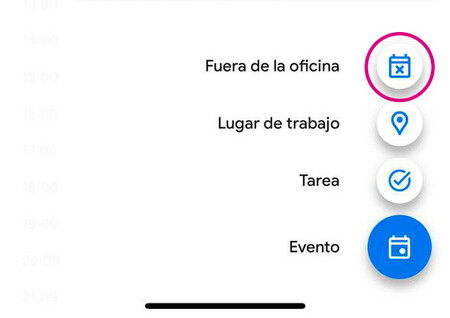
There are a couple of crucial settings that I cannot configure through concentration mode: email and calendar . I use both Gmail and Calendar, but silencing these apps entirely would mean missing notifications from my personal accounts. Therefore, I only silence the work-related emails . For Gmail, I mute notifications and set up an automatic response for the days I’ll be unavailable. In Calendar, I block out the days I will be out of the office, preventing anyone from scheduling meetings during this time, and I also reject any pre-existing invites.
Create Your Own Vacation Mode
Each person will choose their own preferences for silencing various apps and contacts. The flexibility of concentration modes allows for tailored configurations. On an iPhone, navigate to Settings – Concentration Modes to set it up. Once created, activating it is as easy as swiping down to access the control center and selecting your preferred mode from the ‘Modes’ button.
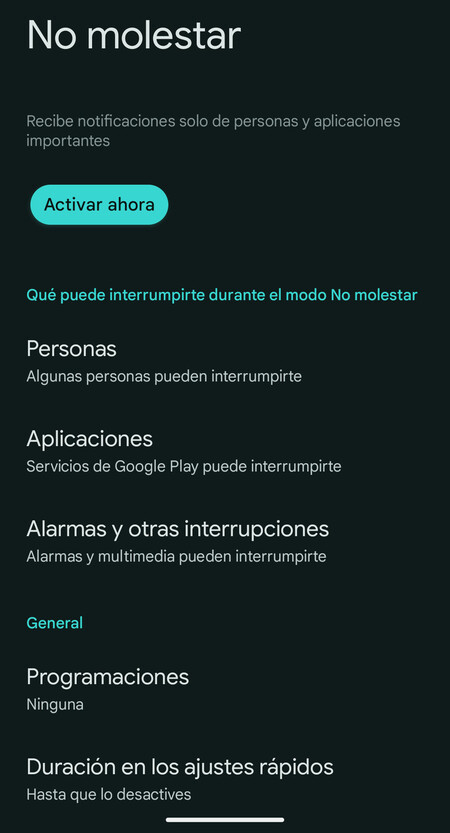
If you use an Android device, you can also set a vacation mode through Settings – Digital Well-being and Parental Controls . The ‘No Distractions’ mode allows you to select which apps won’t send notifications. My advice is to enable Do Not Disturb mode , as it also allows you to specify which contacts can interrupt you.
Cover image | Mockup of Freepik, Background Pexels
In conclusion, creating a personalized vacation mode can enhance your holiday experience. Taking steps to limit distractions ensures that you can truly relax and enjoy your time off, free from the pressures of work and unnecessary interruptions.