Harnessing Artificial Intelligence to Create a PowerPoint Presentation
Creating a PowerPoint presentation can often feel overwhelming, especially if you lack design skills or a clear plan. Fortunately, artificial intelligence (AI) has made this task significantly easier. In this article, we will guide you on how to leverage AI tools for crafting effective PowerPoint slides swiftly and efficiently.
Preparation Tips
Before diving into the world of AI presentations, it’s crucial to establish a plan:
Define Your Presentation’s Purpose: Know the objectives of your presentation. Identify the key ideas you want to convey and the tone you wish to maintain—be it formal, creative, or academic.
Organize Your Ideas: A structured approach is essential for clarity. Consider the classic format of an introduction, body, and conclusion. Drafting a rough outline of your main points will lay a strong foundation for your slides.
Leverage AI for Planning: Using generative AI platforms like ChatGPT, Copilot, or Gemini can aid in organizing your ideas. Simply ask these tools for assistance in structuring content for different slides.
Establish a Visual Style: Decide on the visual elements for your presentation. Think about the colors, images, and overall aesthetics—these should all align with your intended tone.
Creating Slides with ChatGPT
One effective method to create PowerPoint slides is through ChatGPT. Here’s how:
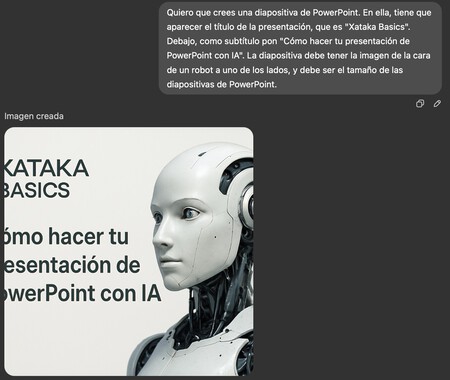
Compose a Slide Prompt: For example, use a prompt such as: “I want to create a PowerPoint slide titled ‘Xataka Basics’ with a subtitle ‘How to make your PowerPoint presentation with AI.’ Include an image of a robot’s face on one side, sized to fit a PowerPoint slide.”
Specify Size and Style: Indicate the desired dimensions to ensure that the images fit well within the layout. If you have a particular visual style in mind, mention it so AI can replicate this in future slides.
Export to PowerPoint Format: Request the final output in PPTX format for seamless integration into Microsoft PowerPoint.
Utilizing Copilot and Gemini
Copilot, a Microsoft tool, and Gemini, Google’s counterpart, offer user-friendly interfaces for creating slides. Their smart interfaces simplify the process:
Start with a Template: Begin by telling these AIs that you want to create a PowerPoint template. They will ask guiding questions to tailor the design according to your preferences.
Iterative Feedback: Unlike traditional design tools, AI tools learn from your preferences, adapting as you provide feedback, which can greatly enhance the final product.
Crafting Slides with Gamma
Gamma is another specialized application for AI-based PowerPoint creation. Here’s how to use it effectively:
Choose the Creation Option: After registering at Gamma.app, you will see different creation options. With a free account, you can create up to ten modules.
Paste Text Feature: You have the option to create a presentation based on notes or text content. You can summarize extensive text into concise slides or keep the original text and distribute it across several slides.
Editing Instructions: After pasting your text, you can specify the subject, language, tone, and even the text length per slide to fine-tune your presentation.
Trigger Feature: This simplified option allows you to specify the number of modules and describe your presentation idea. Upon clicking ‘Generate,’ you’ll receive a structured outline for your slides.
Import Feature: You can also import existing documents (like PDFs or Word files) to create slides based on previously gathered information.
Designing Slides with Canva
Canva is an accessible tool that merges user-friendly design with AI options:
Create a Presentation: Start by visiting Canva.com and selecting the presentation option to begin crafting your slides.
Diverse Options for Customization: You can add various elements, including images, animations, and text. Canva’s AI features help in creating images directly within the platform.
Making Slides with Fotor
Fotor provides a suite of AI tools to assist in slide creation:
Select a Template: Choose a cohesive template that maintains a consistent look for all slides.
Write Descriptive Prompts: Enter your ideas into the prompts provided, detailing what each slide should contain, including text and images.
By harnessing these innovative tools, creating a PowerPoint presentation becomes a seamless process, allowing even those with minimal design expertise to produce professional-looking slides. AI not only streamlines the creation process but also ensures that your ideas are presented clearly and effectively. The continuous evolution of AI tools opens doors to endless possibilities, making each presentation a unique and engaging experience for both creators and audiences alike. Embrace these technologies to enhance your presentations and captivate your audience effortlessly.