
We bring you a collection of 19 features and tricks for iOS 26, so that if you have an iPhone with the latest version of Apple’s operating system, you know how to take full advantage of it. In iOS 26, there are several new features, in addition to a complete redesign of the entire interface.
In this guide, we will focus solely on the new key features of iOS 26. We will briefly explain what each one is about and how you can use it, and perhaps we will reveal some capabilities that you were previously unaware of.
And as we always say at Xataka Basics, these are our suggestions, but perhaps you have some that we have left out. In that case, we invite you to mention it in the comments so that all users can learn from the knowledge of our Xatakeros.
Reduce Interface Transparency
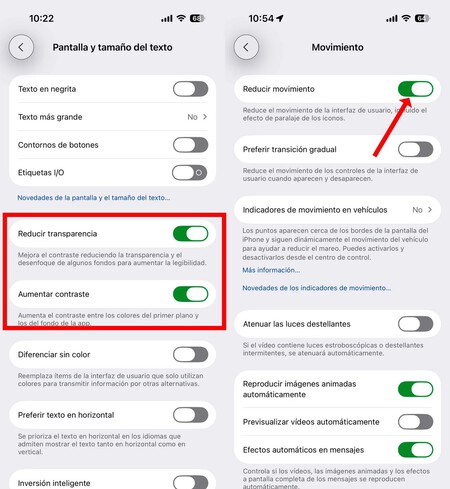
The big novelty is Liquid Glass, the new interface with crystal-like transparency effects in iOS. If you’re not a fan, you won’t be able to remove it, but you can reduce it so that it is not so transparent. You can also make the new animations less pronounced by reducing the motion.
To reduce transparency, go to iOS settings and enter the Accessibility section. Inside, tap on Screen and Text Size and enable the Reduce Transparency and Increase Contrast options to soften the Liquid Glass effect. Then, in the Accessibility options, go into Motion, and enable Reduce Motion to lower the effects.
Master the Lock Screen
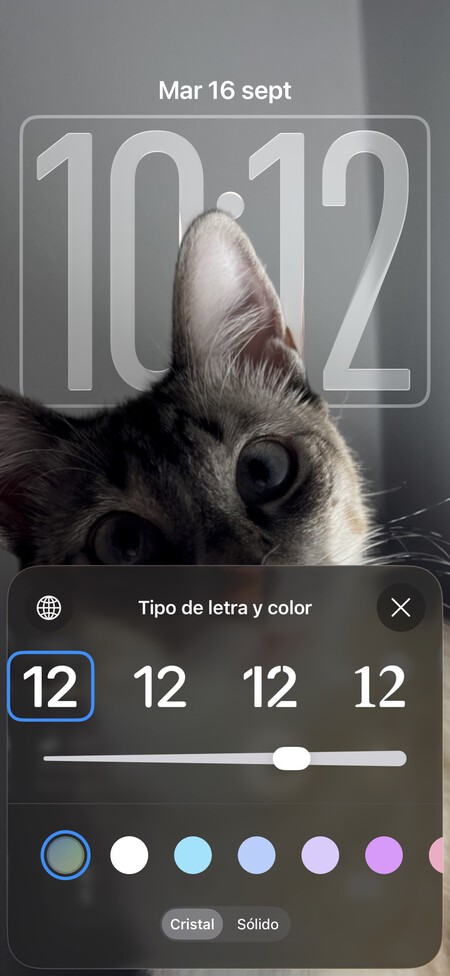
You have new ways to customize your iPhone with iOS 26. One of these is related to the lock screen, which is now more versatile than before. For example, you can change the size of the clock’s numbers so that it occupies more space on the screen.
You will also be able to change the size of the image so that it fills the entire screen. Another thing you can customize is the texture of the numbers, allowing for a solid color or crystal-like transparency. iOS will take into account the design of the background photo, and if there are protrusions that match the clock’s numbers, it will create a layering effect that you can toggle on or off in the lock screen settings.
Use the 3D Effect
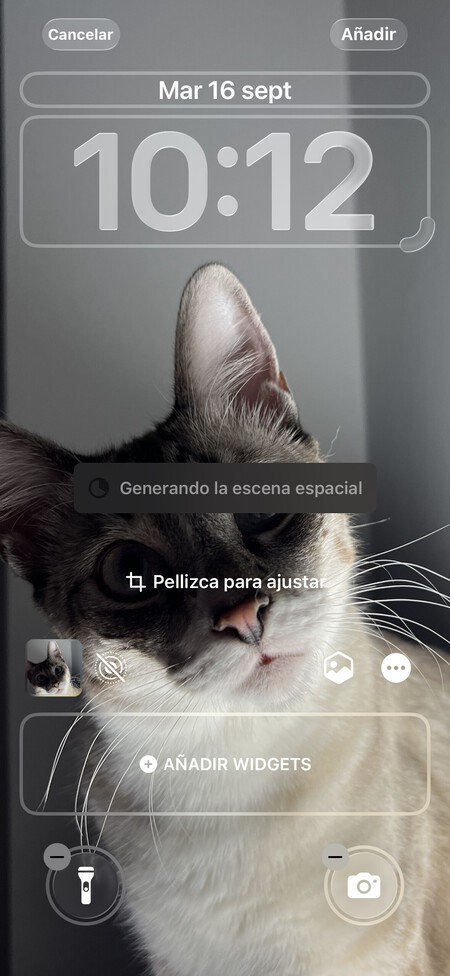
When you’re setting up your new lock screen wallpaper, there is a button with a hexagon that allows you to activate the spatial scene generation. This means it will generate a 3D effect with the background photo so that it appears to move.
3D Effect Also in the Photos App
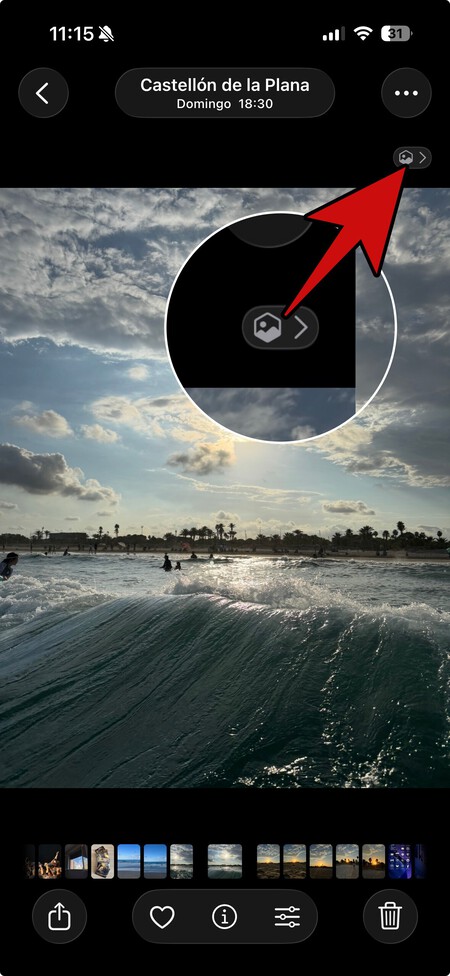
Another interesting feature is that you can also view any photo with the spatial 3D effect through the Photos app. While you won’t be able to do much with it, as it cannot be exported, you can at least see how it looks or show this effect to others.
To do this, enter the photo you want to view and tap the hexagon icon that will appear in the upper right corner. You’ll see a few purple colors appear on the screen while the AI analyzes the content of the photo, and then the Spatial Scene indicator will become active. Now, just move your phone to enjoy the effect.
Translucent App Icons
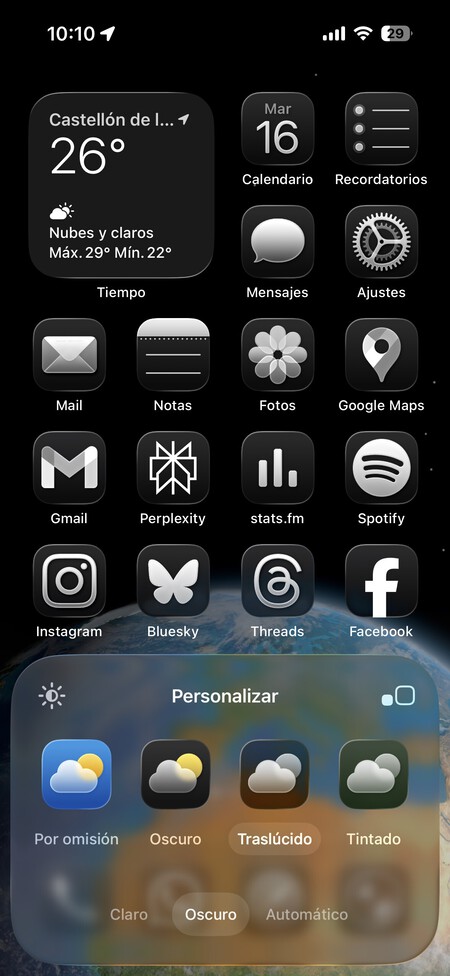
Another new customization option is using translucent icons in iOS. To use them, press on your desktop background and tap the Edit option at the top right. Now, tap on the Customize option in the menu that opens.
This will open a screen where you have several options to customize your icons. In this screen, tap on the Translucent option to try out the new aesthetic for icons. You can use this with either light or dark backgrounds, and everything else will be transparent and colorless. You can also choose between small or large icons.
Try the Call Filter
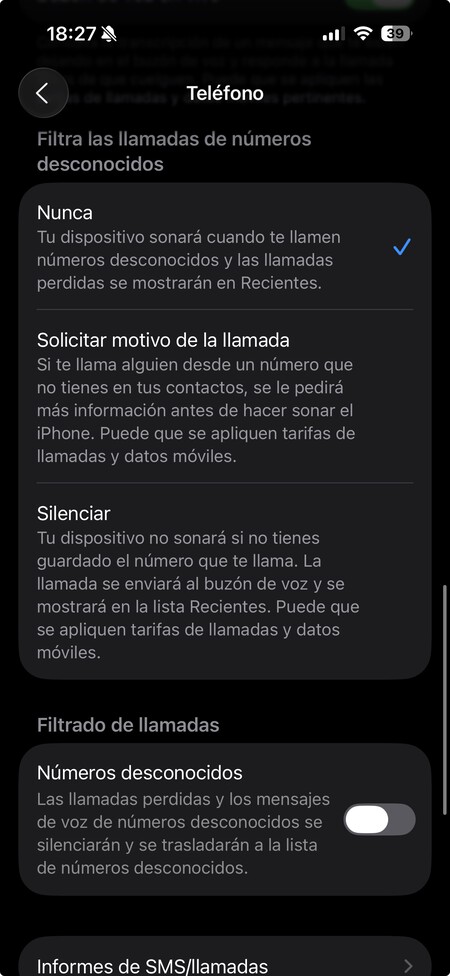
In iOS 26, you have a new call filter that acts like a virtual assistant responding on your behalf to calls from unknown numbers. If activated, the assistant will transcribe the message or intention, allowing you to decide whether to respond or not.
This filter has some drawbacks, such as when a real person calls, it might confuse them into thinking you’re the fraud by hearing Siri’s voicemail. Nevertheless, to activate it, simply go to settings, navigate to Apps, and tap on Phone. Scroll down to the call filtering section, where you can choose the request motive option and activate it for unknown numbers.
There Are Also Filters for Messages
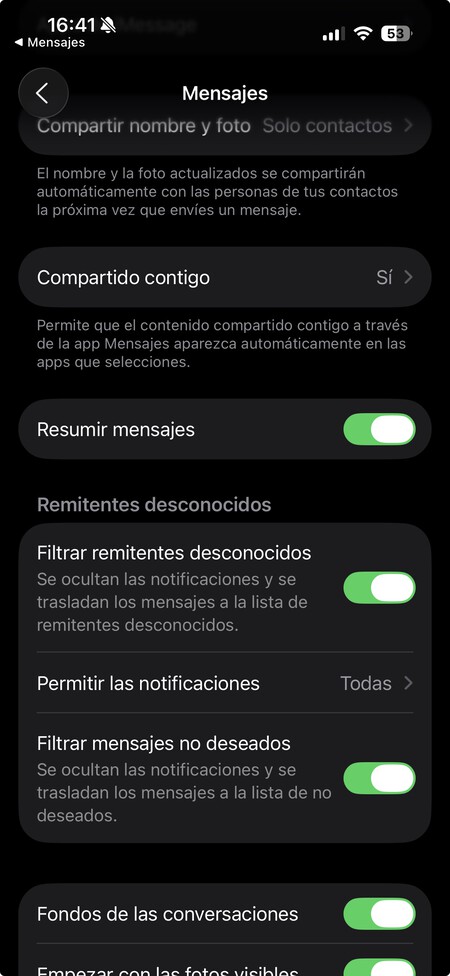
If instead of Phone in the Apps section of the settings, you tap on Messages, you will find that you can also apply filters to not receive notifications from unknown senders. This will give you greater control over who can communicate with you.
You will also be able to set exceptions because when you activate the filter, you can tap on Allow Notifications to see which types of unknown senders do send a notification, such as two-step verification messages.

Messaging Chats Also Level Up
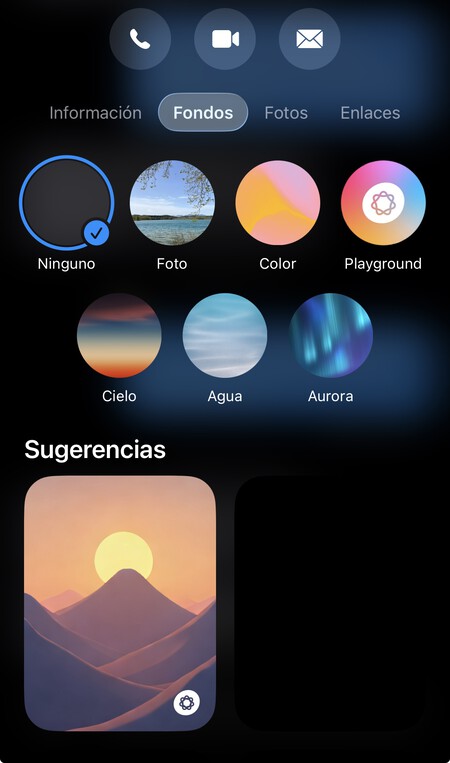
The iMessage chats are getting an upgrade with new options such as adding backgrounds to conversations using your own photos or Playground creations. Additionally, you can add polls, and there are typing indicators in group chats to see who is typing.
Unified Design for the Phone App
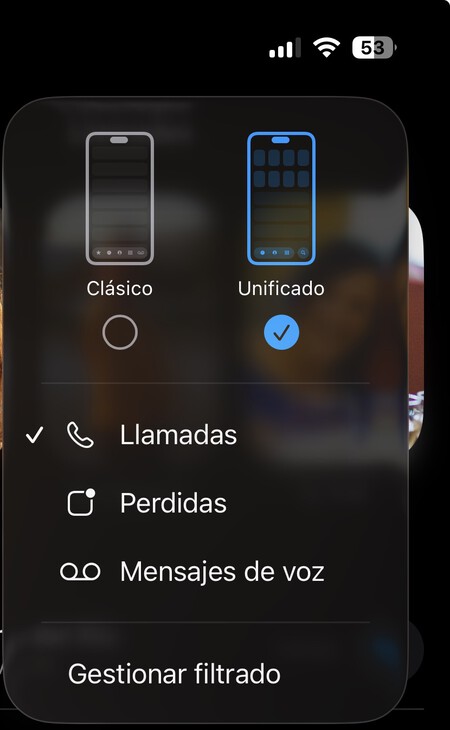
The Phone app now features a new design called Unified. This design effectively combines your favorite contacts and call logs onto the same screen for better organization. Favorites will appear prominently at the top, followed by the call list. You can toggle between this new design and the classic one anytime.
Instant Translation in Calls
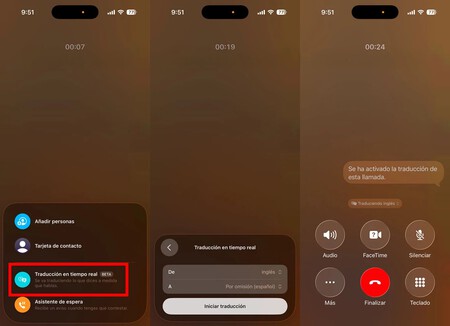
If you frequently make calls with people who speak different languages, you will now have the option to set up simultaneous translation. This allows an AI to interpret and translate what is being said in a specific language into the language of your choice, such as Spanish.
To use this mode, you first need to place or answer a call. Then, tap the call options and select the Real-time Translation option from the menu that opens. You will have to configure the desired language, and that’s it; Siri will display the translation on the screen.
You Can Also Translate Video Calls and Messages
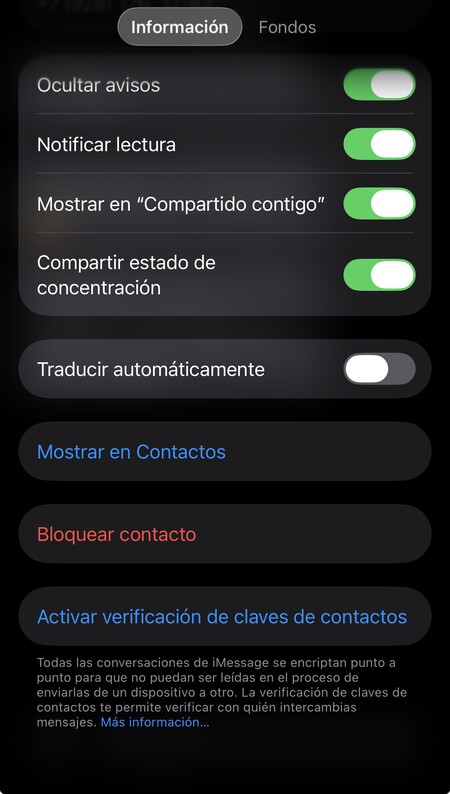
The real-time translation feature is also available for FaceTime, so during a video call, you can see a text representation of what is being said. You can also enable it in Messages, by tapping the contact’s name to access settings and activate instant translations for the texts they send you.
Enable or Disable the Compact Design in Safari
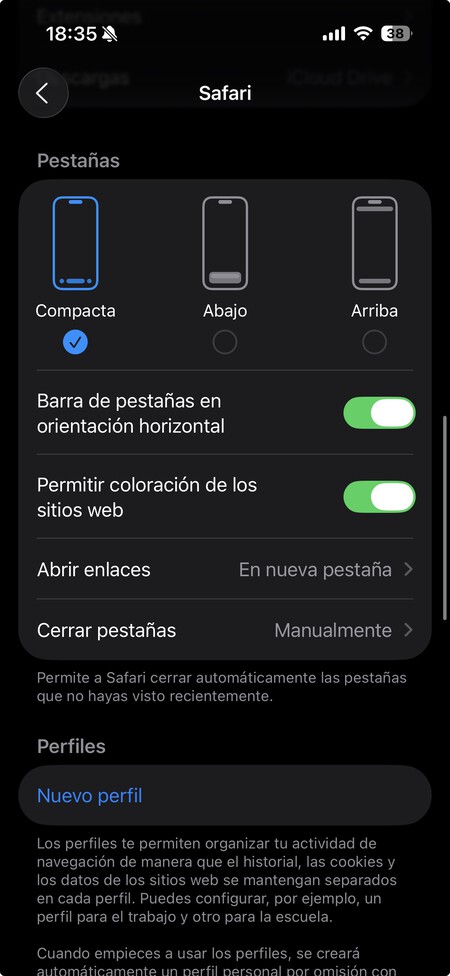
The Safari browser features a new design where the top bar is floating and disappears when you browse a website. If you’re struggling to get used to it, this is something you can easily change back to the classic look of the browser. You can also do this if this design isn’t activated and you want to try it.
To do this, enter the settings, go to the Apps section, and tap on Safari. Scroll down to where it says Tabs. Choosing the Compact option will activate the new Safari design. To deactivate it, select the Bottom or Top options, depending on where you prefer the address and search bar to be.
Personalize the Photos App
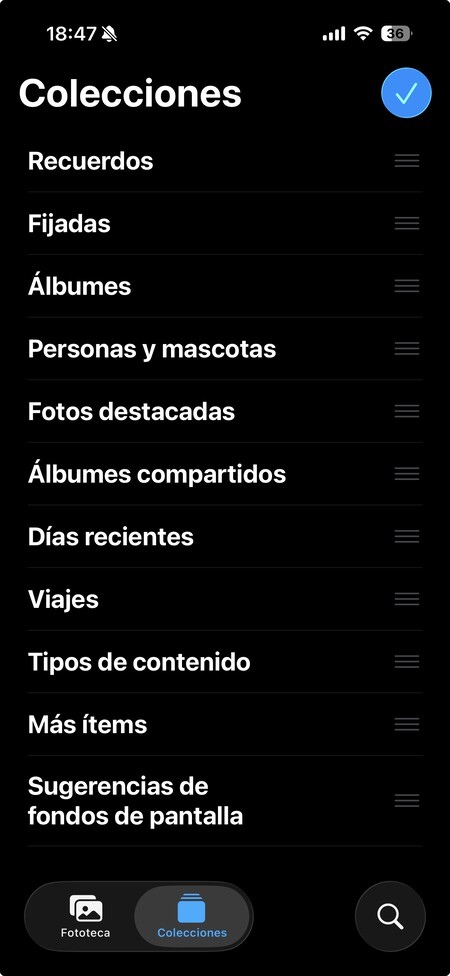
The Apple Photos app is now reorganized and is no longer a mix of content. You have two tabs, one exclusively for your photos and videos and another for collections, albums, memories, and all this personalized content.
You can rearrange the Collections tab as you wish by tapping the three dots icon at the top and selecting the Rearrange option. This allows you to change the order of the items in the tab to prioritize and place the ones that interest you the most at the forefront.
Activate AI Battery Saver
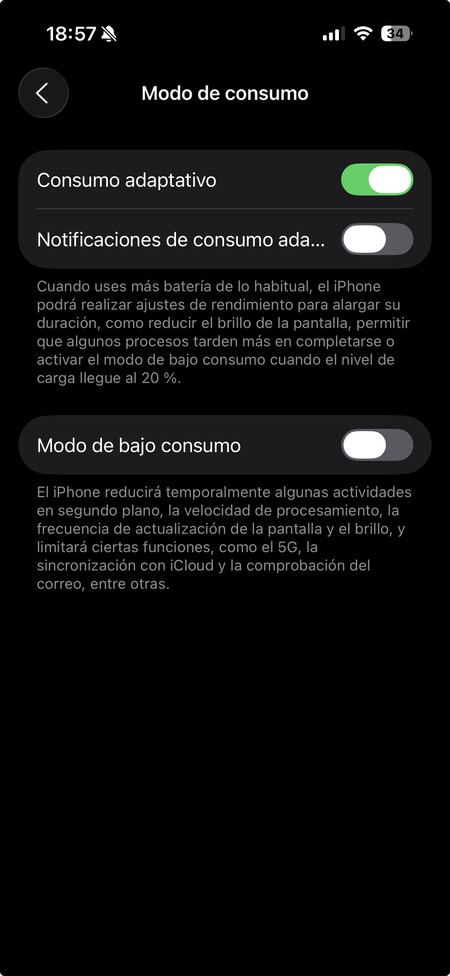
Apple has added a new battery-saving mode in iOS 26. This mode uses artificial intelligence to adapt the phone’s resources based on usage context, allowing for a bit more autonomy. This mode only activates when it detects that you are consuming more than usual.
This adaptive consumption mode may be activated by default, though not always, so it is wise to check it by going to settings and tapping on the Battery section. Here, go to Power Mode, where you need to activate the Adaptive Consumption toggle, which is the name of this feature.
A Reminder for When the Camera is Dirty
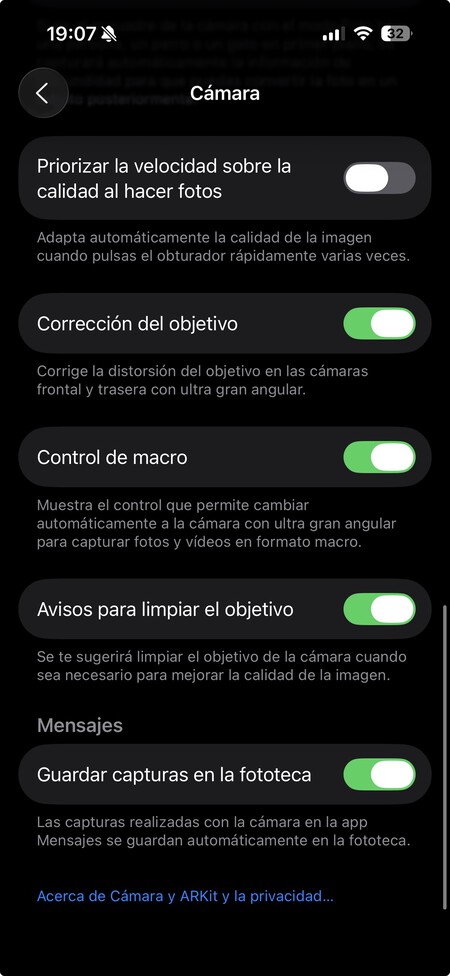
Sometimes, you might go to take a photo only for it to turn out poorly because the camera lens is dirty, and you didn’t realize. This is easy to overlook, as you might have inadvertently left a fingerprint. However, iOS 26 gives you notifications alerting you to this issue, prompting you to clean the lens.
To activate this feature, go to settings and select the Camera section. Here, you’ll need to enable the Lens Cleaning Alerts, which will appear near the bottom of the menu.
All Your Games in One App
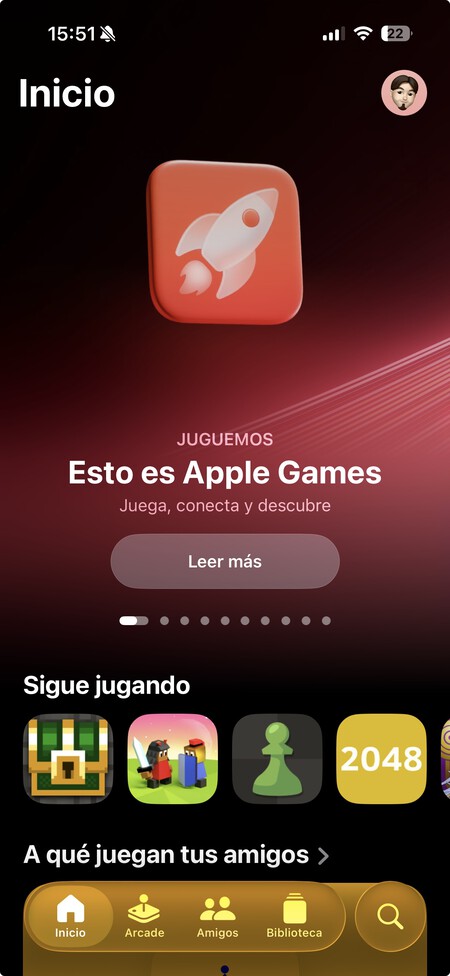
The upgrade to iOS 26 has introduced a couple of new applications. One of them is Games, which acts as a launcher for all the games you have installed but also offers much more. Forget about cluttering your screen with a games folder.
This app includes various functionalities. Firstly, it provides a library with all your installed or played games, allowing you to start a game or download them. There are also sections for achievements and events related to your games, access to Apple Arcade, and a Friends section to challenge your contacts to specific titles.
Maximize the Preview App
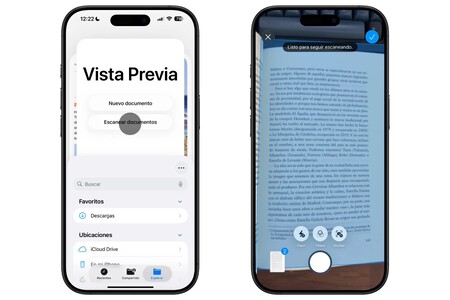
The new application, called Preview, allows you to carry out various document-related tasks. The primary function includes scanning documents, as soon as you open the application you will directly go to this feature. You can take a photo to digitize them and even convert them to PDF.
Additionally, you can create blank documents to write or draw by hand, edit PDF documents and fill them out if necessary, or combine several PDF documents into one. You can also view all saved documents.
Genmojis and Image Playground Level Up
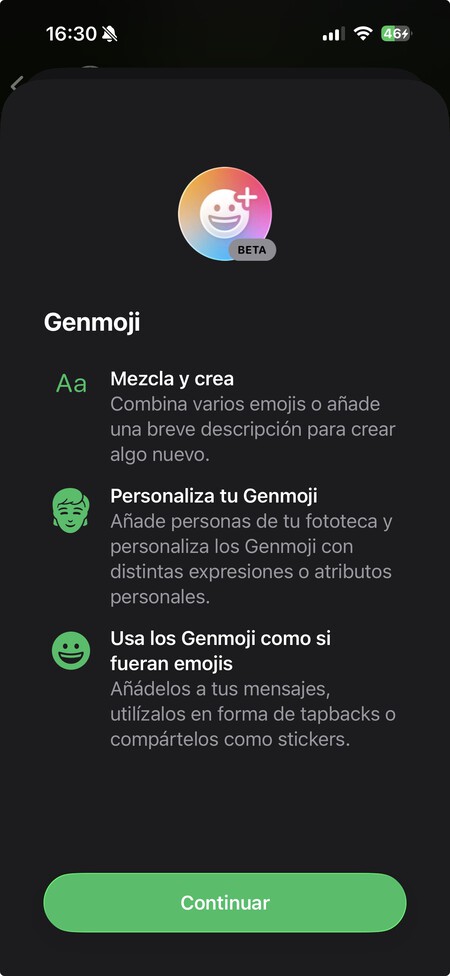
If you are someone who enjoys creating genmojis or images with AI directly on your iPhone, there are new features. You can now create a Genmoji by mixing two emojis or combining one emoji with a description to create something from an existing emoji.
Moreover, you’ll have the option to select expressions for the Genmojis, such as happiness or surprise, modify attributes like hairstyle or beard, and apply more styles using ChatGPT, such as oil painting or anime. There’s a lot to experiment with and explore.

Follow Your Favorite Teams’ Results
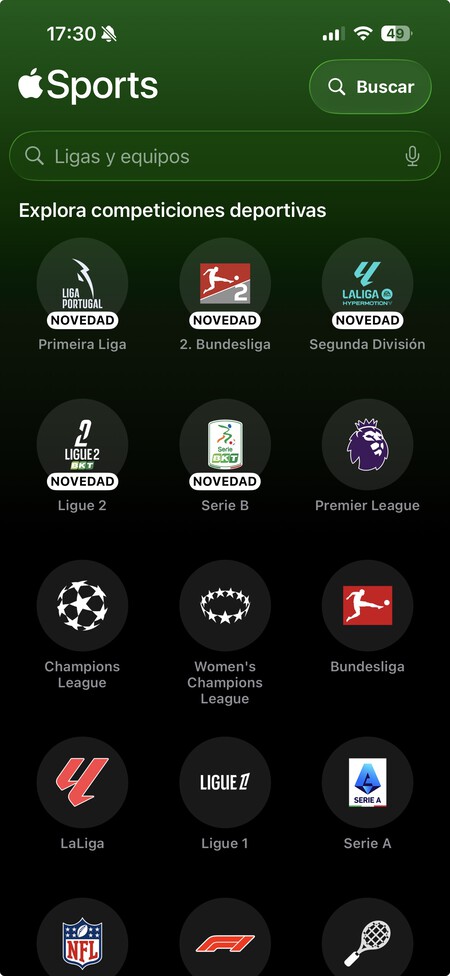
Apple has also launched a new application called Sports. It is one of those apps for soccer results, but created by Apple, offering a less complete but free and ad-free alternative. With it, you can set up your favorite teams and see the results of their matches.
With this app, you can view scores from various football competitions, including different leagues and international tournaments. You can also follow teams from other sports like tennis, Formula 1, the NBA, and several U.S. competitions. Additionally, when you select your teams, you can add a widget to the screen to keep them always visible.
In Xataka Basics | Customize your iPhone with iOS 26: how to take advantage of the new icon and lock screen designs.