

Today, we will explain how to prevent Google Maps from draining your battery while using the application as a GPS in your car. It’s common knowledge that mobile devices consume more battery when running applications like Google Maps continuously, as they utilize a significant amount of resources and chips.
However, there are several strategies you can implement to ensure that battery consumption is not excessively high . While you shouldn’t expect miracles, these tips can help extend your device’s battery life during extensive use of the app.
Use Dark Mode
One significant issue with using Google Maps as a GPS is that the screen remains constantly active. A simple way to reduce battery drain while the screen is on is to enable dark mode within the app. This feature modifies the Maps interface to darker tones, decreasing the amount of light emitted and thereby conserving battery.
To enable dark mode on your Android or Apple device, open the Google Maps settings by clicking on your profile photo. From there, locate the Dark mode option and toggle it on.
Be Mindful of Apps Running in the Background
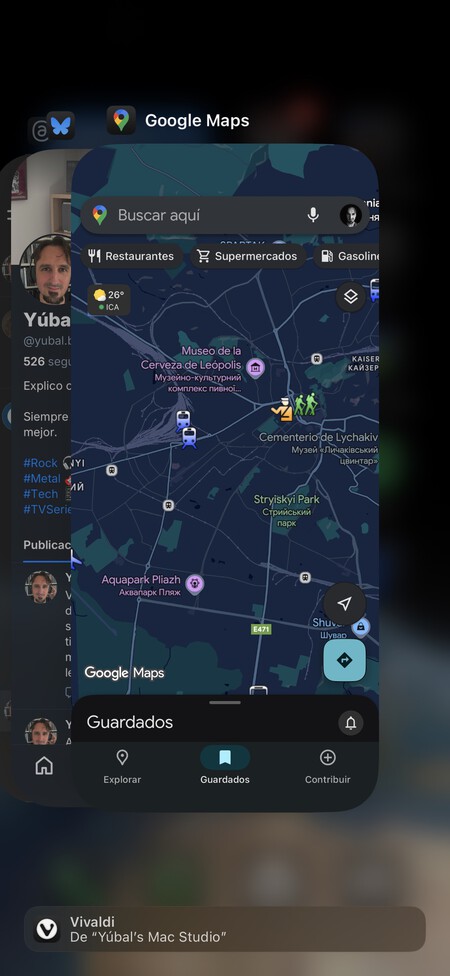
This advice is crucial for any mobile usage but becomes particularly important when you will be using one specific app for a long duration, like Google Maps. It’s beneficial to close any other applications that are not in use and consuming battery in the background.
Typically, it’s advised to force-quit apps, as leaving them open can lead to higher battery drain whenever they are reopened. However, if you’re driving and need Maps together with a music application, you can close all other unnecessary apps to keep the battery consumption lower.
Restrict Maps Running in the Background
If you pause your usage of Google Maps at any point during your journey but leave the application open for future navigation, it will remain active in the background, leading to battery drain.
On Android, you can manage its background operation. Go to your device’s settings, access the Applications section, and find Maps. Within the app settings, click on Battery and then select Restricted. Activating this mode will significantly reduce Maps’ battery consumption while running in the background.
Utilize Battery Saving Mode
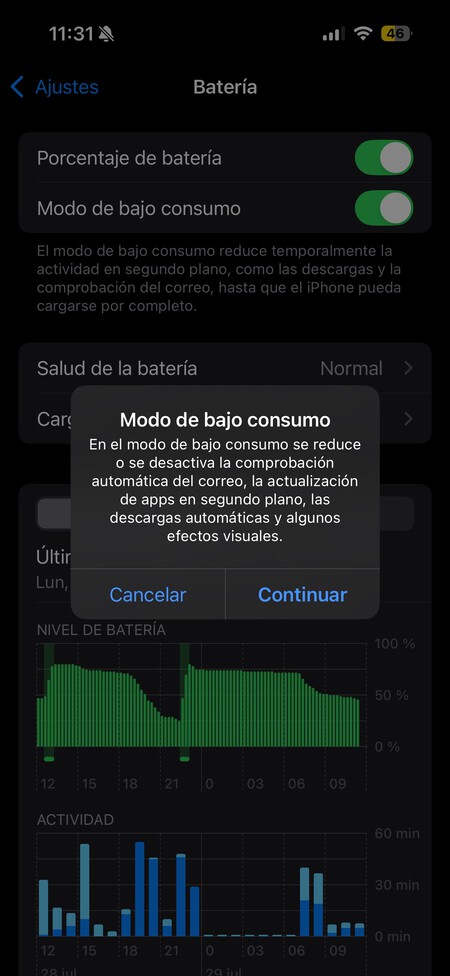
Most smartphones come equipped with a battery-saving mode. This feature is optimized by the operating system and can be beneficial when your battery level is low. This mode may affect your Google Maps experience, but it will primarily manage system resources more efficiently.
Activating this mode will impact aspects such as network usage, screen brightness, visual effects, and background applications. Consequently, Google Maps may function more slowly and the screen will appear darker, but the battery conservation will be significant. This feature can be found in the Battery section of your device’s settings.
Leverage Offline Mode
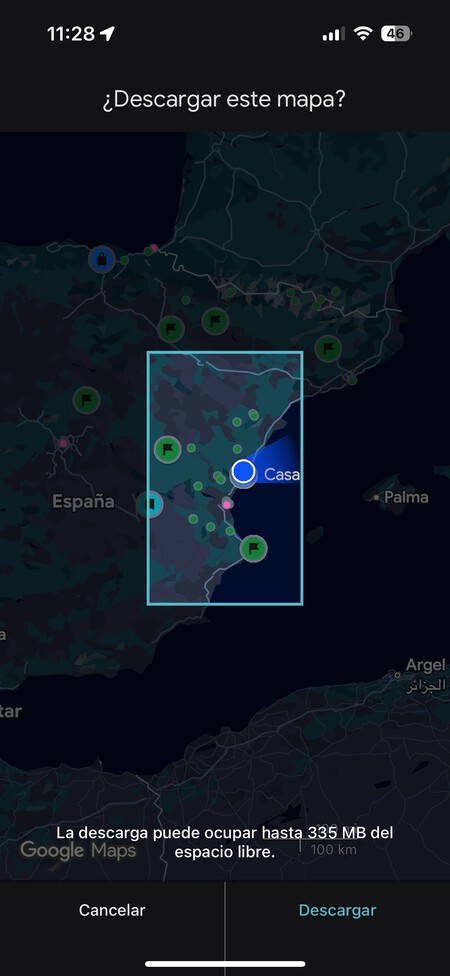
One major reason Google Maps drains your battery is that it constantly connects to the Internet for real-time updates. To mitigate this issue, it’s highly recommended to take advantage of offline mode by downloading maps for the areas you plan to navigate.
To download maps, click on your profile picture on the top right corner in Maps, and select Maps without connection. You can then choose the map area you wish to download for offline use.
If you’re planning to listen to music during your drive, consider downloading your music playlists onto your device. This way, your phone won’t need to connect to the Internet for streaming music, further saving your battery life.
By implementing these practical tips, you can significantly reduce battery consumption while using Google Maps, allowing for longer journeys without the worry of a dying phone. Adopting these habits not only enhances your experience but also ensures that your GPS remains an efficient tool throughout your travels.