
How to Reserve Your WhatsApp Username: A Step-by-Step Guide
After months of anticipation, WhatsApp has finally started allowing users to reserve their usernames. This feature is an exciting addition, enhancing user privacy while allowing a more personalized way to connect. In this article, I’ll walk you through the process of reserving your username, activating your privacy key, and share some obstacles I faced along the way.
How to Reserve Your Username on WhatsApp
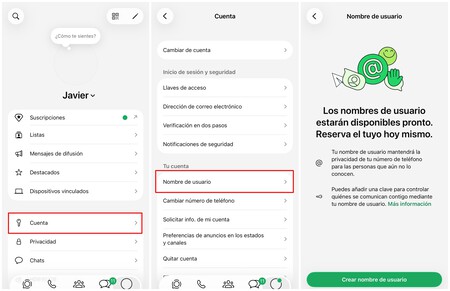
To kick off the reservation process, follow these simple steps:
- Open WhatsApp: Start from the main screen of the app.
- Navigate to Your Account Settings: Tap on the “You” tab beside “Chats” located at the bottom of your screen.
- Select Account: From the list of options, tap on “Account.”
- Find Username Option: In this menu, you’ll see “Username” appear as a new feature. Click on it.
Once you’re in the username section, you’ll notice that WhatsApp clarifies that usernames aren’t fully available yet. However, they can be reserved for future use. This gives you a chance to claim your desired identifier before the feature is rolled out to all users.
Choosing the Right Username
When I attempted to create my username, I opted for my first name—an instinctive choice, to keep it simple. However, my enthusiasm was met with disappointment as I received a notification stating, “This username is only available on WhatsApp Business.” This was an eye-opener, revealing that some names might be reserved for business accounts only.
Next, I tried my last name, which I presumed would be an available option. I was mistaken. The response was, “Username is not available.” At this point, I realized that creating a unique yet simple username could be a game of trial and error.
After several attempts to find the right combination, I finally settled on a username that was satisfactory but not ideal. Nonetheless, I successfully reserved it, receiving the confirmation message, “Username reserved.”
Activating Your Privacy Key
A vital aspect of the new username feature is its privacy setting. By default, the configuration allows “Everyone” to contact you using your username. To enhance privacy, you need to activate the option for “People who know my password.”
- Select Privacy Settings: Under “Contact me by username,” you can toggle this setting.
- Generate a Privacy Key: When you switch to “People who know my password,” WhatsApp generates a key that acts as an additional layer of security.
- Save Your Key: This is crucial! Simply viewing the key won’t activate the setting; you need to click “Save key” for it to be registered.
Having this key adds an extra filter, ensuring that only those who know both your username and password can initiate a chat with you.
Common Obstacles and Tips
During my experience, I encountered a few hurdles that might help you navigate the reservation process:
Feature Availability: The username feature is rolling out gradually. If you don’t see the option, don’t worry—you’re not alone. Keep your app updated, and try again later.
Name Reservation Limitations: Not all names are available to personal accounts. Some names may be tied to business accounts or existing names on Instagram or Facebook.
Username Choice: If you’re struggling to find an available username, consider combining initials, numbers, or other unique identifiers rather than simply opting for a common name.
Conclusion
Reserving a username on WhatsApp is a straightforward process, though not without its challenges. The additional privacy features are designed to protect users but require careful setup. Remember to save your privacy key to ensure that only trusted contacts can reach you through your reserved username. With patience and a little creativity, you’ll successfully secure a username that fits your personal brand while maintaining your privacy. Happy reserving!