
Measuring distances in Google Maps can be a valuable tool for various purposes, from planning a trip to understanding distances between landmarks. This guide will demonstrate how to measure distances effectively on both the Google Maps website and the mobile app.
How to Measure Distances on the Google Maps Website
Using the Google Maps website is straightforward. Follow the steps outlined below:
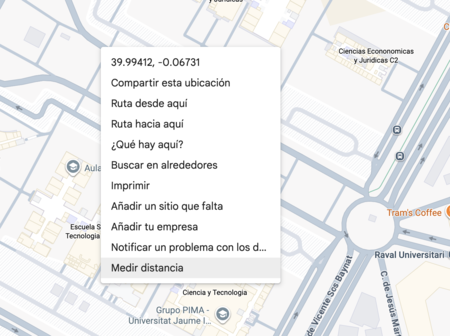
- Right-click on the starting point: Open Google Maps and position the map to the area you want to measure. Right-click on a specific location to reveal a context menu.
- Select ‘Measure Distance’: In the menu that appears, click on the measure distance option located at the bottom.
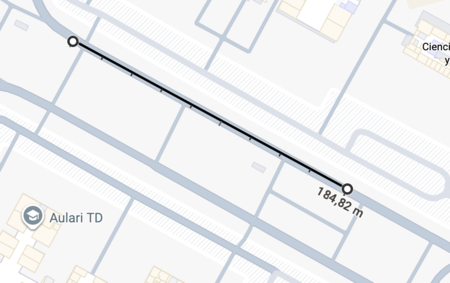
- Click on another point: Now, click on a different location on the map to create a straight line between the two points. This will create a virtual ruler that displays the distance between them.
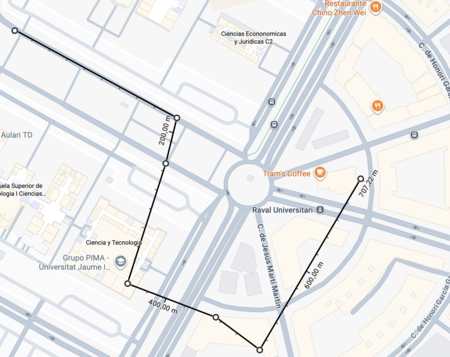
To add more points, click on each subsequent location on the map. Doing so will update the distance, allowing you to see the total measuring the sum of distances.
How to Measure Distances in the Google Maps App
The Google Maps mobile app has a slightly different approach, primarily focusing on the total distance rather than actions for each point. Here’s how to measure distances using the app:
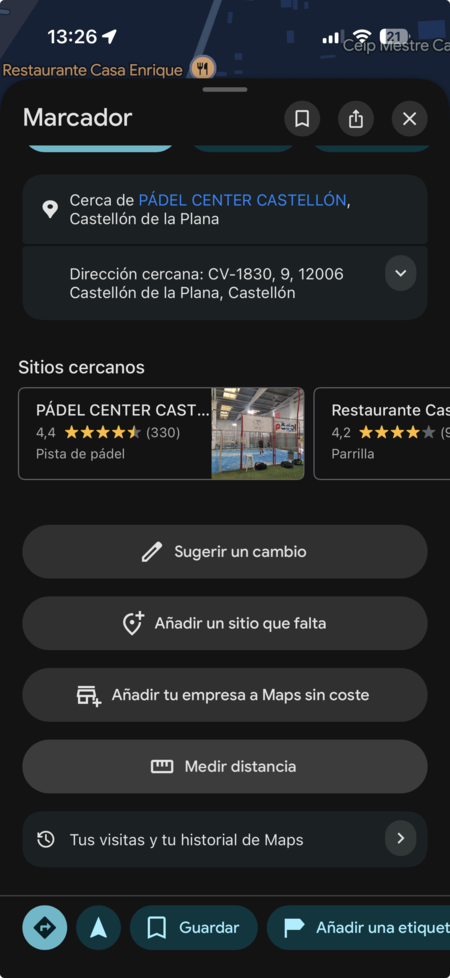
- Select the starting point: Tap on the map where you want to begin your measurement. This action will prompt a menu to appear.
- Choose ‘Measure Distance’: Tap on the measure distance option available at the bottom of the menu.
- Add additional points: A target will appear to help you accurately place new points. Move the target to the new location and select Add point to include it. Repeat this for as many points as you need.
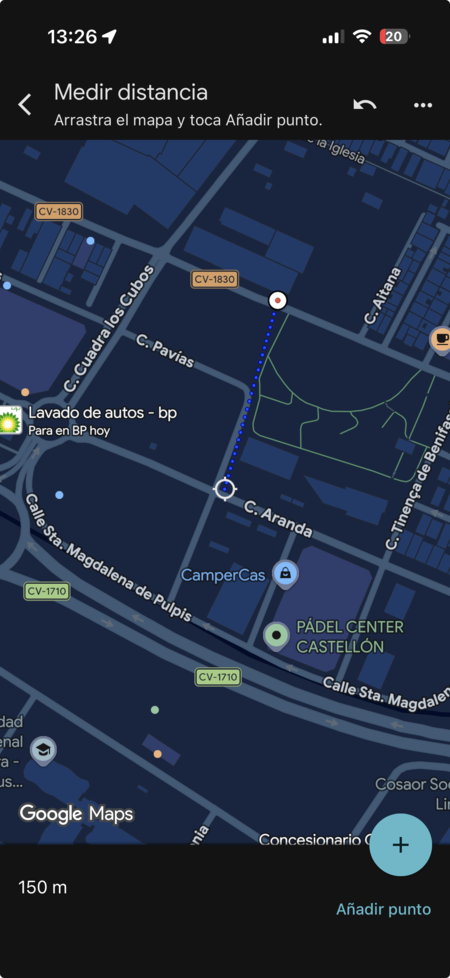
At the bottom left of your screen, the total distance of all points measured will be displayed, providing a convenient overview of your measurements.