

Let’s explain to you how to turn a Chromecast into an antenna for DTT so you can watch it on any television. If you have one of these devices lying around the house, you can repurpose it effectively and carry it with you on trips, especially when visiting places that have older TVs.
The Chromecast is no longer sold, as Google discontinued it in 2024, but you might still have one at home. While we won’t literally turn it into an antenna, what we will do is install the necessary applications that allow you to connect it to a television and watch DTT (Digital Terrestrial Television). To get started, make sure your device is either a Chromecast with Android TV or Google TV so you can install the needed apps.
Your Chromecast Converted into a DTT Player
The first step is to install an app that enables you to upload and play an IPTV list on your Chromecast. Some of the most renowned applications for this purpose include Kodi or VLC, with more specialized options like Wiseplay. Applications like TDT Channels are also available, but Wiseplay is user-friendly and should suffice for most needs.
Once you’ve successfully installed your chosen application, you will need to add an IPTV list. It’s crucial to note that while using IPTV lists isn’t strictly illegal, some may host content that could lead to complications. Therefore, it’s advisable to opt for free IPTV lists that exclusively provide DTT channels.
Some of the main IPTV lists available for download include those outlined in a detailed guide on Xataka Android: IPTV.org, which is accessible on its GitHub page, and Free TV, also retrievable on GitHub.
These lists contain the necessary information to access the broadcasts of IPTV channels via remote IP addresses. The common formats include m3u, m3u8, or w3u, which is why they are frequently referred to as “m3u Lists.”
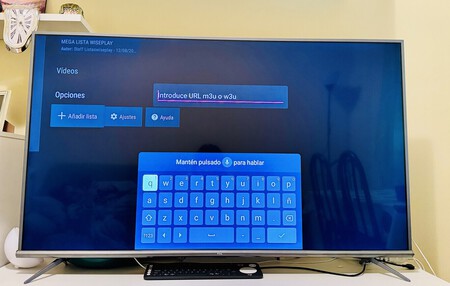
Image by Eva R. de Luis
To do this, simply open the application you’ve selected (e.g., Wiseplay) and navigate to the section for adding a new list. You’ll be taken to a screen where you can type in the URL for your chosen list. Here, you need to paste the address from the list which you have identified, or the m3u or w3u file, and it will be incorporated into the app.
With this setup, you can now stream any DTT channel available on this list through your Chromecast. It’s important to note that you will need an active Internet connection, which can also be achieved by sharing your mobile data.
There you have it! With these straightforward steps, you have successfully transformed your Chromecast into a device for watching DTT. You can now carry it wherever you go, ensuring you have access to local or regional channels, regardless of the TV you encounter.
In Xataka Basics, we also cover details on how to watch football for free on DTT, including all channels broadcasting LaLiga EA Sports this season.