
Let’s explain How to install the digital certificate on your computer with Windows, so you can use it at any time. The digital certificate is a useful tool for administration procedures . The most common is that of the FNMT, but you can also use the ID certificate .
You can request your FNMT digital certificate easily and even install it on your mobile. Of course, you will also be able to install it on your computer, and this is exactly what we are going to teach you step by step. You will see that it is very simple.
Install the Digital Certificate in Windows

</div>The first thing you have to know is that the name of your certificate is important and you should not change it. It first has your last name and name, followed by a series of numbers that are the password needed to install it. To start, simply double-click on the certificate file.

</div>By double-clicking on the certificate, the computer assistant will open. First, choose the warehouse location, which can be set for the current user (for personal use) or as a local team (for use by all users on the computer).

</div>In the next step, choose the Certificate address. As you’ve initiated this process, the field will be automatically filled; you just need to click Next. Then, you must enter the certificate password, the numbers that follow your last name and name in the file name. In the import options, there is no need to make changes, but remember, the password is vital .

</div>You can select the certificate warehouse if you wish, but it is advisable to let Windows automatically select it, which is the default option. Simply click on Next.

</div>Now Windows will show you a summary of everything you have chosen, and you must click on Finish to complete the installation process.
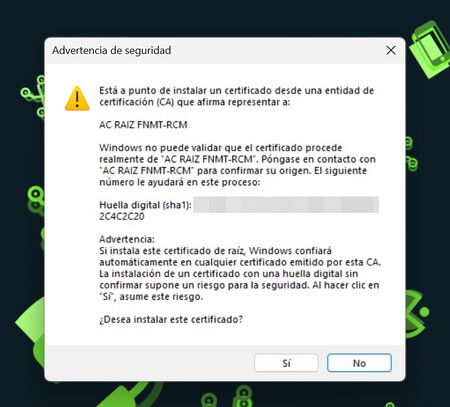
</div>Finally, it is possible that Windows will show a warning indicating that it cannot validate the authenticity of the certificate, and that you need to trust it. Here, select Yes, and you will finish installing the digital certificate.