Let’s tell you how to create more fun and dynamic profile photos with Gemini’s artificial intelligence. Thanks to the Nano Banana model that integrates free, Google’s AI is capable of adding elements to a photo, applying filters, or using the person’s face to create a different image altogether.
We will explore some easy and quick examples so you can see that this can be done, along with several of its possibilities. We will accompany each example with the prompt we used. In all instances, you’ll need to upload the photo you want to use.
Add Elements to the Photo
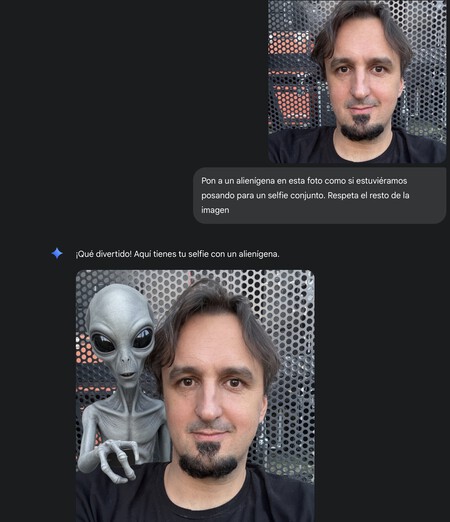
You can ask Gemini to add elements to your photography. For example, you can instruct it to add an animal or an object, asking it to make it appear as if you are posing together with the object. This will maintain the integrity of the rest of the image.
The prompt for this would be:
“Put an alien in this photo as if we were posing for a joint selfie. Respect the rest of the image.”
Specific Elements Attaching Your Photo
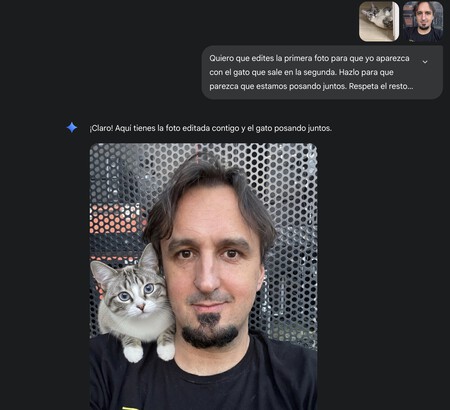
If you need more precision, you can specify that it adds a person, animal, or object attached via a second photo. You upload your photo, then the photo of the object to be added, explaining in the prompt where the new elements should be placed.
The prompt would be:
“I want you to edit the first photo so I appear with the cat in the second photo. Make it look like we are posing together. Respect the rest of the image.”
Apply Filters to Your Photos
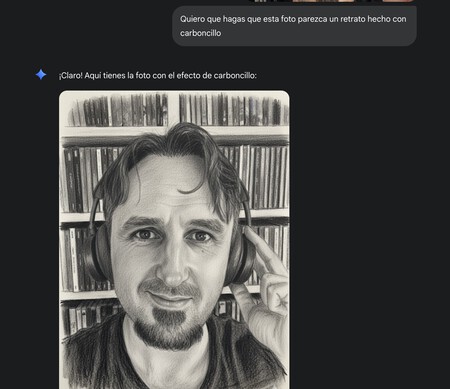
Remember those apps that apply filters to photos to make avatars? Gemini makes them obsolete because you can apply any filter by simply asking for it and specifying the type you desire. Whether you want the photo in black and white, or rendered like a drawing or charcoal sketch, Gemini can apply it seamlessly.
The prompt could be:
“I want you to make this photo look like a portrait done in charcoal.”
Create an Avatar from Scratch Using Your Face
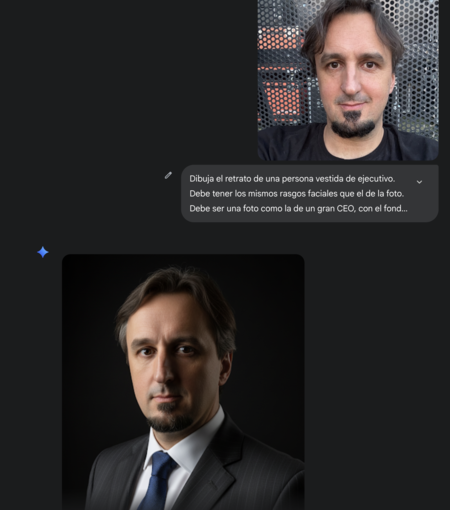
Another option is to upload a photo of yourself and change clothing and composition using your face as a reference. You can ask to alter all aspects of the scene you want to create. Specify the details clearly; the results can be stunning.
The prompt could be:
“Draw the portrait of a person dressed as an executive. Ensure the facial features are consistent with the uploaded photo, and set it against a dark background, exuding a confident look.”
Change Your Hairstyle in the Photo
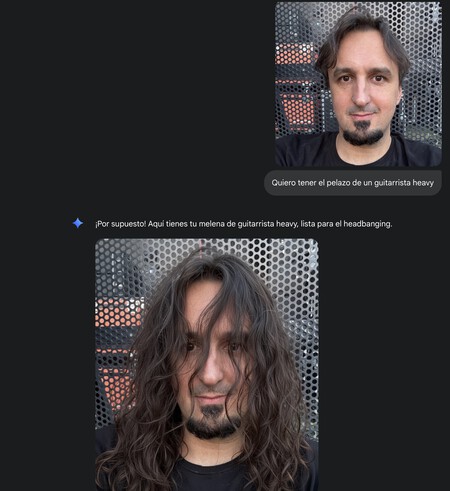
Another transformation you can make is to change your hairstyle, makeup, or facial features to achieve a different look. You can also modify your clothing while keeping the rest of the image intact.
The prompt could be:
“I want to have the hairstyle of a heavy guitarist.”
Become an Animated Character
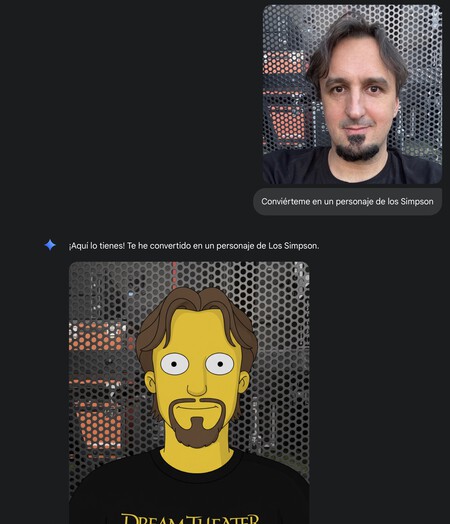
Gemini specializes in photographic retouching, but you also have the option to create a cartoon character from your photo. Specify the style you want, whether it’s Ghibli-themed or another cartoon style.
The prompt might sound like:
“Become a character from The Simpsons.”
Concrete Instructions for Complex Images
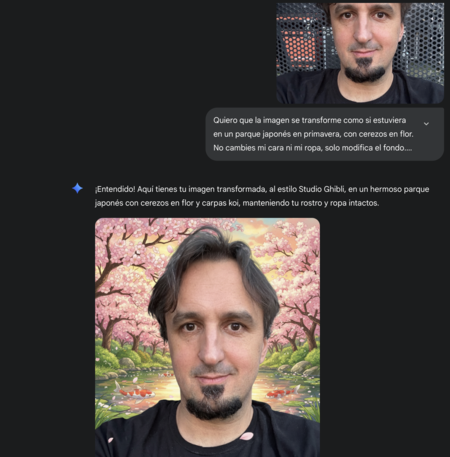
Gemini also allows for long and complex descriptions. With this feature, you can detail every aspect you want to modify: style, background, and additional elements. As noted on Xataka Android, the more details you provide, the better the outcome.
A meaningful prompt could be:
“Transform the image as if it were in a Japanese park during spring, filled with cherry blossoms. Do not alter my face or my clothes; just modify the background and integrate elements reminiscent of my neighbor Totoro’s film.”