
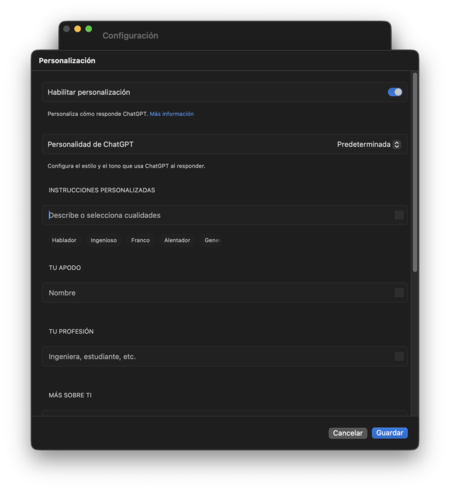
Let’s explore how to customize ChatGPT to make it work the way you want. This powerful AI tool allows you to tailor its responses and communication style to suit your preferences. All adjustments can be made within the application settings, ensuring a more personalized user experience.
Customization options are extensive, but remember that these features are optional. You can easily enable or disable personalization, giving you full control over what changes take effect.
Customize How ChatGPT Responds
Inside the ChatGPT settings, there’s a section called Personalize. Here, you can define how the AI communicates with you. One of the essential adjustments you can make is to configure the AI’s general personality.
ChatGPT Personality
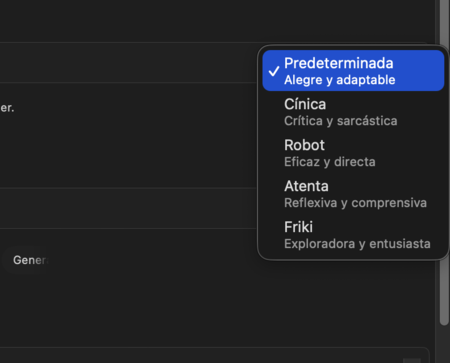
By default, ChatGPT’s personality is happy and adaptable, but you can choose from four different styles:
- Cynical: Responses will have a critical and sarcastic tone.
- Robot: Responses will be delivered in a direct and efficient manner.
- Attentive: Responses will exhibit a thoughtful and understanding tone.
- Geek: Responses will be exploratory and enthusiastic.
Custom Instructions
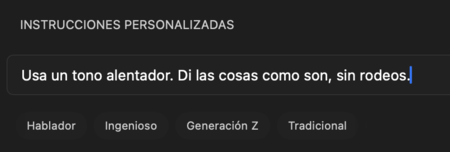
If none of these preset personalities resonate with you, you can manually customize the tone through the Custom instructions section. Here, you can write specific guidelines for how you’d like ChatGPT to respond, ensuring a more tailored interaction.
Define What ChatGPT Knows About You
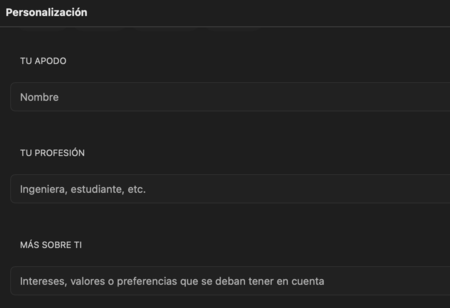
Under the personality settings, you’ll find various fields to share personal details. For instance, you can specify a nickname that ChatGPT will use to address you, making interactions feel more conversational.
Additionally, you can enter Your profession which allows the AI to tailor its responses in a way that utilizes your specific knowledge and expertise. You can also share More about you, detailing your interests and values. This feature helps ensure that the AI’s responses are relevant and considerate of your personal beliefs.
Manage ChatGPT’s Memory
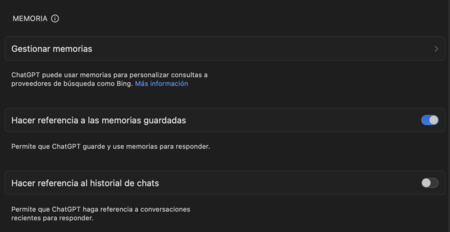
You also have access to a memory section. As you interact with ChatGPT, it can remember details about you, including personal interests or previous questions, potentially enhancing your user experience. If you wish to review this information, just click on Manage memories to see what ChatGPT has noted and modify as needed.
If you’d prefer not to have memories stored, you can easily disable this option. This gives you more control over your data and the information the AI references during conversations.
Ultimately, with these customizable settings, ChatGPT empowers you to tailor the AI to your unique needs. You can activate or deactivate features at will, allowing for a highly flexible user experience.