
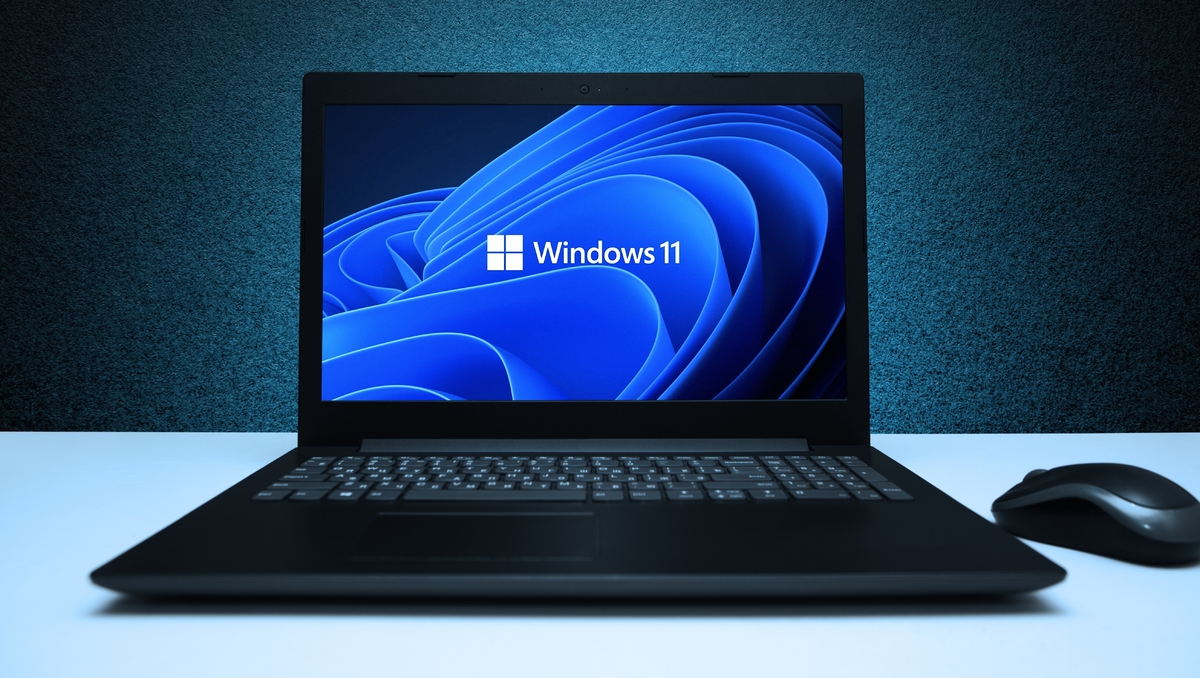
Welcome to Your New Windows 11 Laptop
Unpacking a brand-new laptop is an exhilarating experience. The fresh smell, the sleek design, and the promise of improved productivity can leave anyone excited. However, before diving into the world of applications and files, it’s essential to take certain steps to optimize your Windows 11 experience. Here, we provide you with an essential guide to ensure your new device runs smoothly, efficiently, and remains secure.
Removing Bloatware
What exactly is bloatware ? This term refers to the unwanted software pre-installed on your new laptop, which usually occupies valuable storage space and can slow your system down. Major manufacturers often partner with software companies to bundle certain applications, creating a less-than-ideal user experience.
Just like you wouldn’t keep an unwanted piece of furniture in your home, you should not hesitate to uninstall bloatware . Head to the “Settings” menu, and click on “Apps.” Review the list and remove any unnecessary trial versions of antivirus software, optimization tools, or social media shortcuts. Windows 11’s built-in Security app is typically sufficient for most users.
Battery Charge Management
A somewhat counterintuitive but essential tip for long-term laptop users is to restrict your battery’s maximum charge to 80% . This practice prolongs your battery life, especially for those who tend to keep their laptops plugged in.
Different manufacturers provide various tools to limit battery charge. For instance, HP and Microsoft include options in their BIOS settings, while other brands might have dedicated applications like MyAsus or Dell Power Manager.
Setting Up a System Backup
In 2025, the adage “better safe than sorry” remains true. Regularly backing up your data is essential. Instead of dragging files into a folder for safekeeping, consider creating a system image backup that captures not just your files but also all your settings at a specific point in time.
Microsoft provides built-in tools within Windows 11 that make creating system images easy. Utilize the “Recent Backup” option or the older “Backup and Restore (Windows 7)” tool to ensure your data is always secured.
Essential Software
The default experience on Windows 11 can feel somewhat limiting when it comes to customization. Luckily, a vibrant online community offers various applications that transform your usability experience. One must-have is PowerToys . This collection of tools enhances the Windows environment, offering functionality like advanced window management, image resizing, and keyboard shortcuts.
Final Thoughts
Starting fresh with a new laptop can be an overwhelming experience, but taking these initial steps will ensure a smoother journey. By removing unnecessary bloatware, managing battery life, regularly backing up your system, and customizing your software experience, you can fully leverage the capabilities of your Windows 11 device. Whether for work or leisure, a well-optimized laptop can enhance productivity and enjoyment. As you familiarize yourself with your new computer, stay open to exploring its features and customizing it to fit your needs.