
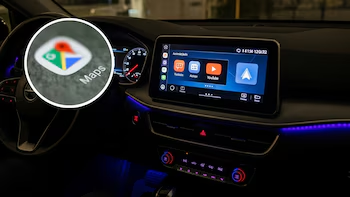
Is Google Maps no longer available on your Android Auto after a recent update? This situation has baffled many drivers as they face the sudden disappearance of the world’s most popular navigation app. However, there’s a quick and straightforward solution to restore it.
Quick Fix When Google Maps Disappears from Android Auto
The issue that leads to Google Maps becoming invisible on Android Auto typically occurs after installing the latest system updates or app upgrades. It’s not uncommon for software updates to create temporary incompatibilities, resulting in driver frustrations.
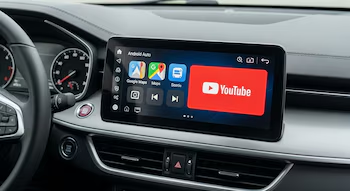
Many users have noted the absence of Google Maps on their car screens, complicating route planning and real-time traffic updates. Although Google hasn’t issued an official clarification on this issue’s cause, it’s likely a bug introduced by the recent update. Thankfully, this error can usually be rectified without any need for a developer’s intervention.
The key to restoring Google Maps is to clear the cache memory for both Google Maps and Android Auto. This procedure eliminates temporary files, allowing the applications to run smoothly again.
How to Clear the Cache of Google Maps and Android Auto – Step by Step
To clear the cache of both applications, follow these steps on your mobile phone:
- Open the general settings of your device.
- Select the applications section.
- Find Google Maps in the list and enter the storage section.
- Tap on the option to clear the cache.
You’ll need to repeat this process for the Android Auto application as well. Once you’ve completed these steps and reconnected your device to the vehicle, Google Maps should appear again on the screen, making its navigation functions available.
Android Auto Updates and Their Impact on Applications
Android Auto is a continually evolving platform with frequent updates aimed at enhancing the driving experience. While many updates fix bugs and introduce new features, these changes can also lead to essential apps like Google Maps becoming temporarily inaccessible.
Users are encouraged to stay updated on developer announcements regarding forthcoming updates, which often contain fixes for detected bugs. Nevertheless, in many situations, understanding how to clear the cache of these applications can be a quick remedy.