
Let’s explain to you how to create a spreadsheet with your expenses using artificial intelligence. Specifically, we will put all your purchase receipts in a folder, and have the AI read them, extract the totals, write them down in the spreadsheet, and then add the grand total.
It seems complex, but it is easier than it appears. For our example, we will use the PDF tickets sent to you via email when you configure the Mercadona digital ticket; however, you can also use photographs of the tickets. For the spreadsheet, we will use LibreOffice, a free and open-source alternative to Office.
To perform these actions, we will utilize Claude Cowork, an AI assistant that can perform actions on your computer. The downside is that using this tool requires a paid account, but the advantages of its capabilities are well worth the investment.
While there are online workflow tools that allow automation, we will be discussing this simpler local method, as it minimizes data shared with third parties.
Make Preparations First
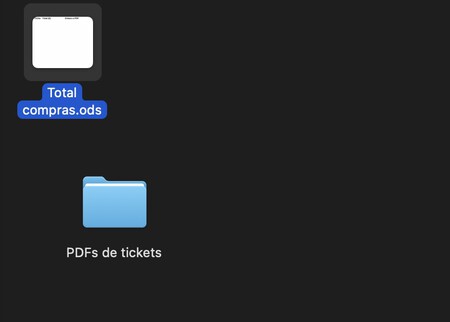
Organization is key for this task. Begin by opening your file explorer and creating a folder, which we will call “Tickets.” Inside this folder, create a subfolder for your digital tickets named “Ticket PDFs,” as well as your spreadsheet file called “Total Purchases.”
Next, let’s create the basic structure of the spreadsheet to make it easier for the AI to understand what we need. In the spreadsheet, include a column for the date, the total of the ticket, and a column to insert the link to the PDF for each entry. You can customize this as required.
Now, simply place your PDF tickets in the designated folder we created. You can manually input them and update it with new tickets as they arrive. We will discuss how to instruct the AI to handle updates later.
This technique has extensibility; for instance, you can add a specific column in the spreadsheet for the name of the supermarket to manage expenses across multiple stores, or create separate sheets within the same file for each store. The complexity is up to you!
Now Ask AI to Do the Work for You
It’s time to utilize Claude. Open the Claude application on your computer and select the option for cowork. Begin by clicking on Work in a folder. Navigate to the folder where you stored the PDFs and the spreadsheet file, allowing the AI to operate exclusively in this space without altering other files on your computer.
Next, write a prompt instructing the AI on what you want it to accomplish. For example, you might say:
I want you to analyze all the PDFs in the “Ticket PDFs” folder. These are purchase tickets. Please extract the date and the total spent, placing them in the “Date” and “Total (€)” columns of the “Total Purchases.ods” file. Additionally, create a link in the PDF Link column that opens the corresponding PDF.
This prompt is flexible and can be customized based on your spreadsheet’s structure. Always specify which columns the data should go into, and the AI can even perform calculations or use functions from the program you’re working with.
Now, wait a few minutes for Claude to process your request. Upon completion, you will see your spreadsheet updated with the new information. If any adjustments are needed—such as adding links or fixing errors—you can inform the AI, and it will correct them.
Once the initial work is done, you can ask the AI to add a total column below your entries. Moreover, when new tickets come in, you can instruct it to revisit the folder, recognize the new PDFs, and update your spreadsheet accordingly.
With this approach, you will have a continuously updateable spreadsheet for your expenses. Claude can also assist with reading the content from photos and other ticket formats, enhancing the utility of the tool.
Now, get started with your expense management!