
Eliminating Phantom Expenses with Better Management of Google Storage
Many users find themselves tempted by Google’s budget-friendly One plan, which offers 100 GB of cloud storage for a small monthly fee. While paying a little to avoid storage issues may seem reasonable, it’s often an unnecessary “phantom expense.” By changing a few habits and optimizing your use of cloud storage, you can access all the space you need without spending a dime.
The Storage Culprit: Gmail
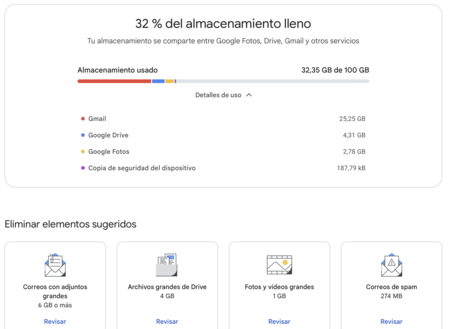
You’re not alone if you’ve noticed that your 15 GB of free storage is vanishing quickly. The primary offender is usually Gmail. The accumulation of emails, especially those with large attachments, can take up significant space over time. You may find old receipts, newsletters, and automatic notifications cluttering your inbox, eating away at your storage. Fortunately, Google provides tools that make it easier to identify and remove unnecessary emails.
Utilizing Google’s Storage Manager
The first step in managing your Gmail storage is to access Google’s storage manager. You can find it directly at this website or navigate through Google Drive by selecting the “Free up space” option. This tool offers personalized suggestions, such as removing spam emails or large files, making it a great starting point for understanding your storage consumption.
Identifying and Deleting Large Emails
Once you’ve checked Google’s storage manager, it’s time to dive into your Gmail account. You can streamline the cleaning process using Gmail’s advanced filters. Start by searching for emails larger than a specific size—simply type ‘larger:15MB‘ in the search bar. Adjust the value to target smaller files as needed, helping you quickly pinpoint the largest offenders.
Combining Filters for Efficient Deletion
Gmail allows you to use multiple search parameters. For example, you could combine size and date by typing ‘before:YYYY/MM/DD larger:10MB‘ to find large emails received before a certain date. This targeted approach will help you efficiently kill two birds with one stone.
Focused Keyword Searches
You can also personalize your searches with specific keywords. For instance, searching for ‘ndp’ or ‘press release’ in your inbox will display all relevant emails, making it easy to delete them in bulk.
Cleaning Up After Deletion
After filtering and deleting unnecessary emails, remember to clear your trash. Deleted emails remain in the trash for 30 days, still counting toward your storage limit. To restore some space immediately, click on “Empty the trash now.” The same applies to the spam folder, which also features a one-click option to delete all spam messages.
Patience is Key
Keep in mind, it usually takes 48 to 72 hours for Google to update your storage status after mass deletions. Don’t worry if you don’t see immediate changes; the system will catch up soon.
Establishing a Maintenance Routine
Once you’ve completed an initial cleaning, consider setting a schedule for regular checks. Whether you prefer a one-time massive cleanup or small daily tasks, taking proactive steps will help manage your storage efficiently. Promptly delete emails that no longer serve a purpose or organize important ones into labels to prevent clutter.
By adopting these simple routines and utilizing the search capabilities Gmail offers, you can easily stay within Google’s 15 GB free storage limit without the need for a subscription. While Google Photos might require further consideration for some users, managing your Gmail effectively can save you unnecessary costs.
Ultimately, better management of your emails is the key to optimizing your Google storage. With a disciplined approach, you can bypass additional fees entirely while maximizing your available cloud space.