
Running out of memory on our mobile devices is a common issue, especially when it comes to messaging apps like WhatsApp. With more than 3 billion users, WhatsApp has become the undisputed queen of messaging platforms. As we exchange hundreds of messages, photos, videos, and audio files daily, the size of the app increases exponentially over time . If you’re facing storage issues like I did, here are some effective habits that can help keep your storage under control.
Automatic Download Disabled
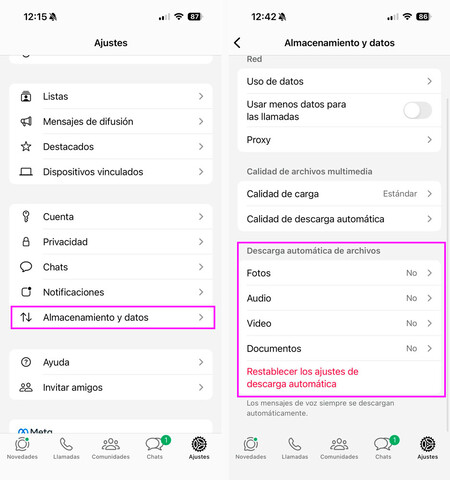
The first and foremost recommendation is to disable automatic downloads in WhatsApp. You only need to do this once unless you change your mobile device. Navigate to WhatsApp > Settings > Storage and Data > Automatic File Download. By default, WhatsApp downloads all photos sent to you automatically and only downloads audio and video files when connected to WiFi to save mobile data. However, voice messages always download automatically, whether you like it or not.
To maintain control over your storage space, it’s advisable to change all automatic download options to ‘Never’ . This way, you can still view the photos that are sent to you, but you’ll need to download them manually. Although this adds one extra step, it enables you to select which files to view, a useful tactic especially in groups where numerous files are shared.
Delete Multimedia Content Regularly
Even with automatic downloads disabled, the amount of media you acquire from contacts can still balloon. That’s why it’s essential to manually delete multimedia content from time to time. WhatsApp has a helpful section for managing this in Settings > Storage and Data > Storage Manager.
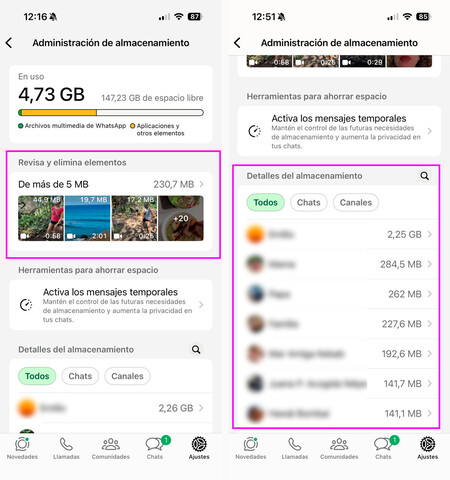
In this section, two actions are particularly beneficial. The first is to access the section for files larger than 5MB , which typically includes videos, and delete those you don’t want to keep. You might also find duplicates of videos you have sent to multiple chats. After selecting the unnecessary files, simply click the trash icon (bottom right).
The second action is to visit the ‘Storage Details’ section, which shows a list of all your chats in order of size, from largest to smallest. Enter each chat and review the files available, also sorted by size. Delete any that you don’t want. The amount of storage you free up depends on how many files you choose to delete. Personally, I often delete everything unless it holds specific importance.
Review Channels and Groups You No Longer Use
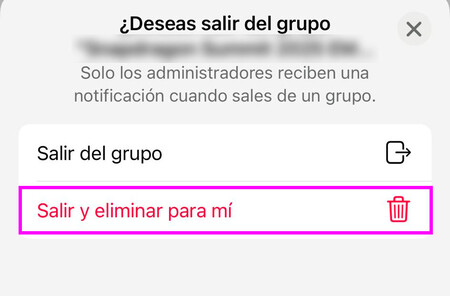
WhatsApp groups can easily clutter your chat list. If a group becomes irrelevant or is only tied to a specific event, consider leaving it and deleting the entire chat . You can exit a group from the chat list by holding down on it or by entering the group and selecting the ‘Leave Group’ option. Be sure to choose ‘Exit and delete for me’ to remove all shared files and content.
The same goes for channels and communities. If any have lost their significance, simply exit them using the three dots icon in the upper right corner while inside the community.
By adopting these strategies, you can reclaim valuable storage space on your mobile device. Maintaining control over your WhatsApp storage can significantly enhance your device’s performance, allowing you to continue enjoying seamless communication without the nuisance of a cluttered memory.