
Let’s explain how to configure losses without losses in Spotify so you can make the most of Spotify HiFi. This service is now beginning to be available in Spain, and if you are a premium user of the service, you will soon receive a notification alerting you about it.
It’s essential to remember that the quality of Spotify HiFi is defined as improved CD quality or Lossless, which is 24-bit/48 kHz compared to the standard 16-bit/44.1 kHz. However, it is lower quality than the hi-res lossless services offered by competing platforms. Nevertheless, for most casual listeners, this level of quality should suffice.
Do bear in mind that you will not enjoy HiFi if you use Bluetooth headphones, as Bluetooth technology is incapable of transporting the amount of data needed for this superior audio quality. You will need a device compatible with Spotify Connect or high-quality headphones connected via a wired connection. Even in many cases, it may be challenging to notice a significant difference in audio quality.
How to Activate and Configure Spotify HiFi
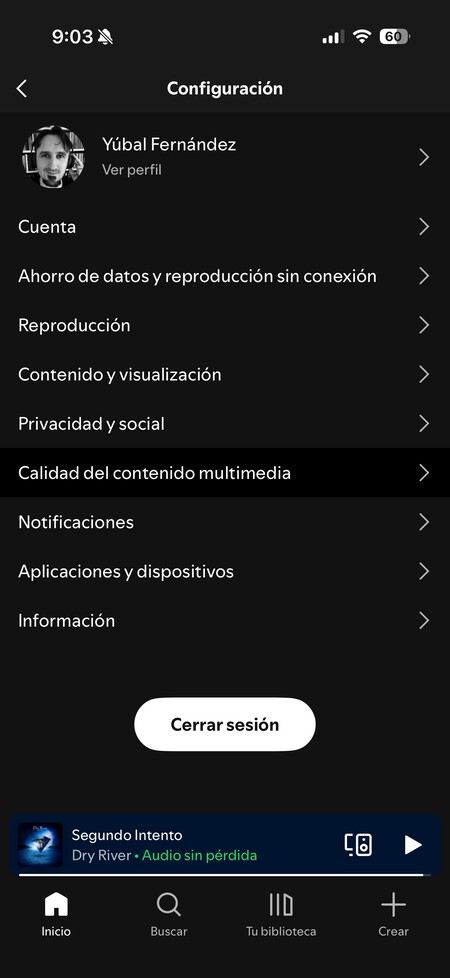
To configure Spotify HiFi at any time, you need to access the application settings on either mobile or desktop. Click on your profile image to reveal the options, and then select Settings. Once inside, click on the option Music Quality.
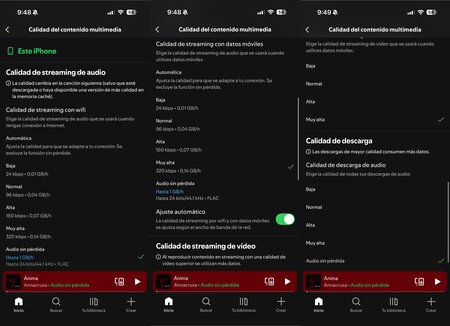
This will lead you to options where you have three adjustments to configure the lossless audio settings. You can do this for when streaming music over WiFi, when using your mobile data, and when downloading music.
It’s important to note that the sound quality is almost ten times better than what you’ve been used to, meaning that music files are also significantly larger. My recommendation is to refrain from using HiFi when on mobile data. This is both to conserve data and because, when you step outside, you’re likely listening through Bluetooth, and external noise can hinder your ability to perceive the difference in quality.
Therefore, I recommend activating this quality setting exclusively for when you’re connected to WiFi, which will save you data consumption. Additionally, consider enabling HiFi for downloads, but ensure that you disable the option to download songs over mobile data, allowing downloads only through WiFi.
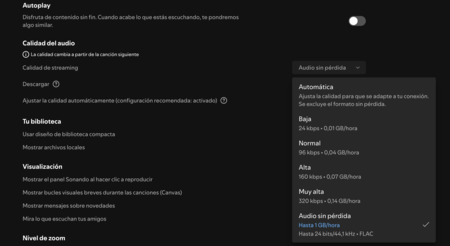
In the Desktop app, the process is similar: simply navigate to the section for Audio Quality. Here, you can access options for Streaming Quality and Downloads, where you can choose the Lossless option.
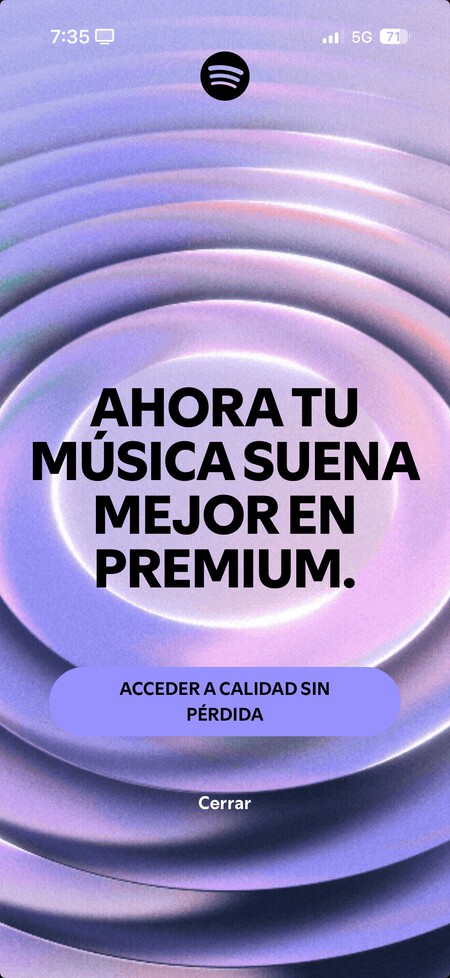
When you activate Spotify HiFi for the first time, everything becomes much simpler, as a full-screen message will guide you through the process. All you need to do is press the Access Lossless Quality button and navigate to the sound quality configuration of the service.
For those who love high-quality audio, Spotify HiFi presents a valuable opportunity to enrich your listening experience while still enjoying the extensive library Spotify offers.