
This hack allows you to keep all your old messages while giving new life to your Gmail account.
When my Gmail account began displaying the dreaded notification “Account storage is full,” I knew I had to let go of some old messages. I didn’t want to spend hours sorting through thousands of unread emails to decide what to keep and what to delete.
I was ready to give up and pay for extra Gmail storage. But then I had a better idea. I realized there was a way to reclaim 15 GB of free storage while keeping all my old messages intact. And it wouldn’t cost me a dime.
All I had to do was create a second Gmail account to store all my existing messages! Google doesn’t limit the number of free accounts you can create. This means I could set one up as an archive and transfer all my old messages there.
Transferring your Gmail messages is also a great strategy if you have a school or work account that you won’t have permanent access to. Most organizations deactivate your account as soon as you leave. If you want to keep your old messages and files, you need to transfer them to a personal account before losing access.
The process of transferring your Gmail messages to a new account isn’t very time-consuming, but it does depend on how many messages you have. I will explain the simple procedure for transferring your emails from your old account to a new account, including the crucial step of backing everything up beforehand.
Tips and Tricks for Using Gmail
How Much Data Can You Store on Gmail?
Fifteen gigabytes of free storage may seem like a lot when you first create a Gmail account. But it fills up quickly. For starters, the 15 GB isn’t just for email. It also includes files saved on Google Drive and Google Photos.
If you frequently send or receive messages containing large files such as videos, or if you upload a lot of photos to Google Photos, you’ll soon see the “Account storage full” notification. This means you won’t be able to send or receive emails on that account, so you’ll need to act quickly.
Google Introduces Gemini AI Upgrades for Gmail and Chat (Google/CNET)
The Google One Solution
The fastest solution is to upgrade to a Google One account.
Even if you choose the cheapest plan—100 GB for €20 a year—you will still end up paying to store old emails that you may not even need anymore.
Delete Your Old Messages
If you do not want to increase your storage capacity, you can always delete your old messages. You can free up surprisingly large amounts of storage by sending bulky files to the trash. Gmail allows you to easily identify and delete files based on their size. While this option might seem tedious, you may not want to spend hours sifting through emails from a decade ago, deciding which memories to keep and which to delete forever.
You can also download the large files to your desktop before deleting them from your Google account. But at some point, you will likely encounter the same issue with your local files and need to manage your device’s storage as well.
How to Transfer Your Gmail Messages to a New Account
Before you start the transfer process, I recommend backing up your emails. You can download your emails to your computer or an external hard drive. You may delete the backup once you have transferred the messages to your new account if you wish, but it is always useful to have an extra copy stored locally.
To back up your Gmail messages, go to Google Takeout. Using my test Gmail account, which had about 75,000 messages, I obtained a download from Google Takeout in about two hours.
How to Transfer the Messages
Once you have backed up a copy of your emails, you’re ready to transfer them. Here are the steps:
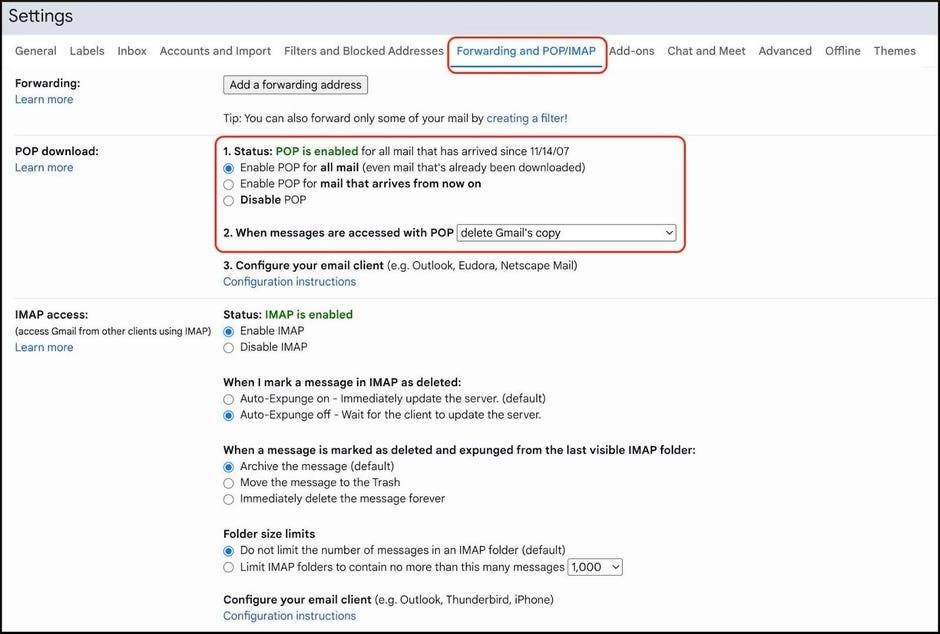
- Log in to your original Gmail account, click on the “gear” icon in the top right, and click on See all settings.
- Select the Forwarding and POP/IMAP tab, then choose Enable POP for all mail (POP stands for Post Office Protocol).
- Under When messages are accessed with POP, you have several options. To automatically delete emails from your original account after the transfer, select Delete Gmail’s copy.
- Select Save changes.
Now it’s time to create your new account and transfer all your messages:
If you haven’t done so, create your brand new Gmail account without an inbox—let’s call it your archive account.
- Log into your new archive account, click on the gear icon at the top of the page, and select See all settings.
- Select the Accounts and Import tab, then select Add a mail account next to Check mail from other accounts.
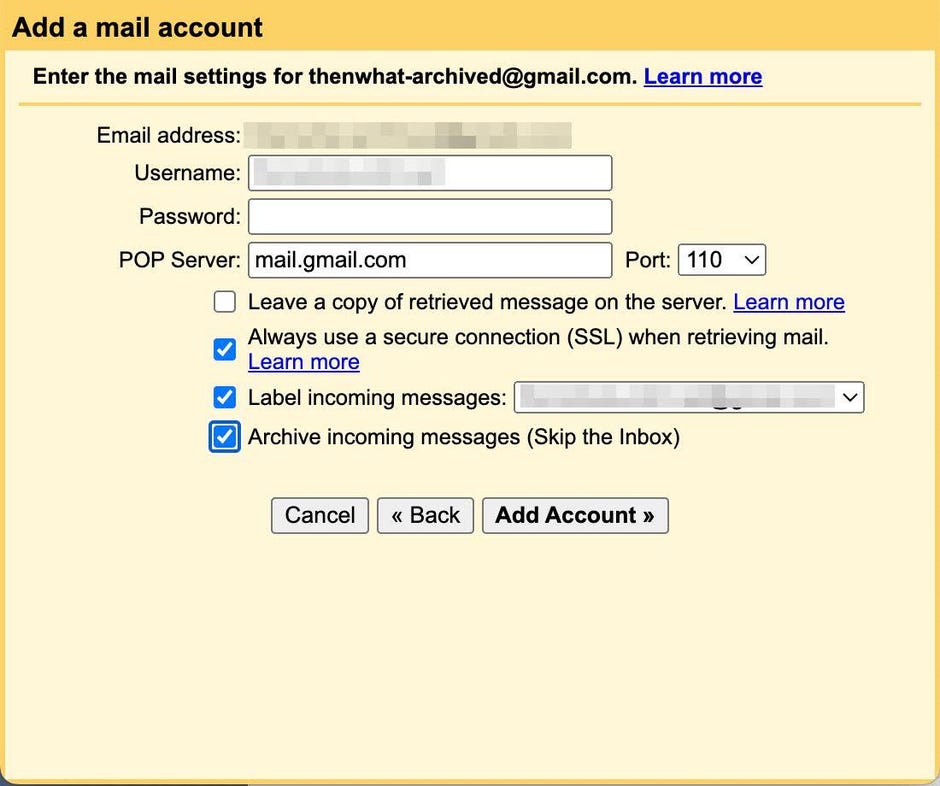
- In the pop-up, enter your original Gmail account name. Select Next.
- Select Import emails from my other account (POP3) and select Next again.
- Enter the password for your original Gmail account. You may also be prompted to create an application-specific password (see note below).
- Select 995 for Port.
- Check these three boxes: Always use a secure connection (SSL) when retrieving mail, Label incoming messages, Archive incoming messages (skip the Inbox).
- Select Add Account.
You May Need to Create a Google App Password to Transfer Gmail Messages
I tested this process of transferring Gmail messages twice, and each time, the standard password for Gmail accounts didn’t work. After some research, I found that I needed to create a temporary “app password” to sync the accounts.
Google app passwords are 16-character codes created for “less secure” apps or devices to access your Google account. They function exactly like your Google password.
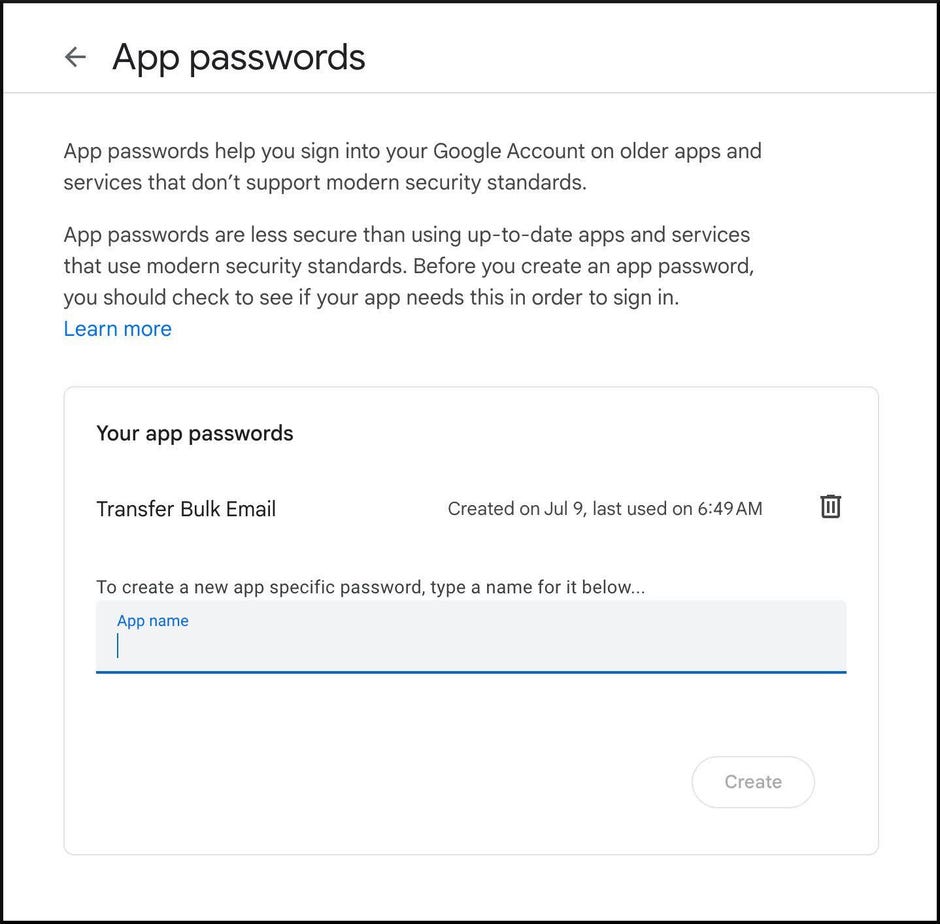
If your usual Google password doesn’t work to sync Gmail accounts, go to https://myaccount.google.com/apppasswords to create an app password. Simply give the password a name (I used “Transfer Bulk Email”) and click the Create button. A pop-up window will appear with your new 16-character password.
Once you create the app password, return to step 6 in the instructions above and use this new password instead of your usual one.
Important: Google will only show the app password once. Once it’s created, you cannot request to see it again, so make sure to write it down or save it once created.
The Google Help Center states that “app passwords aren’t recommended and are unnecessary in most cases”. Therefore, once you’ve transferred your Gmail messages, I recommend deleting the app password.
What Happens After Syncing My Gmail Accounts?
After successfully linking your new archive Gmail account with your original account, the transfer of your emails should start automatically. The process may take several hours or days, depending on how many emails you have.
In my test account, which contained about 75,000 messages, it took Gmail roughly two full days to transfer all messages from the original account to the new archive account.
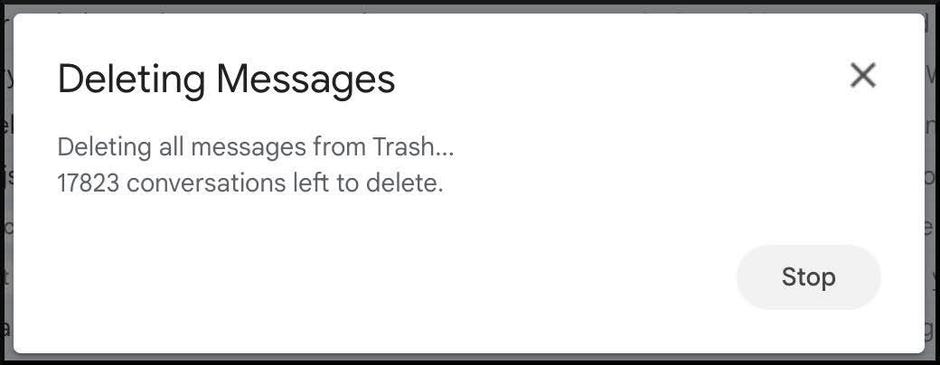
Important: After transferring your Gmail messages to your archive email account, your original Gmail account will place all those messages in the Trash, which you will need to empty manually. Emptying those 75,000 messages from the Trash took me about an hour.
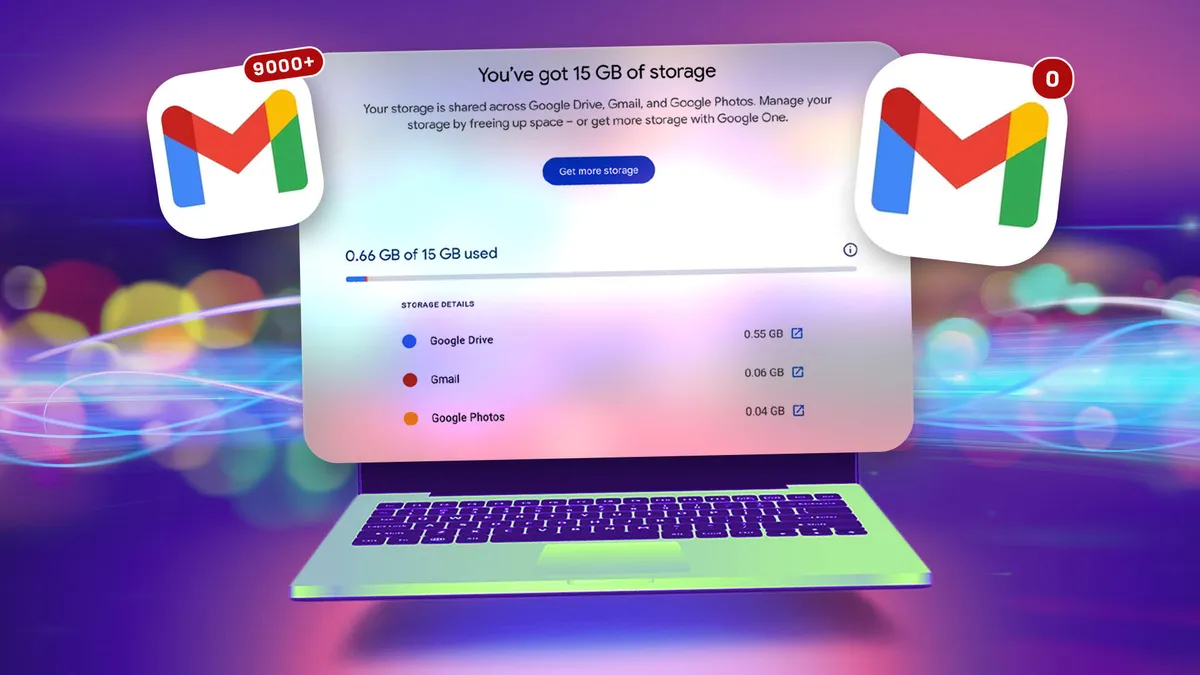
Before transferring the Gmail messages, my test account used just over 12 GB, or 80% of Google’s free 15 GB. After the transfer, the account only used 0.66 GB, with 0.06 GB coming from Gmail.
Which Gmail Messages Will Not Be Transferred?
I found that Gmail transferred all my messages except for two categories: Drafts and Spam.
You will need to manually decide what to do with your drafts. Spam messages are automatically deleted every 30 days. You can let Gmail handle that or go into the Spam folder yourself after transferring your mail to delete or transfer those messages.
Once all your emails have been imported into your new account, you can enjoy the experience of a zero inbox. You have given your original account new life.
At this stage, there are two final steps to complete:
- You need to stop the automatic transfer process so you can continue using your original account.
- You need to delete the app password if you had to create one.
- Log in to your new account, go to your Settings, and select See all settings.
- Select the Accounts and Import tab, then select delete for your original account (under Check mail from other accounts).
- When prompted to confirm the deletion of the mail account, select OK.
If you had to create a Google app password and wish to delete it now, go back to https://myaccount.google.com/apppasswords and click the trash can icon next to the password you created.
Congratulations, you’re done.
One last important note: Google will delete accounts that have been inactive for more than two years. So, be sure not to completely ignore your old emails after transferring them. If you don’t intend to use your archive account regularly for sending emails, you can keep it active by logging in at least once every two years.
General News – 2