
How to Solve the Problem of Apps Not Showing on Android Auto
It’s frustrating to hop in your car and discover that essential apps, especially music ones, are missing from Android Auto. Various factors could cause these issues, including launcher configuration, app permissions, battery restrictions, or incomplete updates. Here are six detailed steps to help you troubleshoot and resolve the issue.
1. Check if the App is Hidden
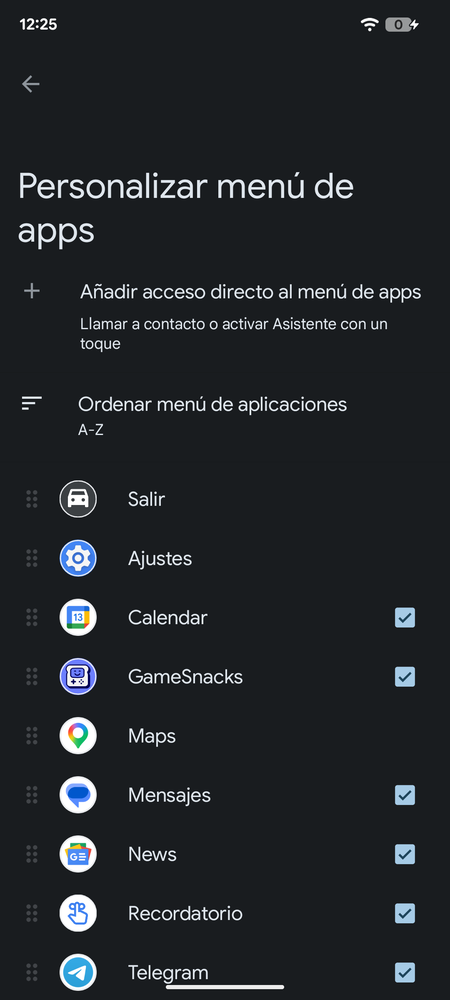
Start by ensuring the app is activated on Android Auto. You can do this by accessing your mobile device’s application list.
To check:
- Open the Android Auto settings on your phone, usually found in the Connected devices section.
- Look for the option to customize the apps menu. In the app list, selected apps will appear in your car while unselected ones will be hidden.
2. Ensure Android Auto is Up-to-Date
Outdated software can lead to various issues, including disappearing apps. Make sure Android Auto, along with Google Play and Google Play Services, is updated. Follow these steps:
- Open Google Play Store and search for Android Auto.
- Check for updates in Google Play Services as well.
- Look for pending system updates on your phone.
3. Check App’s Battery Restrictions
Many smartphones have battery management features that can restrict app usage in the background. If an app is restricted, it may not show up in Android Auto.
To verify this:
- Go to Settings and navigate to the Applications section.
- Select the affected app, go to the Battery settings, and ensure that it has permission to run in the background.
4. Verify App Permissions
Certain apps require specific permissions to function correctly within Android Auto. If you’ve restricted these permissions, the app might not work as intended.
Check the following permissions in your mobile settings:
- Notifications
- Microphone (for voice calls or messaging apps)
- Location (for navigation or location-based services)
- Access to files and multimedia content (for audio or media apps)
5. Identify if the Problem Lies with the App
Sometimes, the issue isn’t with Android Auto, but rather the app itself. An update might have caused compatibility issues.
To investigate:
- Check if the app is updated in the Google Play Store.
- Confirm that the app is listed as compatible with Android Auto.
- Compare it with other similar apps to see if they work seamlessly.
6. Reinstall the Application
If all else fails, uninstalling and reinstalling the problematic application can be a solution. This has been a reliable fix for many software-related issues over the years.
To do this:
- Uninstall the app from your device.
- Reinstall it from the Google Play Store.
By following these steps, you can effectively troubleshoot the problem of missing apps in Android Auto. Whether it’s adjusting settings, updating software, or reinstalling the app, these strategies should help bring back your essential apps while driving.