
How to Use Gemini as a Time Application
In a world where efficiency is key, integrating technology into our daily routines has never been more critical. With Google’s Gemini, you can seamlessly access important information about the weather without the need to scroll through applications. Simply by invoking your voice commands, Gemini can become your go-to weather application. Let’s break down how to ask for weather information and explore the fascinating capabilities that allow you to schedule routine notifications.
Asking Gemini for Time Information
To retrieve weather information, you can ask Gemini directly: “How is the weather today?” This inquiry can be made either through your voice or by typing in a chat with the AI. On Android devices, you have the option to change your assistant settings to make it easy to invoke Gemini. Press and hold the designated side button to activate it, and simply voice your question.
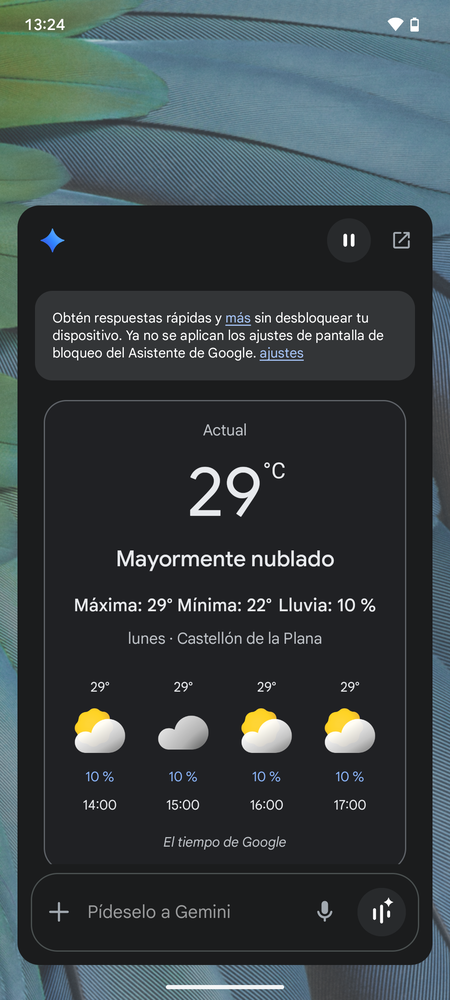
When you pose this question, Gemini is designed to present an intuitive module displaying the real-time temperature for your current location. This module not only reveals the current temperature but also provides a forecast for the next few hours. You’re able to check the minimum and maximum temperatures, as well as the probability of rain.
If you prefer to use voice commands, the information will be presented in an engaging card format that overlaps your screen. Gemini can also provide additional details such as wind speed, humidity levels, and weather forecasts for other locations or specific days. This makes it an incredibly versatile tool for anyone looking to stay informed.
Configuring Regular Time Alerts
To maximize the benefits of Gemini, you can configure it to send you daily notifications regarding the weather at a specific time. This eliminates the need to ask manually every day. Setting up these alerts is straightforward:
- Launch the AI app and click on the microphone icon.
- In a clear voice, say: “Give me, every morning at 10, a full report of the weather forecast for my town.”
You have full control to modify this prompt according to your preferences. You can adjust the timing, the frequency of the alerts, or even specify the type of information that you’d like to receive in detail.
Verifying Scheduled Routines
Once you’ve set your notifications, it’s a good idea to confirm whether the routine has been configured correctly. To do this:
- Tap on your profile image in the upper right corner of the app.
- From the menu, select Scheduled Actions.
This will direct you to a screen displaying all routines or automations set up in Gemini. Here, you can verify the existing prompts, as well as pause or delete them as needed to fine-tune your experience.
Optimizing Usage with Gemini
By scheduling weather reports, you’re not only saving time but also gaining access to crucial information exactly when you need it. This functionality allows you to prepare daily plans with confidence, whether you’re heading to work, planning a casual outing, or organizing an event.
The advantages of using Gemini over traditional weather applications are significant. You no longer have to navigate menus or hunt for information; you simply voice your request and receive customized updates. This seamless integration into your daily routine fosters a more productive lifestyle.
Conclusion
Leveraging Gemini as a time application allows you to simplify your interactions with weather information. By asking straightforward questions, you get instant access to current and forecasted weather conditions. Moreover, the ability to configure routine notifications ensures you remain well-informed without needing to manually check your phone. This effective utilization of AI not only enhances your productivity but also enriches your overall experience. By embracing the capabilities of Gemini, you can make weather information accessible at your fingertips, creating a smarter and more efficient approach to daily planning.