
In today’s digital age, sharing locations via messaging apps has become commonplace. However, sometimes you may want to be discreet or simply share a nearby location instead of your exact GPS location. Here’s how you can send a fake location on WhatsApp easily.
Ways to Send a Location on WhatsApp
There are various ways to share a location on WhatsApp, all of which can be performed either on your Android or iPhone, as well as through WhatsApp Web or desktop applications. We’ll explore two main methods to send nearby locations and a trick to send a fake location on an Android device.
Sending a Nearby Fixed Location
To send a nearby location, follow these simple steps:
- Open the chat with the recipient you wish to send the location to.
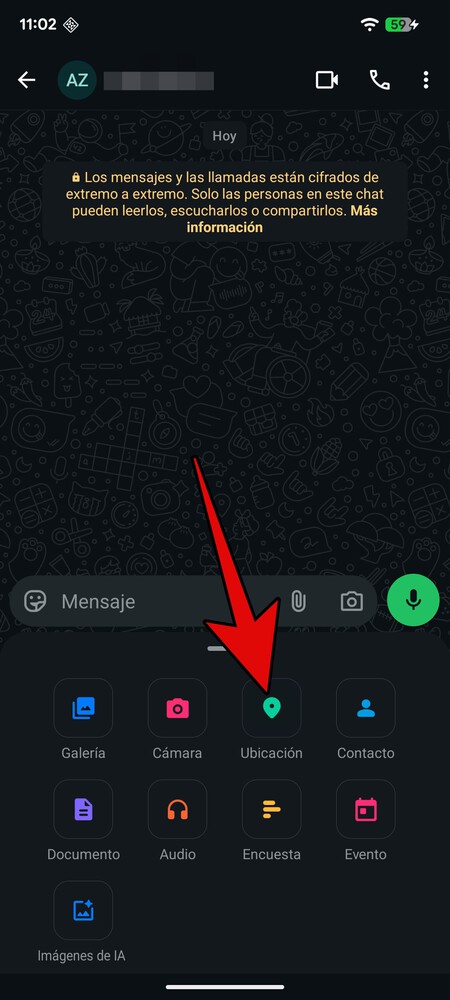
- Tap on the add element button (the paperclip icon on Android and the + icon on iPhone).
- From the menu that pops up, click on the Location option.
This will open a map showing your location along with nearby points of interest. Just select the nearby location you want to send, and it will be shared in the chat.
Sending a Custom Fixed Location
If you want to be more specific and send a custom location, you can easily do so by following similar steps:
- Start by entering the chat with your contact.
- Tap the add element button again and select the Location option.
Now, in the map interface, you can either search for a specific address using the search bar or scroll through the map to find the location you want. Once you find it, simply click to send.
Using a GPS App to Send Fake Locations
If you wish to share a location that is not nearby—or entirely fabricated—you’ll need a GPS spoofing app on your Android device. Here’s how to do it:
- Download a GPS spoofing application like Fake GPS from the Google Play Store.
- Next, enable Developer Options on your Android device. Go to Settings > About Phone and tap the Build Number seven times.
- Once Developer Options is enabled, scroll down to find and select Choose app to simulate location. Select the Fake GPS app.
- Open the Fake GPS app and set a pin on the desired fake location. Click the play button to activate it.
Now, when you open WhatsApp and tap the option to send your current location, the fake location you selected will be sent instead of your real one.
Conclusion
Whether you want to maintain your privacy or simply share a different context with your friends, sending a fake or nearby location via WhatsApp can be done effortlessly. Utilize these steps to control what location you share while ensuring your personal information remains secure.