
In this article, we will provide you with several tips and configurations to maximize the protection of your privacy with a Samsung mobile device that has been updated to One UI 7. This version of Android 15, customized by Samsung, is gradually rolling out to various devices.
This guide will help you understand the primary privacy options available on your Samsung mobile device. However, we will only inform you about the options; we won’t recommend using all of them since some may impact the functionality of applications you find useful. Thus, you might occasionally need to sacrifice a bit of privacy for essential features.
Additionally, it’s vital to remember that total privacy does not exist on most operating systems. This means that regardless of the options we discuss, you must also be cautious about your internet activities and how you configure the applications you install afterward.
Configure Your Screen Lock Properly
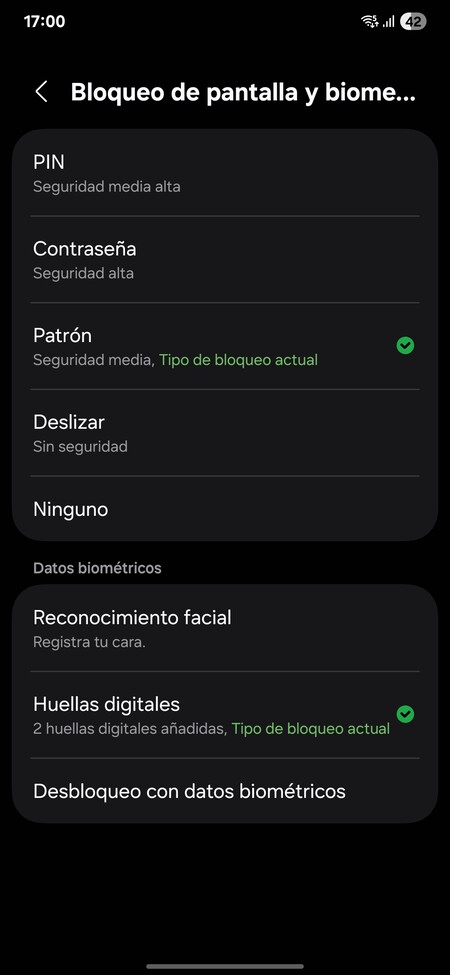
The first step to enhance your mobile’s privacy is to accurately prevent anyone from accessing it when physically in front of you. To do this, it is important to configure your screen lock system.
If you are going to use a pattern or a PIN, there are some things to keep in mind. Ensure that the pattern is not obvious, like your initials, and always keep the screen clean to avoid revealing smudge marks from your fingers. In terms of PINs, try to avoid repetitive numbers or obvious dates, aiming instead for randomness to make it more challenging for someone to guess.
Moreover, it is advisable to set up your fingerprint and facial recognition access. While it requires initial setup, it adds an extra layer of security and privacy. You can do all of this in the settings under the section Lock Screen and AOD , navigating to Screen Lock and Biometrics .
Review Your Mobile’s Basic Privacy Settings
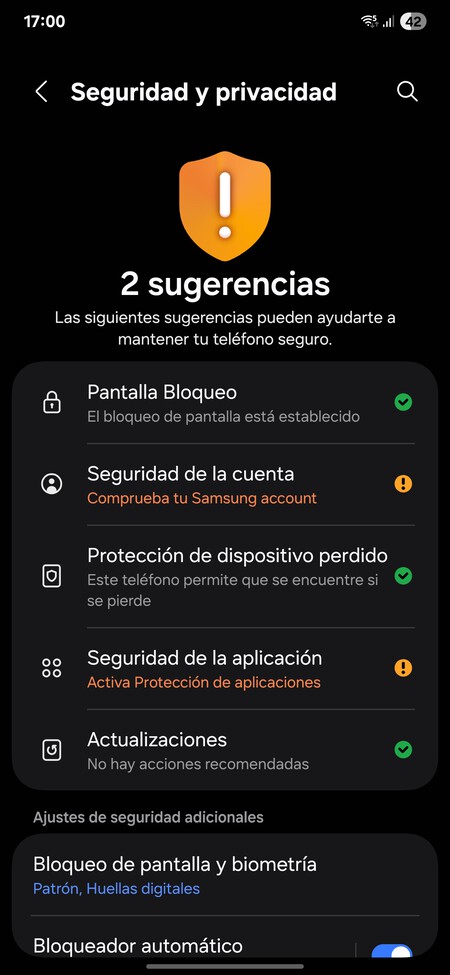
Almost all Android mobiles have a Security and Privacy section in the settings where you can find a basic privacy overview. This screen shows several key settings for privacy and security, highlighting what is well configured in green and what needs improvement in yellow.
All you have to do is tap on the options that do not appear in green . By doing so, you will navigate to a screen where you can configure the specific aspects for which your Samsung suggests improvements to security.
These are basic and essential aspects. They won’t secure your mobile or improve your privacy to 100%, but it’s a good way to ensure essential configurations are in place. Your mobile will analyze its settings every time you enter this screen to provide you with updated results.
Manage Your App Permissions
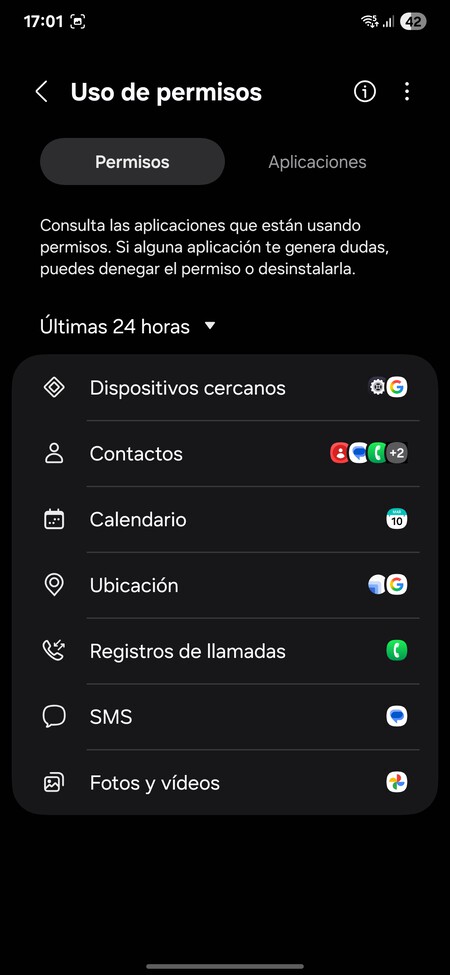
To access crucial elements of your mobile, such as the camera or location, apps require permissions. Usually, applications request only the necessary permissions, but you can manage them at any time and see how each permission is being used to detect any abuses.
To do this, go to Security and Privacy in your settings, scroll down to the Privacy section and tap on Permissions used in the last 24 hours . Here, you will find two screens:
- Permissions: You can view the most frequently used permissions over the last 24 hours, and by tapping on each, you’ll see which apps used them and at what time.
- Applications: A list of the most recent apps that have used permissions will be visible, and when you tap on any, you’ll see which permissions they used and how much.
The goal here is to help you identify apps that may be using permissions more than necessary or have done so at times when you were not using them. This will allow you to detect unusual behaviors or signs of abuse for spying purposes. In both cases, you’ll have the option to directly configure the permissions of each application.
You can also access the complete list of permissions and manage the apps that have access to each. To do this, navigate to Security and Privacy in your settings, scrolling down to More Privacy Settings . Inside this section, tap on Permission Manager .
Control Which Photos an App Accesses
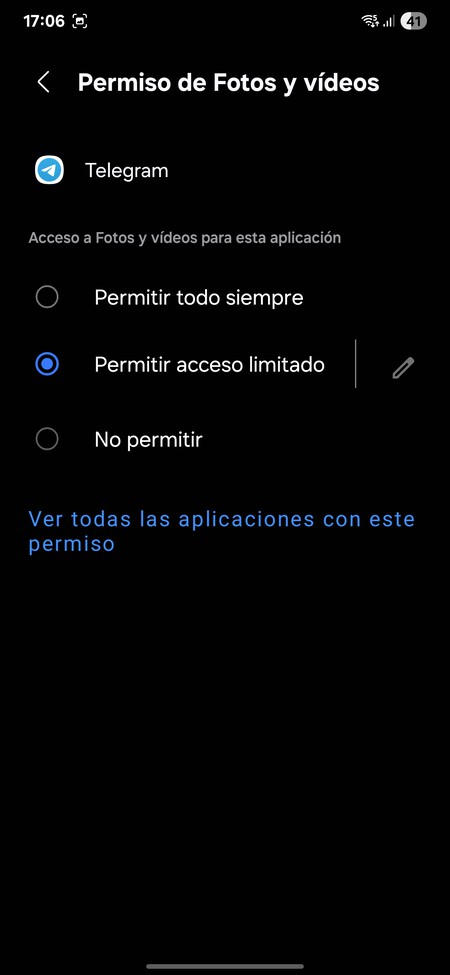
When an application requests permission to access your photos and videos, you can grant permission for access to all or revoke it completely. Additionally, you can allow access to specific photos only instead of all, thus enabling an app to use only the files you want without the ability to spy on others.
This special permission can be managed in the permission request dialog or also later in the settings screen mentioned previously.
Hide Your Precise Location
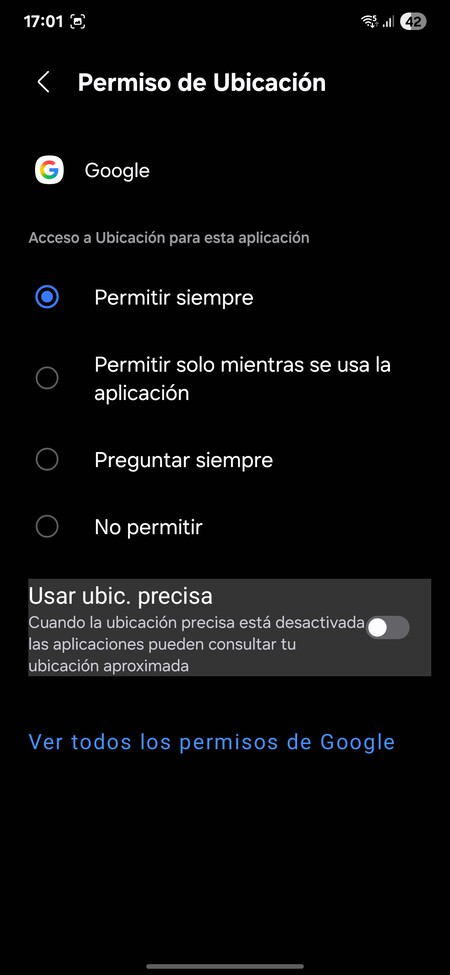
Another special permission setting is for location access. When managing these permissions, you can disable the option to use precise location . This means that the app will know, for example, the neighborhood or area of a city where you are but not your exact location.
This feature is not recommended for apps that rely on precise location, such as mapping applications, but it is recommended for almost all others . Especially for those needing to verify your country or city, they do not need to know your exact address.
Control Access to Your Camera and Microphone
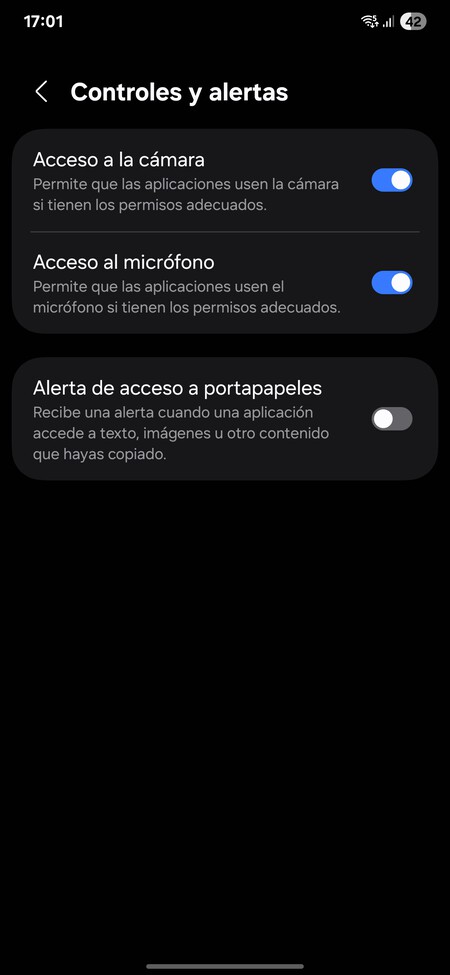
Samsung allows you to disable full access to your camera and microphone . This way, at specific times, you can ensure that no app can access your camera to take photos or record without your permission, all at once, without needing to adjust each app individually. This option can be found in Security and Privacy , scrolling down to Controls and Alerts .
You can also configure your mobile to alert you when an app accesses your clipboard. This will help you become more aware if apps are analyzing what you are copying.
Decide What AI Elements Use Your Data
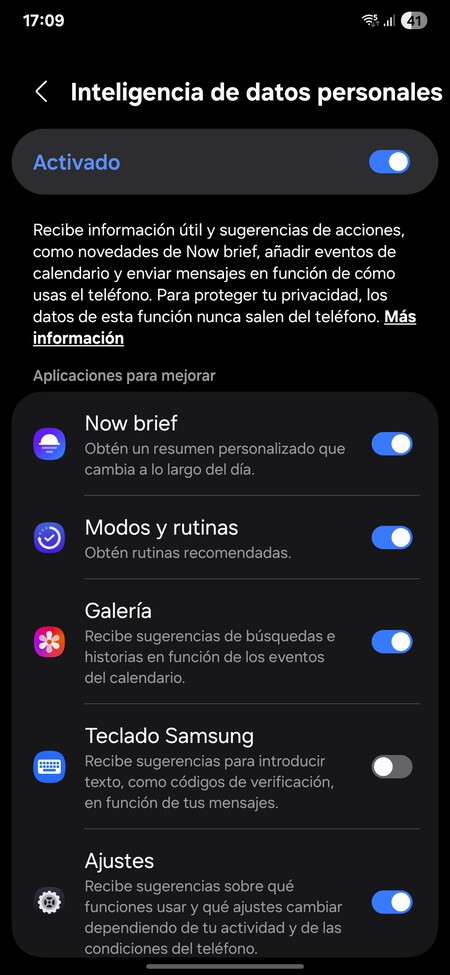
Samsung features several AI elements and automations within its native apps and provides control to manage which can access your data. To do this, go to Security and Privacy , scrolling down to More Privacy Settings . By entering these options, tap on Personal Data Intelligence .
This option has a feature to disable all access, but if you tap on it, you’ll navigate to a screen where you can see which functions access your personal data to provide you with information or suggestions, from Now Brief to the keyboard or settings, and can disable those options you don’t want to have access.

Control Access to Your Health Data
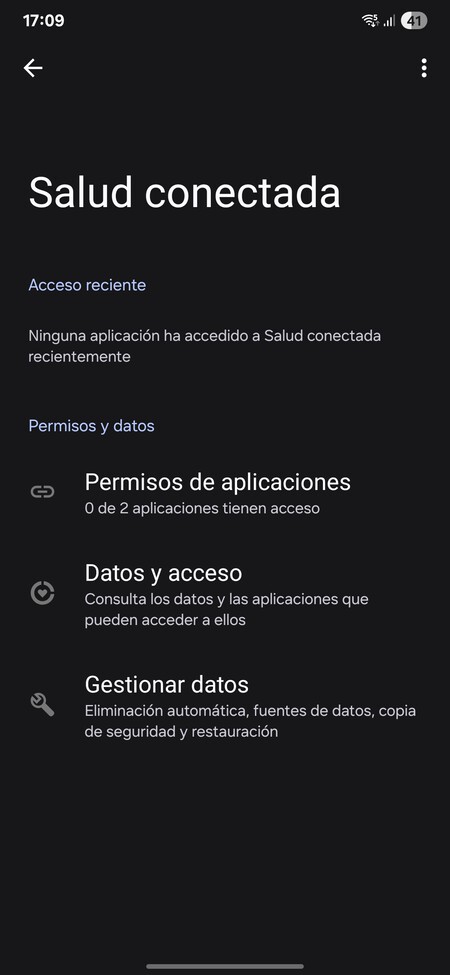
You can also manage access to your health data . This allows you to see and manage which apps can access data from Samsung Health or Google Play Services and from where these data arrive.
To do this, navigate to Security and Privacy , scrolling down to More Privacy Settings . In this section, tap on Connected Health , where you will see your available options.
Protect Your Privacy While Browsing
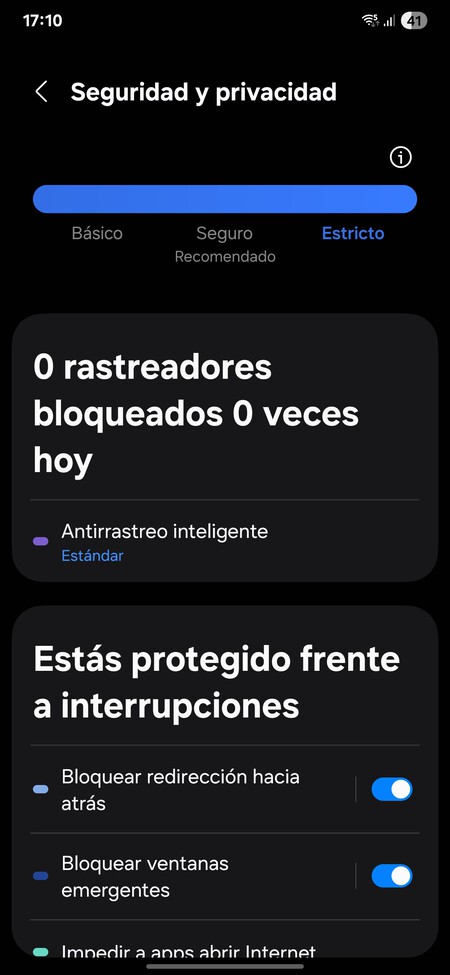
Your Galaxy mobile also has specific security and privacy protections for when you browse the internet. It allows you to avoid elements such as trackers, pop-ups, or automatic downloads that may put you at risk, spy on you, or compromise your security.
To do this, go to Security and Privacy in the settings and scroll down to tap on Internet Privacy Protection , right under the permission options. This will take you to a screen where you can immediately see blocked trackers. You can also configure Smart Tracking Prevention , making it more or less strict depending on how much you want to safeguard your online privacy at the risk of some websites functioning improperly.
Additionally, you will have a series of options to protect your mobile from various types of dangers while browsing online. It is advisable to keep all these enabled by default, as they are designed to allow you to browse the internet safely while blocking dangerous elements.
Control the Data You Share with Google
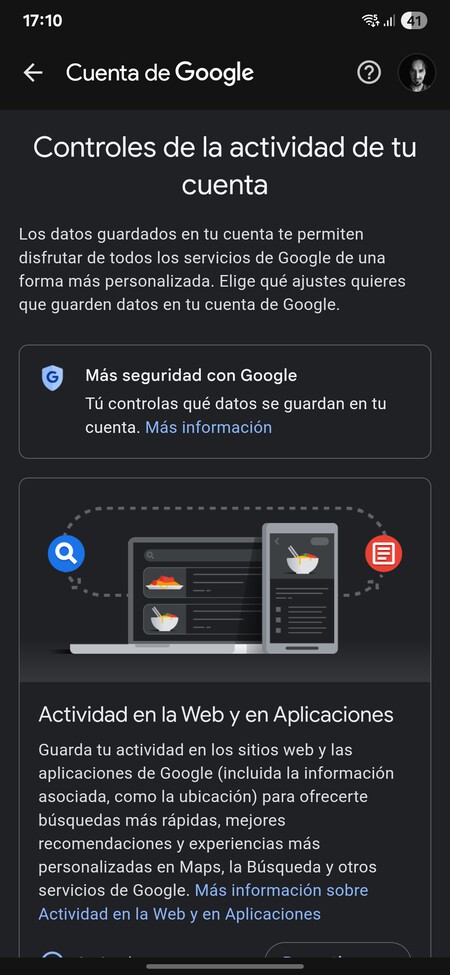
To use an Android mobile, you need a Google account, which will send data like your device’s location, the websites you visit, the applications you open, and the videos you watch on YouTube. If you do not wish to entrust this information to the company, you can deactivate it.
To do this, go to Security and Privacy , scrolling down to tap on More Privacy Settings at the bottom. Inside, tap on Activity Controls to access a screen where you can manage what activity data you send to Google.
Disabling this will significantly enhance your privacy but may also impact how these services function. You won’t be able to review routes you’ve taken in Google Maps because Google will stop collecting them, and you also won’t have a YouTube history. Thus, consider how much you need these features and deactivate data sharing only for what you don’t need.
Reduce Personalized Ads
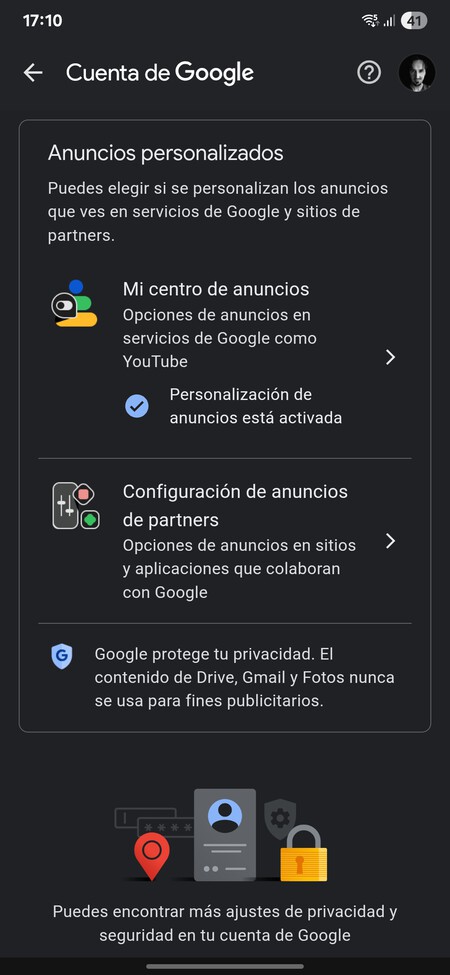
In the Activity Controls section from the previous point, you can also disconnect personalized ads from Google services . This will prevent Google’s advertising service from using collected data about you to show personalized ads in various apps and websites. The ads will still appear but will be less relevant.
You can also control Samsung’s ads using the data it gathers about you. To do this, on the More Privacy Settings screen, you can tap on Ads . Here, you can disable features such as suggested ads from apps or measuring ads in the privacy options for advertising.
Samsung collects data about you and stores it in an anonymous identifier. While it won’t know your name, it can identify patterns regarding what specific users are interested in. On this Ads settings screen, you’ll also be able to reset or delete your advertising ID to clear these data.
Review Native Google Services
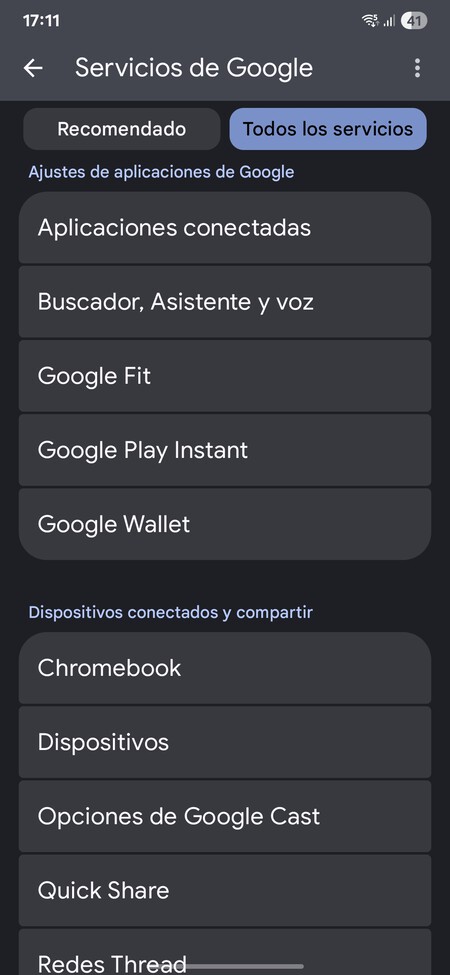
You can also review and configure access to your data from Google’s native services . This will provide more control over aspects related to Google functions within Android. To do this, enter your Samsung mobile’s settings and tap on the Google section. At the top, click on the All Services tab.
This will take you to a screen listing all Google services that can be utilized within Android. Many of these can help you better manage your privacy, while others are more secondary and less necessary.
Here, it is advisable to review each available service. All are useful and managed by Google, and tapping on each will display specific configurations for enhancing your privacy when using them. Some can be disabled, while others can be utilized in a way that suits you.
Submission of Samples in Google Play Protect
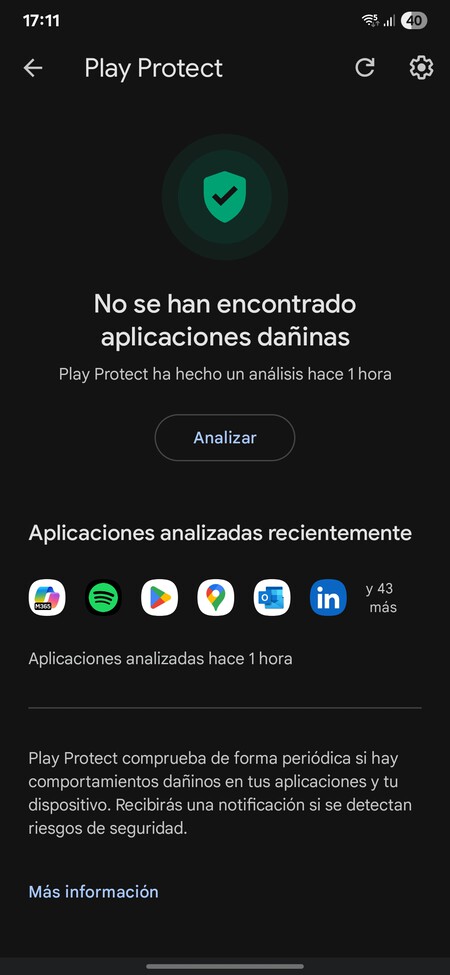

The Google Play Store has a sample submission feature that shares information about the apps you have installed , including samples from these apps to help identify malware and potential threats.
Thus, submitting this data is a trade-off for greater security in the apps you install. Think of Google Play Protect as a kind of antivirus within the app, and it is not recommended to disable this function , although you can do so in the Play Protect settings if desired.
Consider Using a DNS or VPN
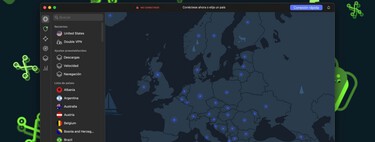
If you truly want to maximize your privacy, you might want to strengthen your online connectivity. Two essential aspects can help in this regard on Android: configuring a VPN and utilizing DNS blocking. VPNs help hide your real IP address when connecting to the internet, even allowing you to disguise your connection as being from another location.
Furthermore, using a DNS different from your operator’s can enhance privacy, increase security against attacks, or bypass restrictions imposed by your operator. You can check our guide to the best VPNs.
Beyond Android, Things to Keep in Mind
With the steps provided, you will be able to configure your mobile to improve your privacy. However, this is just the foundation for your privacy and will not prevent services, websites, or applications from obtaining your data in other ways, nor from any hacking incident of a service where you have registered exposing your data.
Thus, there are other actions you can take, like ensuring you configure your browser for better privacy, tweaking Chrome for example, or opting to try some alternative browsers . Indeed, there are browsers specifically designed to maximize your privacy.
Another significant aspect to consider is the search engines you use on the internet. Google sends your search data to Google, Bing sends it to Microsoft, and so on, which can compromise your privacy. However, there are alternatives that genuinely aim to ensure you aren’t tracked online.
Additionally, it’s vital to be cautious about the applications you install . Not only regarding the permissions they may require—which we have discussed how to manage—but some could do more than what they state and include systems for tracking your actions. Look carefully at each app’s description and the comments in the app store, and if something seems off, seek alternatives.
Finally, be prudent with the information you post on social media or online communities, as this information typically becomes public unless you configure your accounts or messages to be private. Always pay attention and do not reveal more data than strictly necessary.
In summary, while using One UI 7 will enhance your Samsung device’s privacy settings, it’s crucial always to remain vigilant about your online presence and personal data management.