
Let’s explain How to scan documents with WhatsApp. This feature within the messaging application allows you to take a picture of a document and send it in PDF format, choosing what you would like to keep from it.
The document scan function is available for both Android and iOS devices, albeit somewhat hidden within the app. However, once you discover it, you will find it to be quite comprehensive. In this guide, we will inform you step-by-step on how to use this feature effectively.
Scan Documents and Send Them via WhatsApp
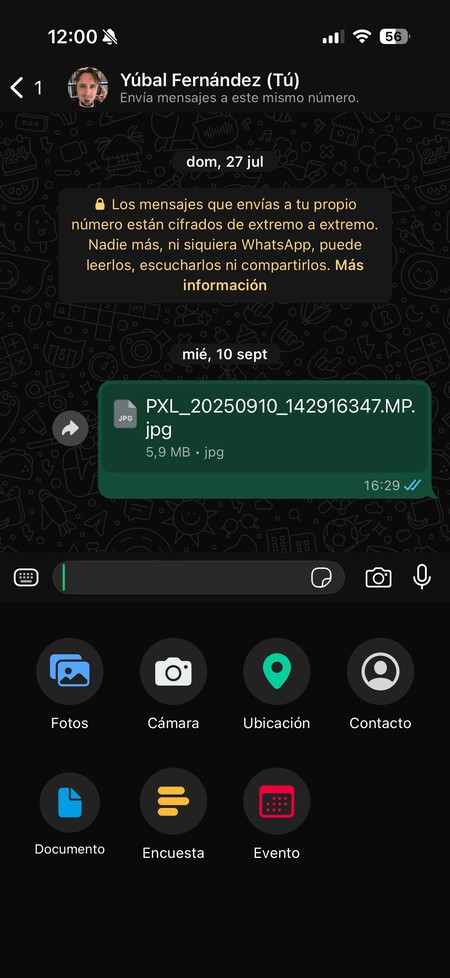
First, enter the chat where you want to send the document. Then, click on the File button in the chat. A menu will pop up, where you should click the option that says Document to indicate that this is the type of file you intend to send.
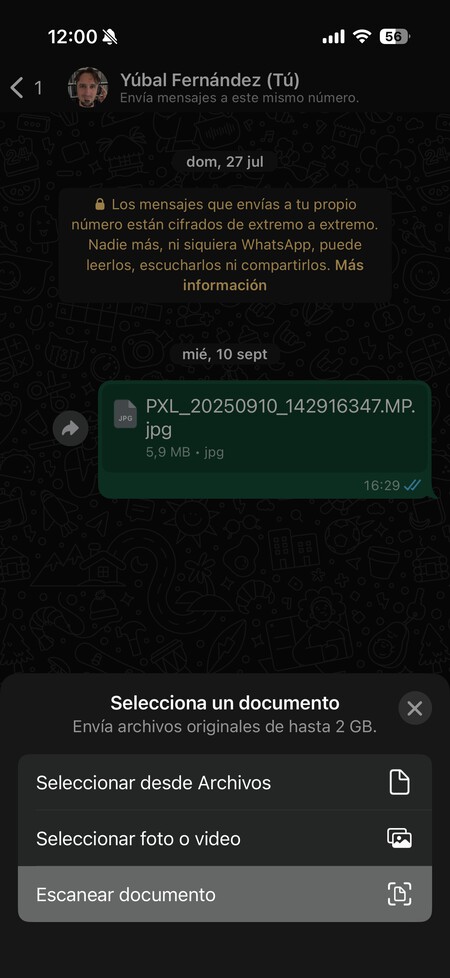
A menu will appear prompting you to choose the source from which you want to add or select the document to be sent. In this menu, choose the option of Scan document that will appear beneath.
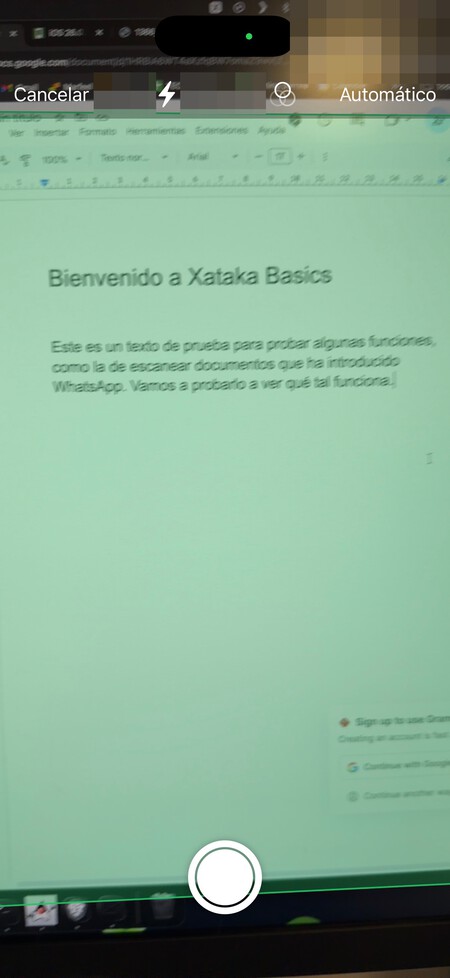
This action will open the camera interface of your mobile device. Here, two scenarios may occur. Firstly, WhatsApp may automatically detect the object to be scanned, and if you keep your device steady, it will capture the image itself. Alternatively, you can manually press a button to capture the image. Simply take a picture of the document you wish to send.
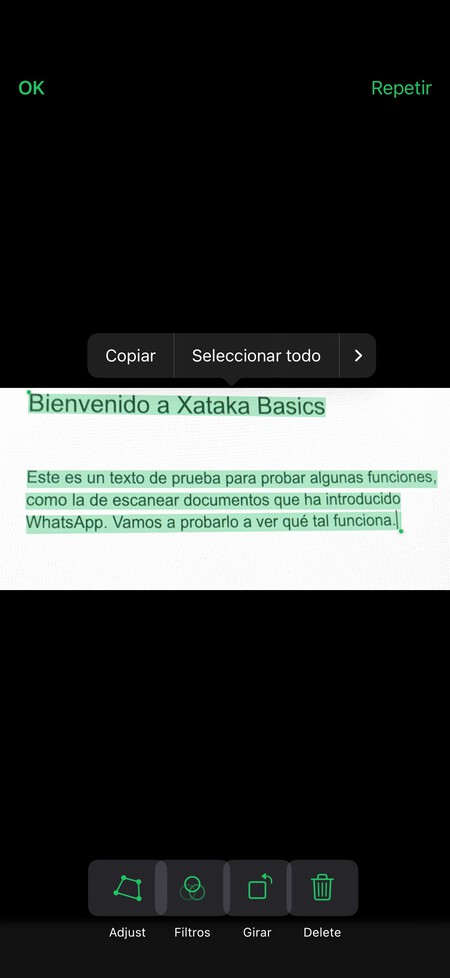
This action will display a preview of the captured text, where you can perform several actions. For example, you can select the text to copy it, or you can click on the Adjust button to select what you want to capture within the photo. If your image contains too much content, you can adjust it to ensure only the section you want gets included. Moreover, the application provides filters and rotation options. Once you’re satisfied with your adjustments, click on the Ok button.
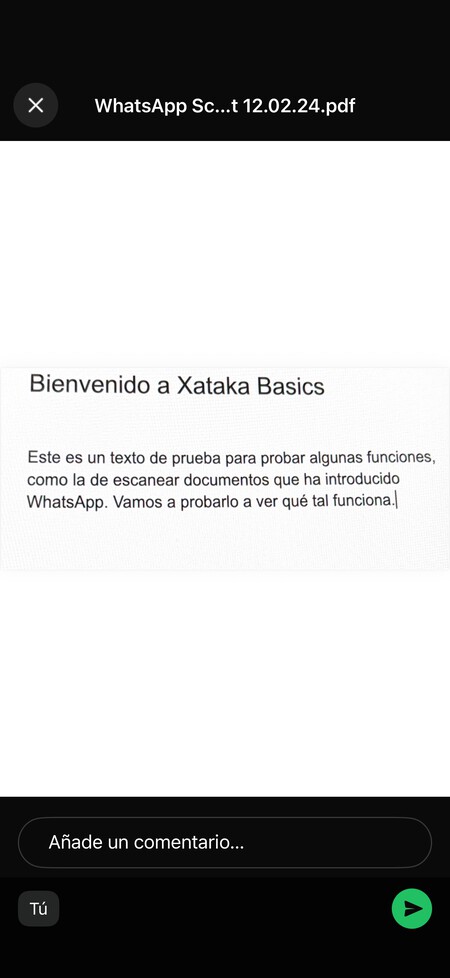
Once you confirm the document after editing, you will be redirected to a preview screen before sending it as a message. Here, you can add a comment or write something alongside the attached PDF file you are about to send. After you’ve finished, click to send.

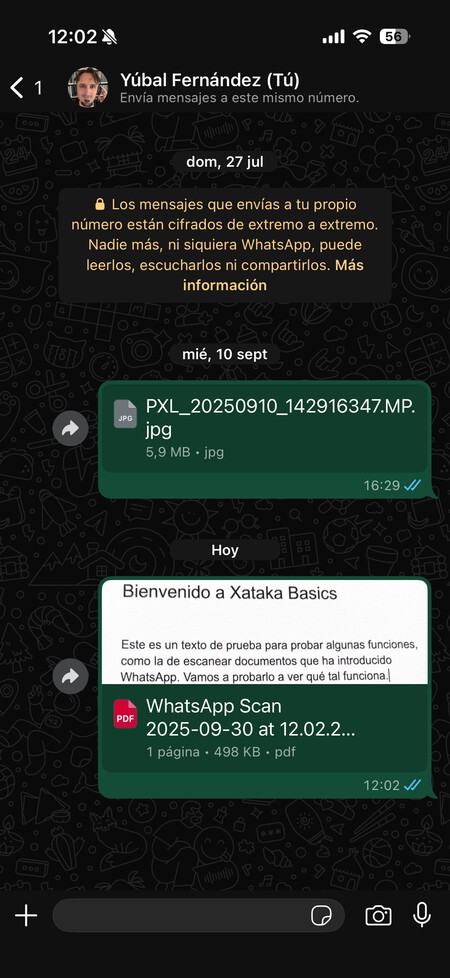
And that’s it! With these steps, you will successfully send the scanned document via WhatsApp, and it will be sent in PDF format for the recipient to read.