
Revive Your Old Hard Drive: Using It with Android TV or Chromecast
If you have an old hard drive collecting dust, you can breathe new life into it by using it with your Android TV or Chromecast. Both HDDs and SSDs can serve as external storage, enhancing your multimedia experience. Here’s how to do it.
Know Your Drive: Assess and Acquire an Enclosure
Identify Your Hard Drive Type
First, determine whether you have an HDD (Hard Disk Drive) or SSD (Solid-State Drive). HDDs are generally larger and bulkier, while SSDs are slimmer and faster. Additionally, check the connection type: older drives may use IDE, while modern ones typically utilize SATA.
Select the Right Enclosure
If your hard drive isn’t already external, you’ll need to invest in a compatible enclosure. This provides the necessary connections to turn your drive into a portable external drive. Before purchasing an enclosure, take note of the following:
- Size: HDDs and SSDs usually come in 2.5 or 3.5 inches.
- Connection Type: Ensure the enclosure supports either SATA or IDE, depending on your drive.
Once you have the specifications, look for affordable enclosures. Prices generally range between €8 to €20, and prefer retailers that offer free returns in case of incorrect purchases.
Recommended Enclosures
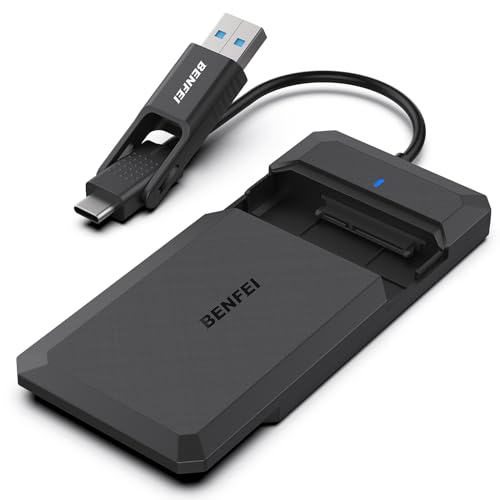
- BENFEI 2.5″ Hard Drive Enclosure: USB C/A to SATA, optimized for SSDs.
- Hard Drive Enclosure for 2.5 Inch IDE Drives: High-speed, screwless design.
- AISENS USB 3.1 External Box: Ideal for 3.5 SATA III hard drives.
- Tooq TQE-3520B: Supports both IDE and SATA, featuring an LED indicator.
Formatting Your Hard Drive
After connecting your hard drive to your Android TV or Chromecast via the newly purchased enclosure, you may encounter a prompt to format the drive. This step is crucial for ensuring compatibility.
Recommended File Formats
You have three primary options for formatting:
- FAT32: Works with most devices but has a 4GB file size limit.
- NTFS: Best for larger files, such as movies; widely supported by Android TV.
- exFAT: Allows for larger files but may have compatibility issues with some televisions.
If the device doesn’t permit formatting, connect the hard drive to your PC and format it there.
Unlocking Potential: What You Can Do with Your Hard Drive
Now that your hard drive is connected and formatted, the possibilities are vast. Here are some practical uses:
Media Storage
Store your favorite movies, TV shows, and music directly on the hard drive. Access the content through your Android TV’s native players or any third-party apps you choose to install. You can even store photos for viewing on your TV.
Expand Your Recording Options
Certain Android TV devices allow you to record live broadcasts or shows. By using an external hard drive, you can significantly increase your available storage for recordings.
Use as Internal Storage
Some Android TVs permit you to format the external drive as internal storage. This option, when available, allows you to install more applications and games, although performance may be slightly slower than with built-in storage.
Supporting Downloads
Many download managers and emulators support external drives. This flexibility allows you to save ROMs or download files directly to your hard drive, enhancing your user experience.
Conclusion
Repurposing your old hard drive for use with an Android TV or Chromecast is a cost-effective way to ramp up your multimedia capabilities. With the right enclosure, formatting, and usage, your old drive can transform into a versatile tool for enjoying and managing your digital life.