
How to Create a Travel Animation Video
Creating a travel animation video, where you can visually jump from one destination to another while showcasing photos from each location, is simpler than you might think. An online service called Mult allows you to accomplish this without any extensive technical skills. While a free account provides basic functionality, a paid version offers higher quality exports and more photo uploads.
Getting Started with Mult
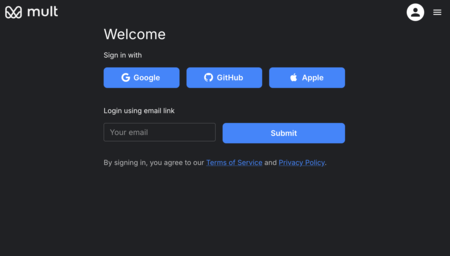
The first step is to visit mult.dev. To use the service, you’ll need to create an account. You can register using Google, GitHub, Apple, or simply with your email address. Once logged in, you’re ready to start your journey.
Creating Your Trip Animation
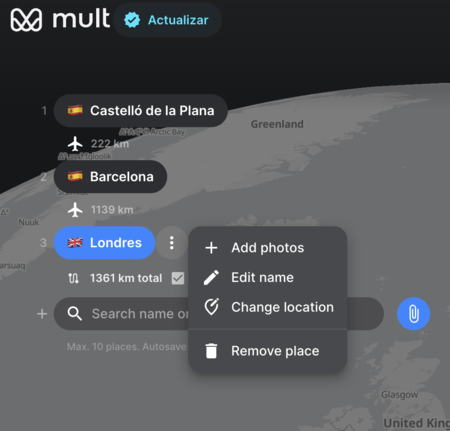
Next, navigate to the option to create a new trip. Here, you’ll need to add each destination point along your timeline. You can search for those locations by name, input coordinates, or upload a photo to extract coordinates from its metadata.
It’s important to note that with a free account, your animation will use an airplane icon for all transitions. If you opt for a paid account, you can select various modes of transport and customize the routes between destinations. The paid Pro version starts at just $5.99.
Adding Photos to Your Destinations
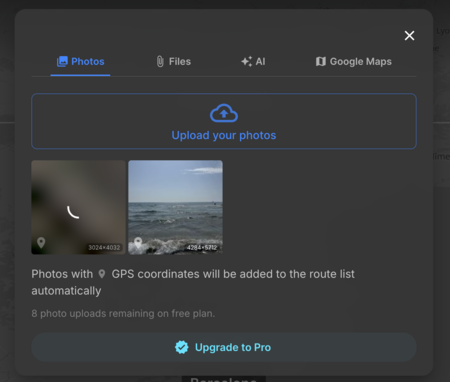
Once you have added your locations, look for the three-dot button to the right of each destination. This button gives you several options, allowing you to add photos, edit names, or change locations. You can upload photos directly from your computer, choose from files, search Google Maps, or even use AI-generated images.
With the free plan, you can upload up to 10 photos. After uploading a photo for a location, select it to include in the animation.
Exporting Your Animated Travel Video
As you add photos, they will automatically appear for each location. After making all your adjustments, click the Export button located at the top right corner. In the export options, you can select the video format, whether square, horizontal, or vertical, and set the frames per minute. You can preview your video before finalizing the export, allowing for any last-minute tweaks.
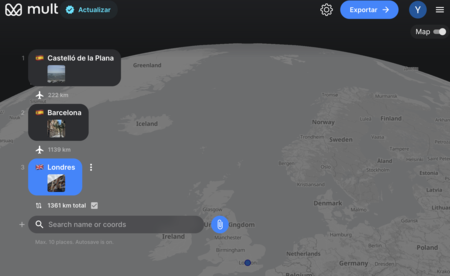
Finally, hit the Export button, download your video, and you’re set to share your animated travel experience with the world!
Conclusion
Using Mult is an intuitive way to create engaging travel animations that can captivate your audience. Whether for personal memories or sharing on social media, this tool enables you to present your travel adventures in a visually appealing manner.