
How to Create a Claude AI Chatbot Using Your Own Documents
Creating a chatbot with Claude’s AI that responds exclusively based on your own documents is a powerful way to leverage artificial intelligence for personalized information retrieval. Whether you’re working with reliable sources of information or need a chatbot tailored to specific queries, following these steps will help you set up your own Claude AI chatbot effectively.
Step 1: Prepare Your Sources
The first and perhaps most tedious step is to select the documents that the AI will rely on for responses. Your sources can include various file types such as text files, PDFs, and even images. Here’s how to efficiently gather your materials:
- Choose Reliable Sources: Ensure that the documents you collect are trustworthy and relevant.
- Organize Your Files: Save all chosen documents in a dedicated folder for easy access. It’s also possible to write original text manually if needed.
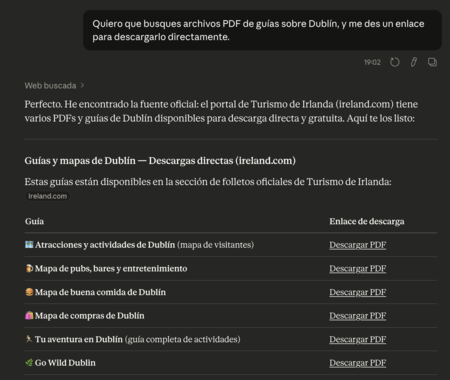
- Internet Assistance: While you can ask Claude to search for PDFs online on specific topics, it’s advantageous to personally vet and choose the documents to build your knowledge base.
Step 2: Create Your Project
Once you have your sources ready, it’s time to set up the project within Claude:
Access Projects: Begin by logging into Claude and navigating to the “Projects” section. This is where you can organize your various chatbot interactions.
Create a New Project: Click on the option to create a new project. Give it a clear name and description for easy identification—this won’t affect its functionality but will help you manage multiple projects.
Upload Your Documents: In the “Files” section, upload all relevant documents. Claude supports multiple formats like PDF, DOC, and more. You can upload files directly from Google Drive or input text manually. Take your time to ensure all critical files are included.
Step 3: Customize Instructions for Claude
The next vital step is to set up instructions that dictate how Claude should operate within this project:
Edit Instructions: Modify the provided section to specify that Claude should draw responses exclusively from the uploaded documents. You might use a prompt such as:
“All answers to questions in this project will be sought only in the content of the files. Only the files can be used. If information is requested that is not in the files, Claude must state that the answer is absent and ask if I would like to search the Internet.”
Clarification and Permissions: Make it clear that Claude should only use the documents provided. If a question falls outside the content of those documents, it must seek your permission to browse the Internet.
Step 4: Interact with Your Chatbot
After setting everything up, you can now ask Claude any questions or make requests:
- Specific Queries: Feel free to pose direct questions or ask for detailed information based on the documents uploaded.
- Engaging Activities: Claude can assist with various tasks like creating itineraries or even generating trivia games based on the data from your documents.
Conclusion
With these straightforward steps, you can effectively create a Claude AI chatbot that pulls responses solely from your chosen documents, ensuring the information you receive is both reliable and personalized. This tailored approach enables you to manage and retrieve information efficiently, enhancing your overall productivity when working with specific data sets. Remember, the key lies in the quality of the sources you provide and the clarity of instructions you give Claude. Happy chatting!