
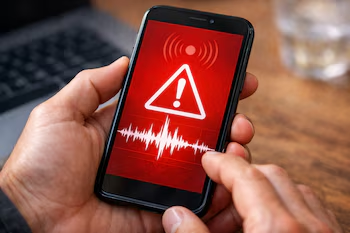
Earthquake Alerts: Activating Disaster Warnings, Threat Notifications, and AMBER Alarms
In a world increasingly vulnerable to natural disasters and security threats, mastering your smartphone’s alert system can be a critical factor in ensuring your safety. Android devices come equipped with essential tools to help users stay informed and prepared during emergencies. Here’s how you can set up disaster alerts, threat notifications, AMBER alarms, and more on your device.
Understanding Emergency Notifications
Android smartphones utilize notifications issued directly from government authorities and local civil protection agencies via nearby cell towers. These alerts fall into three main categories:
- Disaster Warnings/Extreme Alerts: Alerts concerning imminent high-risk natural events like hurricanes, tornadoes, or severe flooding.
- Threat Notifications: These alerts warn the public about potential civil or environmental risks in their vicinity.
- AMBER Alarms: Urgent notifications regarding the disappearance or abduction of minors, prompting community involvement for their swift recovery.
How to Activate Alerts on Your Android Device
To ensure you receive timely alerts, follow these steps:
- Open Settings: Tap on the Configuration or Settings app on your Android device.
- Navigate to Notifications: Select the Notifications option.
- Access Wireless Emergency Alerts: Look for Wireless emergency alerts. Depending on your device manufacturer, this may be listed as Government Alerts at the bottom of the menu.
- Customize Alert Settings: In this menu, toggle the switches for each alert category as needed. You can also adjust sound, vibration settings, and review the history of past alerts.
Enabling Earthquake Alerts
Earthquake alerts can provide you with crucial seconds to seek safety. Here’s how to enable them:
Standard Method (Android 12 and Higher)
- Go to Settings.
- Select Security and emergency.
- Tap on Earthquake alerts and slide the switch to turn it on.
Alternative Method (Specific Device Models)
- Open Settings.
- Navigate to Location and find Location services or Advanced.
- Select Earthquake alerts and activate them.
Key Considerations for Receiving Alerts
For alerts to function effectively, ensure that:
- Your location services are powered on.
- A Wi-Fi or mobile data connection is active.
- Your device is not in extreme power-saving mode, which may restrict notifications.
Crisis Alerts and Additional Features
Android also offers Crisis Alerts designed for complex public emergencies, including wildfires or flooding. When these alerts appear on your screen, clicking them will direct you to Google for real-time information, impact maps, and official statements from local authorities.
Verifying Alert Status
To check if your alert settings are correctly enabled:
- Open Settings on your device.
- Go to Security and emergency.
- Tap on Crisis alerts and ensure the toggle switch is activated.
Conclusion
Activating earthquake alerts, threat notifications, and AMBER alarms on your Android device is crucial for maintaining your safety and awareness in emergency situations. By following the outlined steps, you empower yourself to react swiftly and effectively to unforeseen events. Make sure to configure your settings appropriately, stay informed, and always prioritize safety.