
Everything you need to know to update your mobile to iOS 27 is right here. Apple has officially announced the release of iOS 27, and it’s time to explore vital information about compatible devices and how to prepare for the update.
In this article, we’ll start by listing all the iPhone models that will support iOS 27. Next, we’ll share four essential tips to prepare for the update so everything goes smoothly. Finally, we will explain the updating process step-by-step.
Which iPhones are compatible?
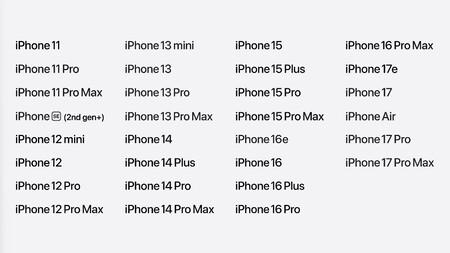
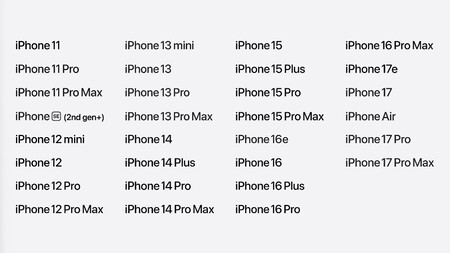
In a significant development for users, iOS 27 will be compatible with all models up to the iPhone 11. This means that if your iPhone currently runs iOS 26, it will also be eligible for the iOS 27 update. Here are the compatible models:
How to prepare for iOS 27
Before jumping into the update process, taking four preparatory steps is crucial. These steps will help safeguard your data and ensure a smooth update experience.
- Make a backup: Always back up your iPhone before updating. This precaution is vital in case something goes awry. Use either iCloud or your computer to create a backup.
- Free up space on your iPhone: Ensure you have at least 10 GB of available storage. iOS updates can be substantial, and having adequate space is essential. You can refer to our guide on how to free up space on your device.
- Have your mobile connected to WiFi: Downloading updates requires a lot of data. Connect your device to a WiFi network to avoid excessive mobile data charges and enhance download speeds.
- Charge your battery: Ensure your battery is at least 50% charged before beginning the update. This practice helps avoid disruptions during the installation process. If possible, keep your iPhone plugged in while updating.

How to update to iOS 27
Before the official launch of iOS 27, there will be two types of beta versions. Initially, developer beta versions will be available, followed by public beta versions. To access the public betas, ensure to register on the website beta.apple.com.
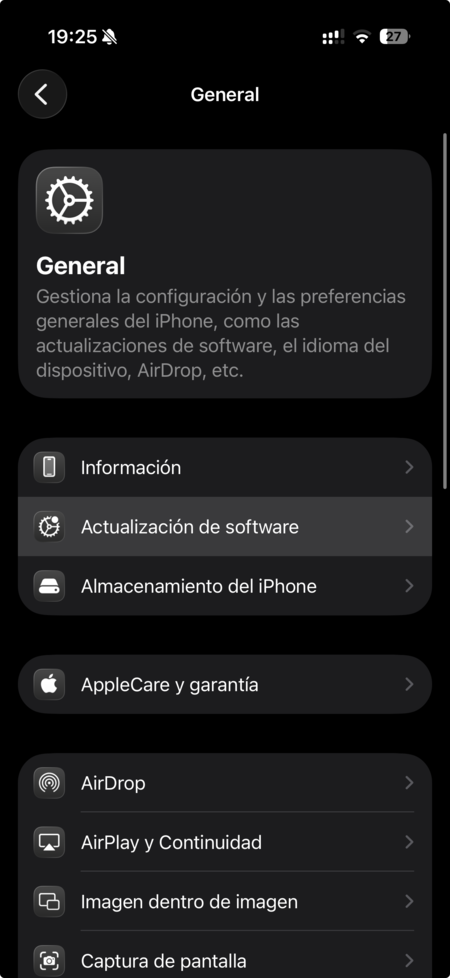
After registration, whether you’re updating via public beta or when the final version is released in September, the updating process remains the same. Navigate to your iPhone’s settings, select General, and click on Software Update.
Your iPhone will automatically check for updates on Apple’s servers. If an update is available, simply click on the Update option to begin downloading and installing the update.
Stay tuned to iOS news for updates on essential and hidden gems for your device!