
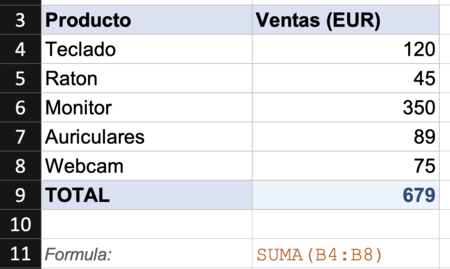
Excel is a powerful tool for data organization and calculations, and mastering its essential formulas can significantly enhance your productivity. Here are 19 essential Excel formulas you’ll want to integrate into your spreadsheets, along with examples of how to use them.
Basic Mathematical Operations
Before delving into more advanced formulas, let’s review the foundational mathematical operations:
- Addition: Use
=SUM(A1:A50)to add values across a range. - Subtraction: For subtraction, use
- Multiplication: Use an asterisk (*), e.g.,
- Division: For division, include a slash (“/”), e.g.,
Remember that Excel follows the order of operations, automatically prioritizing multiplication and division over addition and subtraction.
Average, Max, and Min
The following formulas allow for quick numerical insights:
- Average: The formula
=AVERAGE(A2:B2)returns the arithmetic mean of the specified cells. - Max: Use
=MAX(A2:C8)to find the highest value within a set. - Min: Conversely,
=MIN(A2,B4,C3,29)identifies the lowest value.
Error Handling and Logical Functions
Managing errors effectively can save time and frustration:
- IFERROR: This formula
=IFERROR(MAX(A2:A3) / MIN(C3:F9),"There has been an error")helps handle errors like #DIV/0! - IF: One of Excel’s most powerful functions,
=IF(B2="Madrid","Spain","Other country")can display outcomes based on conditions.
Counting and Summation
These formulas are vital for data analysis:
- COUNTA: Use
=COUNTA(A:A)to count all values including text. - COUNTIF:
=COUNTIF(C2:C,"Pepe")will count cells meeting a specified criterion. - SUMIF: The formula
=SUMIF(B2:B50,"Madrid",C2:C50)sums corresponding values only if they meet a specified condition.
Random Numbers and Date Functions
Enhance analysis with randomization and date calculations:
- RANDBETWEEN: Generates a random number between two values, e.g.,
=RANDBETWEEN(1,10). - DAYS: Use
=DAYS("2/2/2018", B2)to calculate the number of days between two dates. - NOW: The formula
=NOW()retrieves the current date and time.
Advanced Date Formulas and Text Manipulation
These formulas are ideal for handling dates and text:
- WEEKDAY: Determine the day of the week with
=WEEKDAY(NOW(), 2). - HYPERLINK: Create clickable links in cells using
=HYPERLINK("http://www.google.com", "Visit Google"). - TRANSPOSE: Flip rows and columns with array formulas like
{=TRANSPOSE(A1:C20)}. - REPLACE: Modify text with
=REPLACE("Hello", 1, 1, "W")to transform “Hello” into “Wello”. - CONCATENATE: Join text strings using
=CONCATENATE(A1, " ", B1). - TRIM: Clean up extra spaces in text using
=TRIM(F3).
Finding Text and Lookup Functions
Effective for searching within text and datasets:
- FIND: Check if text exists with
=FIND("text", "string"). - VLOOKUP: Look up values in a table using
=VLOOKUP(A2, B2:D100, 3, FALSE). - XLOOKUP: The modern alternative to VLOOKUP, which offers more flexibility.
These 19 essential Excel formulas can transform the way you work with data, enabling you to perform intricate calculations and analyses with ease. As you grow more comfortable with these formulas, don’t hesitate to modify and combine them to cater to your unique spreadsheet needs!