

Imagine you’re considering an upgrade from a 24 to a 27-inch monitor for daily PC use. You find an excellent price on a Full HD model, similar to your current one but with a larger screen. Exciting, right?
You eagerly take the plunge, only to be disappointed when everything appears blurry upon setup. What went wrong? It turns out, you overlooked an important factor: pixel density.
You’re not alone; many face this issue. But don’t worry! This article will help you make a smarter choice, preventing unnecessary frustration and costly returns. Let’s dive into pixel density and why it matters.
What is Pixel Density?

Pixel density, or pixels per inch (PPP), indicates how many pixels are present in one inch of a display. A higher pixel density means sharper images; lower density results in a blurry appearance. This value is closely tied to the size and resolution of the screen.
Modern monitors come in various resolutions:
- Full HD: 1920 x 1080 pixels
- Quad HD: 2560 x 1440 pixels
- Ultra HD (4K): 3840 x 2160 pixels
The higher the resolution relative to the screen size, the sharper the visuals. If you increase the screen size without boosting the resolution, the pixel density decreases, leading to less clarity.
For instance, a 24-inch Full HD monitor has a pixel density of about 92 PPP, while a 27-inch version drops to around 81 PPP. This shift might not seem significant, but that 11 PPP difference can be the line between sharp and blurred images. To maintain quality when increasing size, you must also upgrade the resolution.
The Sweet Spot: Size and Resolution
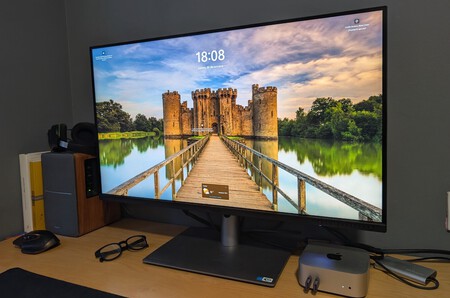
We can establish a rough ‘sweet spot’ based on display size and resolution, ensuring clarity across various tasks:
- Full HD (1920 x 1080p): Best for screens 24 inches or smaller (minimum of 92 PPP).
- Quad HD (2560 x 1440p): Ideal for monitors between 24 and 32 inches (also a minimum of 92 PPP).
- Ultra HD (3840 x 2160p): Best for displays over 32 inches (minimum of 138 PPP).
To summarize, if you feel limited by a 24-inch setup, transitioning to a 27-inch monitor necessitates upgrading to at least Quad HD for optimal clarity (moving from 92 PPP to 109 PPP).
Pros and Cons of Each Option
When comparing a 24-inch Full HD monitor to a 27-inch Quad HD model, consider the following:
24″/1080p | 27″/1440p | |
|---|---|---|
PROS 🟢 | Perfectly sharp for standard use, and more budget-friendly. | Greater sharpness and a larger display. |
CONS 🔴 | Less sharpness overall; might feel small over time. | Takes up more desktop space; demands better graphics power, and is pricier. |
IDEAL FOR | Casual gaming and small setups. | Photo/video editing, powerful gaming, and expansive workstations. |
Budget Considerations
Generally, as screen size and resolution increase, so does cost. Today, various monitors offer great quality across the board; however, you’ll want to consider:
If you stick to 24 inches, Full HD will likely suffice for most tasks, saving you money over Quad HD or Ultra HD options.
A Full HD monitor allows for smooth gaming without requiring high-end hardware; a mid-range graphics card and a decent CPU will handle performance adequately.
In contrast, if your 24-inch monitor starts feeling cramped and you seek a 27-inch upgrade, you’ll need at least Quad HD resolution to maintain text clarity and optimal gaming experience.
Recommended Models
24-inch/Full HD: AOC 24G42E
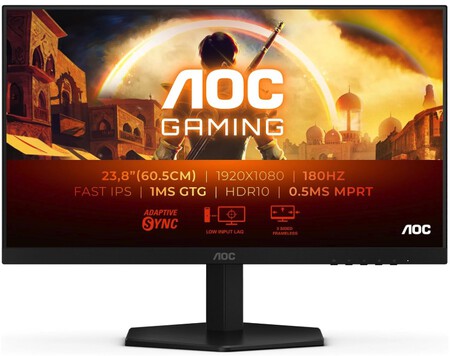
This Full HD monitor offers exceptional performance at an unbeatable price, especially during promotions. It features a 180 Hz refresh rate and a response time of just 0.5 milliseconds, making it perfect for gaming.
27-inch/Quad HD: ASUS ROG Strix XG27AQV
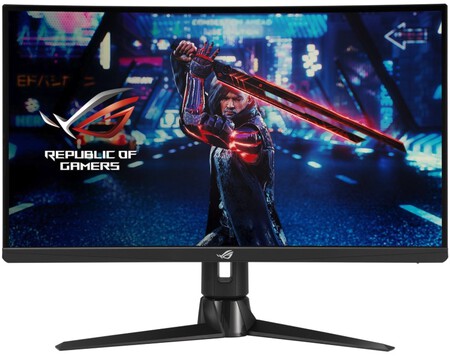
This 27-inch Quad HD monitor is a go-to recommendation due to its crystal-clear images and overall enhanced gaming quality, featuring a 170 Hz refresh rate and G-Sync compatibility.
Explore More Models
These recommended models withstand the test of time, yet countless options exist. For further research, check out buying guides for versatile monitors suitable for both work and gaming.
Happy hunting!