
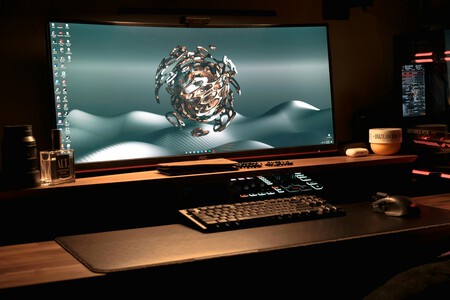
It has happened to me and it may happen to you too: you have a monitor and you notice that it is no longer enough. You could take a leap and swap it for something a little larger, but just adding inches to the equation isn’t going to change things too much. To enhance our experience, we need something different, like opting for an ultrawide monitor or adding one more monitor to our setup.
What is the best option for you? Both are great, but they may not suit your needs in the same way. Let’s explore the advantages and disadvantages of these two configurations to help you make an informed choice.
Choosing an Ultrawide Monitor
An ultrawide monitor is designed to be larger and comes in a 21:9 format, offering a wider horizontal space that significantly boosts productivity. It allows you to work without barriers, which is essential for tasks like coding or managing spreadsheets with many columns.
With a single screen, there are no interruptions from frames or borders. This unbroken visual experience is ideal for multitasking, letting you open three windows side by side seamlessly. Additionally, ultrawide monitors are highly immersive for gaming, providing a broader field of vision.
If you choose a curved ultrawide model, you might appreciate its ergonomics. The gentle curve enables you to view the entire screen without straining your neck, maintaining a centered and upright position.
Moreover, thanks to Fitts’ Law, the mouse movement is more fluid on an ultrawide monitor, reducing cognitive load and fatigue. Plus, they present a minimalist workspace, although you’ll need a large desktop background to maximize the visual experience.
However, there are downsides: if the monitor fails, you lose your entire workspace. Moreover, higher resolutions may require a powerful graphics card to support optimal performance.
Choosing Two Monitors
On the flip side, having two monitors offers a versatile setup. You can buy two identical screens or combine your old monitor with a new one, which also allows for height adjustments or even a vertical orientation. This is particularly useful for reading long documents or checking social media while doing other tasks on a horizontal screen.
For many, two monitors create distinct workspaces, enhancing operational efficiency by letting you have an email or chat application open on one screen while working on documents or tasks on another. However, one drawback is the inevitable frame in the middle, which requires more neck movement.
It’s imperative to carefully position both monitors to avoid eye strain. For mixed setups, using a monitor stand can help but will add to your total investment.
Pros and Cons of Each Option
| Ultrawide Monitor | Two Monitors | |
|---|---|---|
| THE GOOD 🟢 | No frames in between, ideal for video editing or multitasking, less neck strain. | Two separate workspaces. |
| THE BAD 🔴 | Requires a robust setup and a powerful graphics card. | Involves more neck movement and has black frames. |
| Ideal for: | Seeing all documents/apps at once in a single view. | Versatility, including vertical screen options. |
Which Setup is Right for You?
Both setups can enhance your productivity, but your choice will depend on your specific needs. If you prefer a single workspace where you can effortlessly view several applications, an ultrawide monitor is a strong candidate. Its 21:9 format is not only practical but also healthier for your posture.
- Actual use: Want ample space for multiple views without neck movement.
- Benefit: A cleaner, more organized workspace.
On the other hand, if you favor the versatility of distinct workspaces, especially for tasks that involve vertical browsing, two monitors might be more suitable.
- Actual use: Seeking dual workspaces for varying tasks.
- Benefit: Ability to adapt to different workflows.
In summary: Choose an ultrawide monitor for a unified, expansive view. Opt for dual monitors for flexibility and separate work environments.
Recommended Models
Ultrawide Monitor: LG 34WR50QK-B
If you are looking for a productive ultrawide monitor, consider the LG 34WR50QK-B. With a 34-inch screen and 1800R curvature, it allows for comfortable viewing without straining your neck. It offers QHD resolution and a refresh rate of 100 Hz, making multitasking smoother and reducing eye fatigue.
Two Monitors: Samsung S40GD
If you prefer two monitors, the Samsung S40GD is an excellent choice. This 24-inch Full HD monitor has a 100 Hz refresh rate and IPS panel, ensuring great visibility regardless of placement. For optimal setup, consider purchasing a dual monitor stand.
If these models don’t meet your criteria, refer to our comprehensive guides for ultrawide and work monitors for more options.
Images | Jose Garcia, Markus Spiske, Mehmet Ali Peker