
Effortless File Sharing Between iPhone and Android
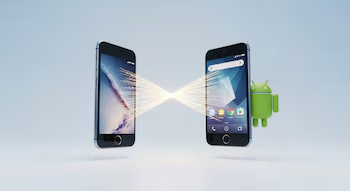
Sharing files between mobile devices is a common requirement in our digital lives. While transferring files between devices that operate on the same ecosystem is relatively smooth, iPhone and Android users often face challenges. Thankfully, Google’s Quick Share and Apple’s AirDrop are changing the file-sharing landscape, providing a seamless solution.
The Evolution of File Sharing: From Complicated to Simple
In the past, sharing files between Android and iPhone typically involved the use of external applications, cumbersome cables, or cloud services. This made the process tedious and often frustrating. However, with the integration of Quick Share and AirDrop, users can now effortlessly transfer files between a Google Pixel and an iPhone wirelessly.
This feature initially rolled out with the Pixel 10 series and aims to expand to more Android models, allowing for smooth document, photo, and video transfers across platforms without reliance on third-party applications or subscription services.
How to Share Files from Google Pixel to iPhone
Transferring files from a Google Pixel to an iPhone is straightforward. Here’s a step-by-step guide to make the process seamless:
- Open Quick Share: Access Quick Share from your Google Pixel’s quick access panel.
- Select Files: Choose the files you wish to share—this can include photos, videos, or documents.
- Find Devices: Quick Share will display compatible nearby devices.
- Enable AirDrop on iPhone: Make sure that the iPhone has AirDrop enabled and is set to ‘Everyone’.
- Select the iPhone: Once detected, select the iPhone from the list on your Google Pixel.
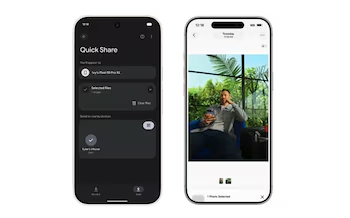
- Accept Notification: The recipient will receive a pop-up notification on their iPhone to accept the transfer. Upon acceptance, files will be stored on the iPhone instantly and made ready for use.
Sending Files from iPhone to Google Pixel
Sharing files from an iPhone to a Google Pixel is equally uncomplicated:
- Open the File: Access the file you want to share on your iPhone.
- Tap Share: Tap the share icon, then choose AirDrop.
- Activate Quick Share: Ensure that the Google Pixel has Quick Share enabled and set to receive mode.
- Select the Pixel: Locate the Pixel as an available device and select it.
- Complete the Transfer: After confirming the transfer on the Android device, files will appear in the shared content section immediately.
Advantages of Quick Share and AirDrop Integration
The incorporation of Quick Share and AirDrop provides a rapid, efficient, and secure way of transferring data across platforms. This integration not only enhances user convenience but also supports professionals who often require quick access to files during collaborative tasks.
By reducing barriers to file sharing between iPhone and Android, users can enjoy a more fluid experience, ultimately promoting productivity and ease of communication.
Traditional Sharing Methods: A Thing of the Past
Historically, Bluetooth has been a staple for transferring files between Android devices. However, this method often leads to sluggish transfer speeds, especially for larger files. Other methods such as USB connections and microSD cards, while functional, require additional steps that complicate the process.
With the advent of Quick Share and AirDrop, these traditional methods are losing their appeal in favor of faster, more efficient options, making it unnecessary to rely on third-party apps or subscribe to extra services for file sharing.