
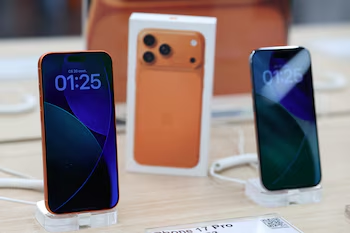
How to Improve Camera Quality on iPhone 16 and 17 in Seconds
If you’re an iPhone 16 or iPhone 17 user, enhancing your photo quality is just a few taps away. By adjusting your camera settings, you can set your resolution to an impressive 24 megapixels, resulting in sharper and more detailed images. This guide will walk you through the steps to activate this feature and offer additional tips for capturing stunning photos.
Setting Up 24-Megapixel Resolution
To improve your photo quality instantly, follow these steps:
Open the Settings App
- Locate and tap on the Settings icon on your iPhone.
Navigate to Camera Settings
- Scroll down and select the “Camera” section.
Adjust Photo Resolution
- Tap on “Formats” or “Photo Resolution.”
Activate 24 MP as Default
- Choose 24 MP as your default resolution.
With these settings, every photo taken will be saved at 24 megapixels, leveraging your device’s advanced camera capabilities.
Benefits of 24-Megapixel Photos
Switching to 24 MP enables you to achieve:
Increased Detail and Sharpness: Photos display finer details, ideal for larger prints or cropping without losing quality.
Enhanced Color Accuracy: More pixels allow for more visual information, producing sharper textures and vivid colors.
Compatible iPhone Models
The following iPhone models support this 24-megapixel resolution feature:
- iPhone 15
- iPhone 15 Plus
- iPhone 15 Pro
- iPhone 15 Pro Max
- iPhone 16
- iPhone 16 Plus
- iPhone 16 Pro
- iPhone 16 Pro Max
- iPhone 16e
- iPhone 17
- iPhone 17 Pro
- iPhone 17 Pro Max
- iPhone Air
Tips for Better Photography
While the 24 MP setting significantly enhances photo quality, certain practices can further improve your photography:
Use Natural Light: Whenever possible, take photos in good natural lighting to highlight colors and details without needing the flash.
Clean Your Lens: A quick wipe of your camera lens can prevent any spots or smudges that may blur your images.
Utilize Focus and Exposure Settings:
- Tap on the screen to focus on your subject. You can also adjust exposure by sliding up or down.
Experiment with Portrait Mode: This feature helps accentuate faces and focal points in your images.
Make Use of Composition Guidelines: Turn on the camera grid to align essential elements in your shot for a more visually balanced photo.
Edit with Built-In Tools: Take advantage of your iPhone’s photo editing features to enhance brightness, contrast, and saturation.
Considerations for High-Resolution Photos
While there are numerous advantages to taking high-resolution images, keep in mind that:
Larger File Sizes: 24-megapixel photos take up more storage space. Regularly manage your storage and back up your photos to avoid filling up your device too quickly.
Longer Sharing Times: Sending high-res images may take longer due to file size. Be aware when sharing via messages or email.
Conclusion
Activating the 24 MP setting on your iPhone 16 or 17 opens up a world of opportunities for capturing stunning, high-quality photos. By following the steps outlined above and employing practical photography tips, you can make the most of your iPhone camera. Whether for digital sharing or printing, you’ll ensure that your images are sharp, vibrant, and visually appealing.