
In this article, we’ll delve into 22 features and tricks for ChatGPT Atlas, OpenAI’s web browser infused with artificial intelligence. ChatGPT Atlas is a Chromium-based web browser that simplifies interaction with the content of any page you visit.
Our focus here will be on the innovative features that ChatGPT brings to the browser, rather than the basic functionalities shared across all Chromium browsers. Keep in mind that this is a newly launched browser, and there may be occasional errors and updates as it continues to evolve.
As always, if you believe we’ve missed any essential features, we invite you to mention them in the comments section so that all users can benefit from each other’s knowledge.
Use the Smart Side Chat
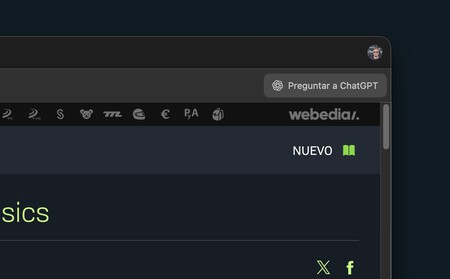
The standout feature of the Atlas Browser is its side chat. Whenever you visit a web page, you can click the “Ask ChatGPT” button. This allows you to access all the intelligent functions we’ll discuss shortly.
Select Text and Ask ChatGPT
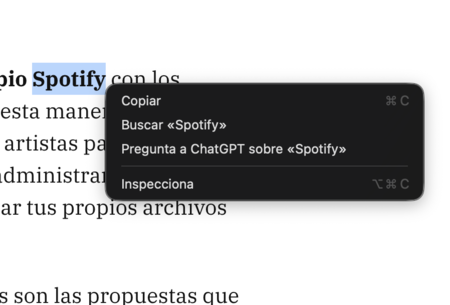
Before diving into the various functionalities of this browser, it’s crucial to note that there’s another way to interact with the AI. Simply highlight a word or phrase on a webpage and right-click.
This action opens a context menu, where you’ll find the option Ask ChatGPT about. This automatically opens a dialogue with ChatGPT, inquiring about the highlighted text.
Access Your ChatGPT History Anytime
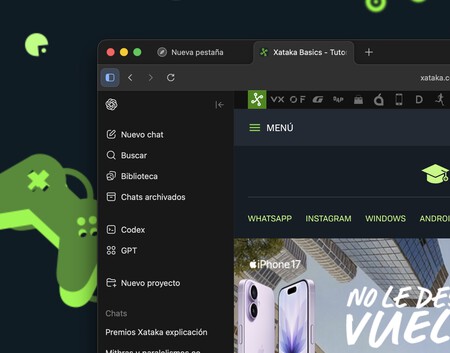
At the top left of the address bar, there’s a button to open a column on the left side of the browser. This column provides your ChatGPT history and options.
It resembles the one available on the AI’s official website, but now you can access it from any webpage. This feature significantly streamlines searching through content, your history, GPTs, or anything else.
Import Bookmarks and History from Another Browser
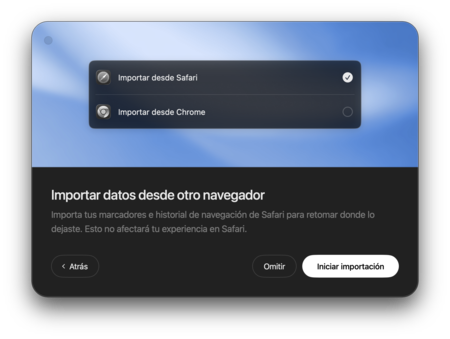
One of the challenges of switching to a new browser is re-establishing your previous setup. When you first install Atlas, you can import your data from another browser, preserving both bookmarks and your browsing history.
Additionally, as it’s based on Chromium, the bookmark manager closely resembles that of Chrome or Edge, making it easy to import from other browsers. You can even hide the bookmark bar.
Take Control of Your Browsing Experience
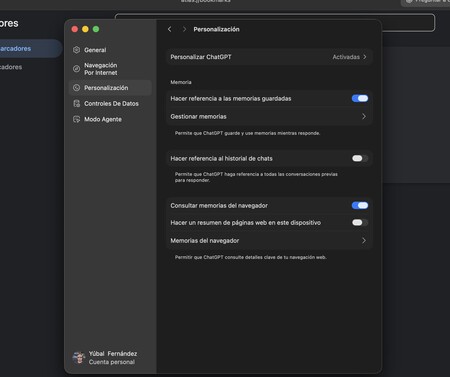
Atlas allows you to customize aspects such as colors and interface. Additionally, you can determine the internal functionality and the data access of ChatGPT. For instance, you can limit the internal memories, dictating what the browser remembers and if it can reference past chat history during inquiries.
There’s also a Data Controls section, enabling you to manage shared links, whether you send data to OpenAI for service improvement, archived chats, export data, or delete all conversations.
ChatGPT from the New Tab Screen
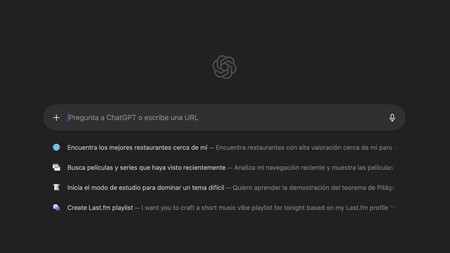
When you open a new tab in Atlas, you’ll go directly to ChatGPT. Unlike other browsers that typically direct to a search engine, here what you type serves as a prompt for the artificial intelligence.
Typing something in the address bar also redirects you to ChatGPT. Initially, this might be confusing as we are accustomed to searching for information. In Atlas, you need to adapt to thinking of it as a prompt rather than a search query.
You Can Also Search Google
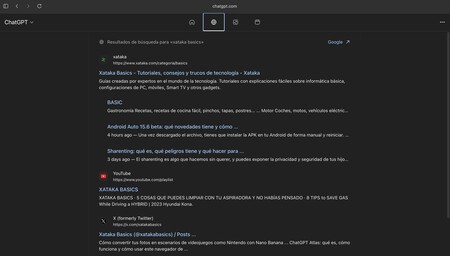
When typing on the home screen or in the address bar, you’ll see several tabs at the top of the screen. The first is a hybrid between ChatGPT and a search engine, displaying the top results first. But there are additional tabs.
You’ll also find a search tab to view Google results for your query, along with two more for image and video results. Furthermore, when entering a prompt, a suggestion to search directly on Google will appear below before pressing enter.
Get Instant Summaries of Pages
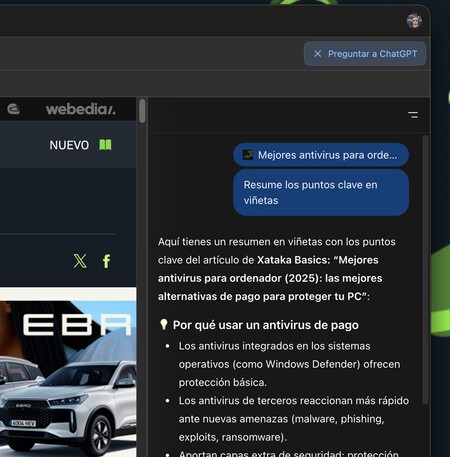
Let’s kick off with features of the side chat. If you have a lengthy article open but lack time to read, you can ask the browser to summarize the content. Open the ChatGPT column on the side and request that it summarize the webpage. Use a prompt like “Summarize the key points in bullet points.”
By framing your request this way, the side chat will recognize the current webpage in the active tab and generate a summary. This summary will be structured, broken down into bullet points for easier understanding.
Summarize and Interact with Videos
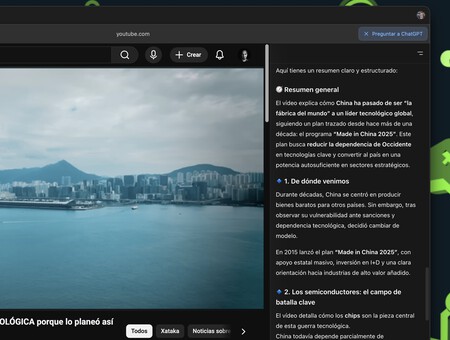
While on YouTube or a video site, you can invoke ChatGPT and ask it to summarize the video’s content. Similarly, you can inquire about related contexts or ask it to find similar videos. You can even request it to transcribe or translate what’s being said in the video.
Rewrite a Text Snippet
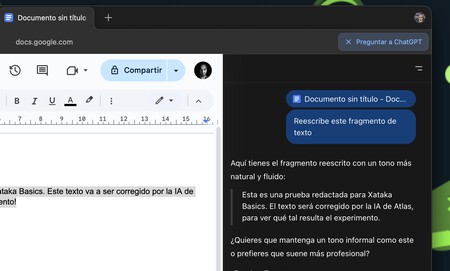
Imagine you are drafting an article or completing a form. In such cases, you can select the text snippet you desire and ask ChatGPT in the side panel to rewrite it. You can even specify a particular style you’d prefer.
As you do this, the AI will recognize the webpage you’re on as well as the selected text, enabling you to obtain a fully rewritten version along with corrections.
Activate Agent Mode
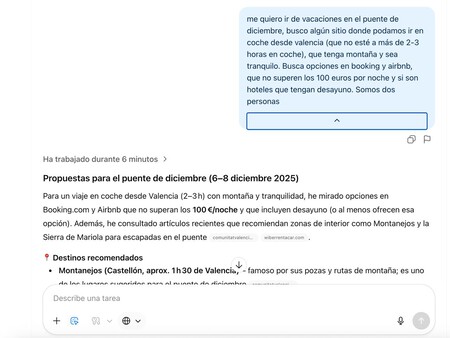
One of the most intriguing and versatile features is agent mode, which allows the AI to take control of your browser and execute tasks independently. For instance, you can instruct it to shop on a website by providing a list of products, seeing the mouse move on its own as it carries out your commands.
You can also ask it to plan a trip, supplying specifications about your destination or hotel prices, and the agent can even complete a reservation for you.
Correct the Spelling and Grammar of Your Texts
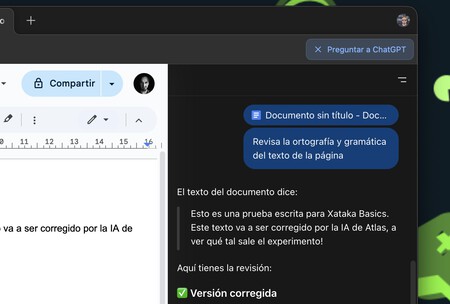
When drafting a document or reviewing a text on a form, you can ask the ChatGPT browser to check your text for spelling and grammar errors. You can instruct it to find any mistakes and suggest corrections.
In this way, ChatGPT will analyze the text in the current article or the one you’ve highlighted, providing a list of all identified errors along with suggestions for correction.
Utilize Study Mode
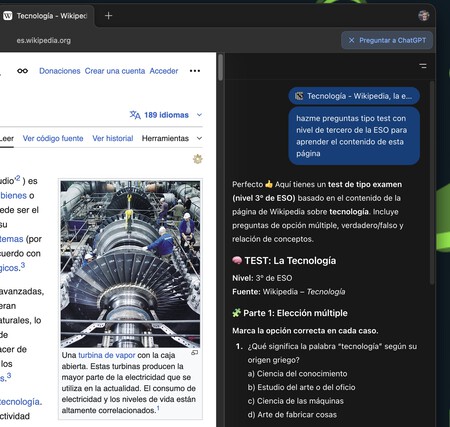
This is an interesting trick. You can access Wikipedia or an educational article and ask ChatGPT to quiz you on the page’s content. The AI will generate questions expecting responses to provide corrections.
Additionally, you can request questions tailored to a specific educational level. For example, you can ask it to explain a concept as if you were a high school student.
Leverage Browser Memories
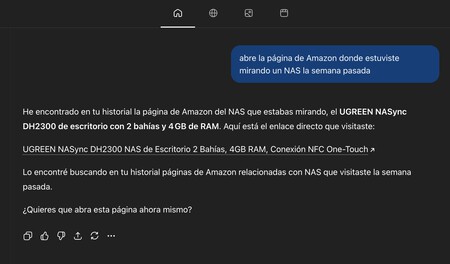
Consider that a few days ago, you visited a site discussing a specific topic or an online store showcasing a type of product. Searching through your browsing history for such information could be time-consuming, so you can ask ChatGPT to recall what you were looking at.
For example, you might say, “Open the Amazon page where I browsed NAS devices last week.” ChatGPT will access the browser’s memory functions to pinpoint the relevant page, allowing you to open it directly.
Use Smart Bookmarks
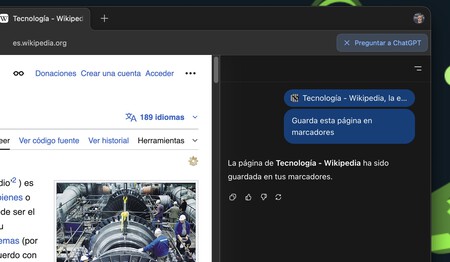
When you’re on a webpage with ChatGPT open, you can have the AI save the page as a bookmark, even specifying the desired folder, all without navigating through menu options.
You can also bookmark a conversation page from ChatGPT. After engaging with the AI, simply say, “Add this to bookmarks,” and the AI will understand you’re referring to Atlas.
Manage Your Browser Tabs
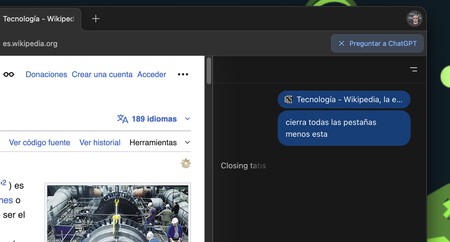
You can also ask the integrated ChatGPT to manage your open tabs. For instance, you can request it to group them, sort them, close all tabs containing certain content, or close all but the ones you choose.
Interact with Attachments
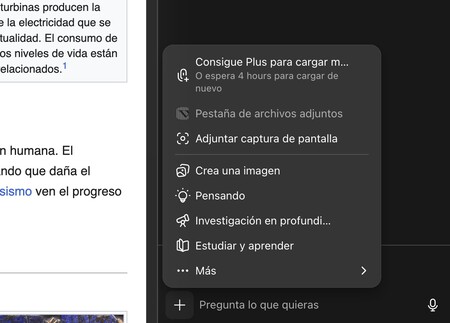
As with standard ChatGPT, the version integrated into Atlas allows you to interact with uploaded files, including PDFs or DOCX, as well as XLSX, CSV, and more.
You can attach any content for summarization, corrections, analysis, or any other needs. Simply click on the upload button in the AI’s input field, attach your file, and specify what you want to do with it.
Search Within Content
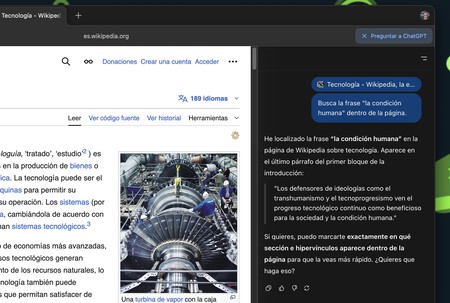
Whether you upload a PDF or are browsing a webpage, you can ask ChatGPT to search for specific information. For example, say “find the section where X is mentioned,” and the AI will analyze the webpage or document to locate what you’ve requested.
Create Images Within the Browser
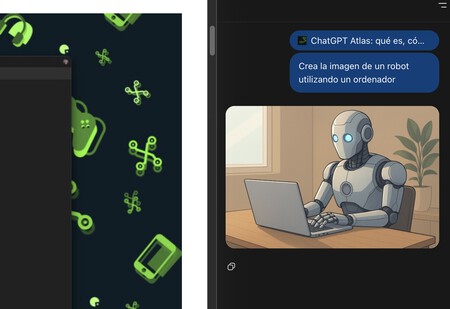
Another classic function of the AI, which you can access directly from the browser, is image generation. You can request it to create images based on your specifications without leaving Atlas. You can also upload photos and ask for edits, reimaginings with specific filters, or cinematic styles.
Generate Content with Context
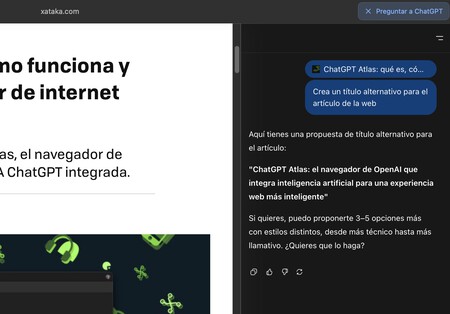
When drafting an article or taking notes from a webpage, you can ask ChatGPT to compose something using what you’ve already written as a reference. You’ll be able to create paragraphs, titles, or summaries based on your existing content.
Compare the Content of Two Tabs
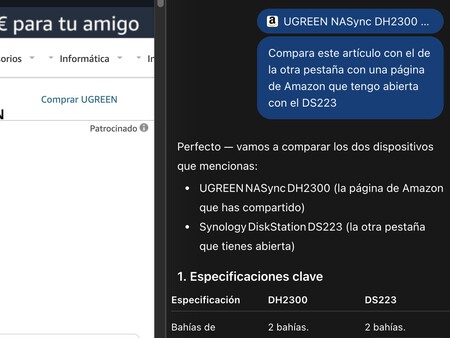
A unique feature allows you to request ChatGPT to compare the content from two open tabs. For instance, you might open a side tab and ask it to compare content from another specific tab. You need to have the ChatGPT tab open on both pages, or the AI won’t access the content.
It may prompt you to specify which tab you’re referring to and suggest listing open tabs before proceeding. For instance, if you have two Amazon tabs open, you can direct it to compare them.
Assisted Reading Mode
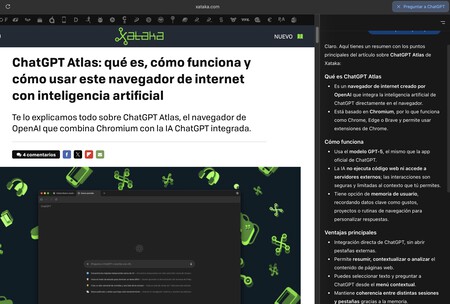
Finally, you can activate the “assisted reading mode” in Atlas by telling ChatGPT on its side panel, “activate reading mode” or “read me the main points.” This mode creates a summary outline of the content of the webpage you are visiting.
This innovative and seamless integration of AI into your browsing experience can significantly enhance your productivity and efficiency, making ChatGPT Atlas a revolutionary tool for both casual users and professionals alike. From interactive summarizations to intelligent task management, this browser promises to redefine how we interact with the internet.