
Let’s explain How to configure parental control of ChatGPT to have control over what the minors of your home do with artificial intelligence. You can also receive notifications when these minors perform certain tasks.
We will explain step-by-step the process to configure the account of the minors to link it to yours. Then, we will briefly tell you how to configure these controls and the options you have. This moment option is only available on the web version of ChatGPT, although soon it will also reach mobile and desktop apps.
First Configure Parental Control
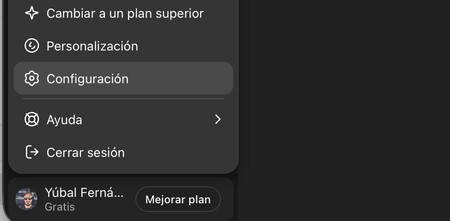
To configure parental control, you first have to open ChatGPT using the account of who is going to manage the family. Once inside, Enter the ChatGPT configuration by pressing your profile image and choosing this option.
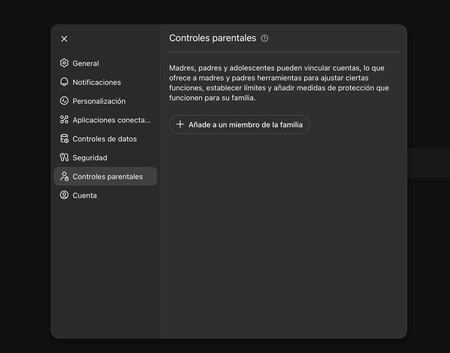

Once inside the configuration, in the left column go to the section of Parental controls. Here, click on the option Add a family member.

Now you have to add the email of the minor’s account that you want to link to your family, selecting that it is your son or daughter, and clicking on send. You can also use a phone number if the account is registered with one. Although this is the simplest method, you can also send the invitation from the child’s account, indicating that the sender is a parent or guardian.

Now, an invitation from OpenAI will arrive in the email account of the child to join your family. They will have to click on the link of the invitation and accept to join ChatGPT. Once accepted, family members will appear in the parental control section.
Now Configure Parental Controls

Once you have created the family, you need to go to the configuration of Parental controls in ChatGPT settings. Inside, click on the name of the minor whose permissions you want to configure. This action will take you to a panel where you can Activate or deactivate the following parameters:
- Reduces sensitive content: It will decrease the sensitivity of the responses provided.
- Improve the model for all: If deactivated, the child’s chats will stop contributing to the server’s improvement.
- Refer to stored memories: Allows retention of memories from the child’s previous interactions with ChatGPT. This can be deactivated if desired.
- Voice mode: Enables or disables the use of voice interactions with ChatGPT.
- Image generation: Allows or restricts the child from creating images using ChatGPT.
- Hours of silence: Configure the start and end times during which this child will be restricted from using ChatGPT.


In addition to this, on the parental control screen you can also configure a series of notifications related to the child’s activity. Notifications can be sent via ChatGPT or through email. These include:
- Answers: Receive notifications when ChatGPT generates responses requiring significant time, such as research or image creation.
- Safety notifications for adolescents: You can set up alerts if the minor inquires about sensitive security issues.
- Tasks: You’ll receive notifications if the minor modifies any created tasks.
By following these steps, you will gain a more secure environment for your children to explore the possibilities of AI while ensuring their safety and well-being.