

Let’s tell you about The new functions of the spotlight redesigned in macOS 26. It is one of the main novelties of this new update, rejuvenating the feature so much that it even has replaced Launchpad as the primary application launcher on your Mac.
Previously, Spotlight was primarily a content metabuscator, but now it transforms into a powerful action center for your Mac. This article will cover the new functions it offers and how to effectively utilize them.
What is Spotlight and what does it change
Spotlight is the macOS metabuscator. The tool enables you to easily launch it using a keyboard shortcut and type in your query. This could be anything from applications and local files to system configurations. Its usefulness has always been evident, allowing users to find items quickly without searching manually.
One of the significant changes with Spotlight is its evolution into a launcher and application search engine. The Launchpad disappears from macOS, eliminating the need for the former Apps index that displayed all installed applications. Now, users have a direct access point to view all apps, further customizable via active corner settings.
Consequently, you can open Spotlight as you typically would; however, you will now notice that The metabuscator presents several sections to filter results by content type. Users can select these sections by either clicking on them or utilizing new direct access shortcuts.
Among these sections is the application launcher, but it certainly doesn’t stop there. Spotlight also includes a file search engine, rapid actions for tasks like sending messages or starting timers, and a section that searches for clipboard history. Detailed explanations of these functions follow below.
Notably, even when you open standard Spotlight, You can still access the functionalities of these sections directly, without delving into each one. This allows for a more concise search experience tailored to your specific needs.
Spotlight shortcuts
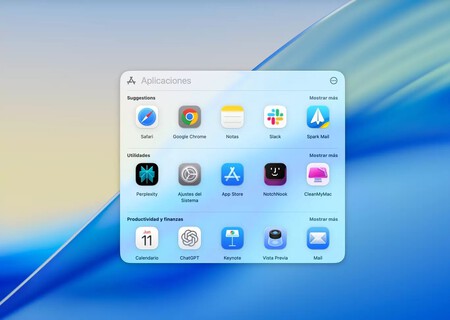
Let’s delve into The shortcuts to use Spotlight functions. Two types of shortcuts are available. The first allows you to open the tool itself, while the second set includes shortcuts to be used once Spotlight is opened. Here’s a rundown:
- Command (⌘) + Space: Opens Spotlight as before, allowing you to search for anything you desire, including content from the various sections mentioned earlier.
- Command (⌘) + Space, then Command (⌘) + 1: This shortcut opens the new application launcher, effectively replacing Launchpad. Users can browse through all apps and easily locate what they’re looking for.
- Command (⌘) + Space, then Command (⌘) + 2: This brings up the file search engine. This allows users to search exclusively for files on their Mac without retrieving other elements or application results.
- Command (⌘) + Space, then Command (⌘) + 3: Triggers fast actions, permitting users to execute actions like drafting an email, sending a WhatsApp message, or utilizing shortcuts directly from Spotlight—eliminating the need to first open any applications.
- Command (⌘) + Space, then Command (⌘) + 4: Displays clipboard history. Users can check a list of everything they have copied and pasted in recent hours, ensuring nothing gets lost.
Spotlight has undergone a significant transformation in macOS 26, providing users with a powerful tool that simplifies their workflow and enhances overall productivity. As it continues to evolve, so too do the ways in which users can interact with their devices, creating an environment that prioritizes efficiency. The seamless integration of applications, files, and rapid actions into a single, easily navigable interface makes Spotlight an essential feature for any Mac user.