

Let’s talk to you about Instagram version launched for iPad which has arrived in September 2025 after 15 years of waiting. It is a version adapted to larger screens, and that has some interesting novelties that make a difference with respect to the mobile version.
Let’s start the article explaining what this version is. Then we will talk about the main differences with respect to mobile versions, and we will end up telling you how you can download it.
What is Instagram for iPad
Instagram has never had an iPad version. Instead, Apple tablet users had to settle for the same mobile version, but increased with zoom. Come on, what The interface was the same which caused it to be very difficult to use, because operating an app designed for the small screen of a mobile is not the same as doing it with a tablet.
Instagram for iPad is a version specially created for the larger screens of the iPad. In this way, instead of conforming to the same mobile interface, there is an interface that best suits the screen size and the way in which a tablet is typically used.
Come on, instead of zooming what you have, now it is a version that takes advantage of the big screen much more by improving access to messages, notifications, and many other elements that are in the same row of options on the sides.
This is not a different application nor specific to download instead of the mobile app. It is the same application in the App Store. The difference is that when you install it on a mobile device, it behaves differently than when installed on an iPad.
Differences When You Use Instagram on the iPad
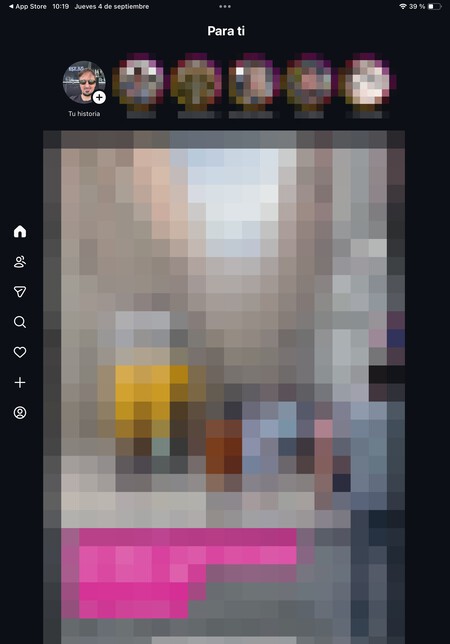
The first thing you are going to notice are the changes in the interface. In the mobile app, the content options are at the bottom, and notifications and access to direct messages are at the top. On the iPad, everything is organized in a sidebar to the left of the screen.
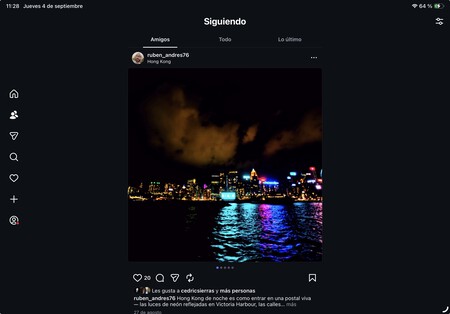
The user experience is delightful. If you are on the main screen, you can simply scroll down, giving you access to new publications, as well as being able to easily navigate through all the content or only the accounts you follow. In fact, you don’t even have to swipe the screen; with a tap on the left of the screen, you can move to the next publication.
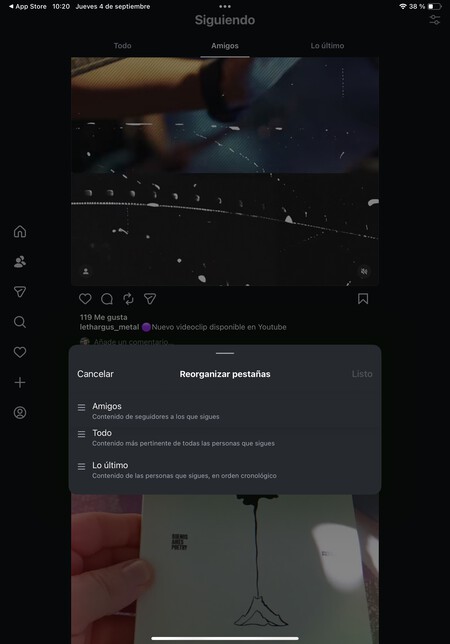
Moreover, the three top options can be reordered. For example, you can prioritize the ‘Friends’ section so that as soon as you click on it, you will see only the content from the accounts you follow. The reorder button is located at the top right, allowing you to customize your viewing experience.
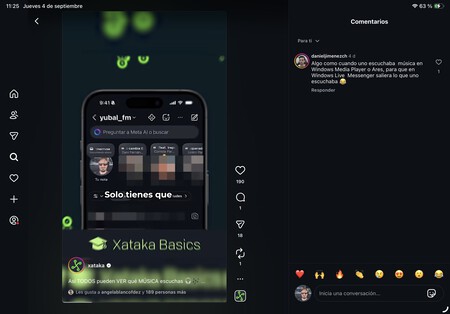
Both reels, private messages, and notifications present their content in a double column. This means that on the left, you see the reels or list of messages and notifications, while on the right, you can view comments, chat messages, or content associated with the selected notification.
Instagram for iPad is also an application designed for the future, boasting support for multitasking and floating windows in iPadOS 26. You can use it in full-screen or horizontal screen mode, but it also works in window mode. Moreover, it is compatible with keyboard, trackpad, and Apple Pencil, allowing for versatile control options.

How to Install Instagram for iPad
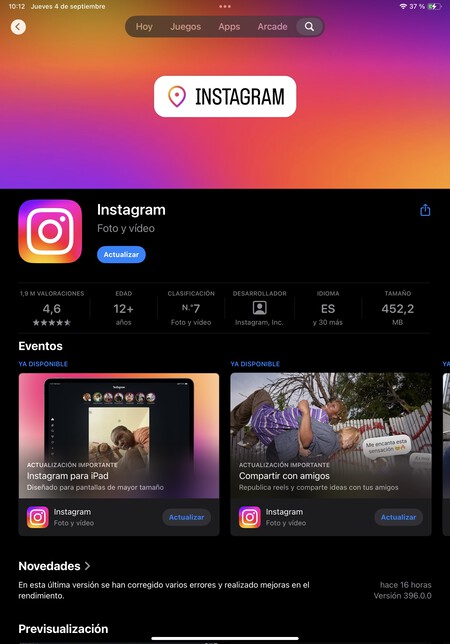
Instagram for iPad is available in the App Store at this link and applies to any iPad with iPadOS 15.1 or higher versions. It is the same app as the mobile version, meaning if you already had Instagram, it will simply update to the latest version so that the design changes take effect. If you don’t have the app, you can install it as you would with any other application.
In Xataka Basics | Goal AI on Instagram: 18 features and tricks of artificial intelligence chat