
Let’s tell you how to use Gemini from the Chrome navigation bar so that you can ask Google’s artificial intelligence questions, saving the time it takes to open a new tab. This functionality will be available even if you do not have a payment subscription.
You must understand that this is not Gemini’s complete integration in Chrome; it is only a preliminary step. More comprehensive features will be rolled out over time. This guide will focus on this specific shortcut to access AI easily.
Gemini in Chrome’s Navigation Bar
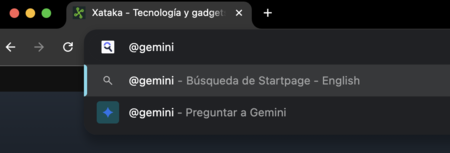
To make a request to Gemini at any time from Chrome, click on the navigation bar and type the command @gemini. This is the same bar where you usually enter website URLs; however, in this case, you will be entering a command.
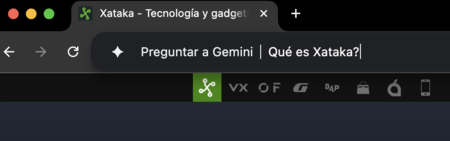
Once you type @gemini and hit the spacebar, the navigation bar will change. You will see the text Ask Gemini, indicating that you can now enter your question.
Next, write your question or prompt for Gemini. Simply type @gemini, press the spacebar, then enter your question. After that, hit “Enter” to finalize your request.

This will open an automated tab on Gemini’s website with your question, and without any additional steps, the AI will start generating your answer.
The downside is that the rest of Gemini’s functions in Chrome are not yet available. Right now, this basic shortcut doesn’t consider the context of the tab from which it is invoked. So, while it provides a quick avenue to ask questions, it’s not yet a fully-fledged integration.
In summary, while this feature allows for quicker access to Gemini AI, users should be mindful that it is merely a starting point and that more capabilities are expected to be added in the future, enhancing the overall functionality and user experience.