
Let’s explain How to create a presentation with Canva using artificial intelligence. Canva is one of the best-known online services for creating presentations and various designs. In recent months, they have introduced new functions and automations that enhance user experience.
Let’s explain two ways to make a presentation in Canva with AI. First, we’ll discuss how to create each slide from scratch, which is more labor-intensive but allows for extensive customization. Then, we’ll explore how to use templates, which can streamline the process. In both methods, you will have access to artificial intelligence options that can make your design experience much easier.
Creating Slides from Scratch
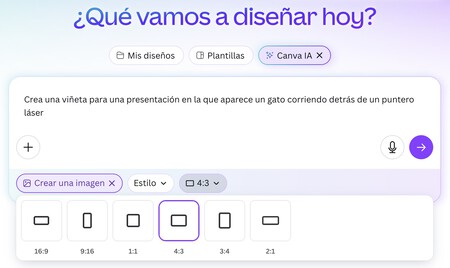
When you enter Canva.com, the main screen displays a text box asking what you want to design. Choose the option for Canva AI to activate the artificial intelligence features. After that, select the option to create an image and pick the style and proportions for the slides of your presentation.
Next, you need to describe the slide you want to create using artificial intelligence. Be specific about the elements, style, and colors you envision. It’s crucial to maintain consistency across each slide in terms of size and style to ensure cohesion throughout your presentation.
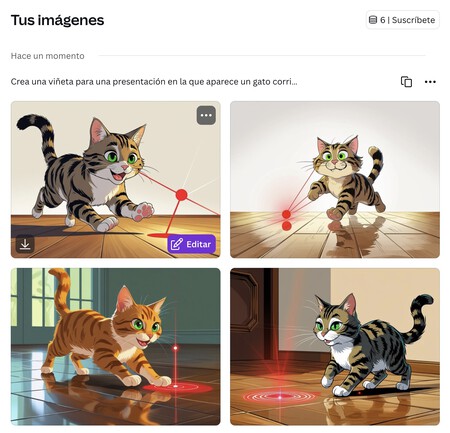
Each time you enter a prompt, four different options will be generated. You can refine your descriptions and repeat the prompt until you find a design you like. Once you’ve identified a suitable option, click on the Edit button that appears.
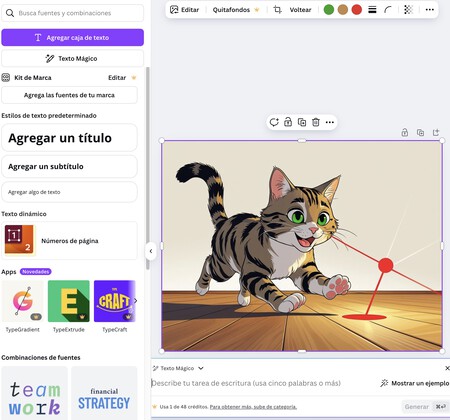
Once in the editing mode, you can utilize several artificial intelligence tools. Each element that you can add has AI-driven options, including text generation based on specific concepts.
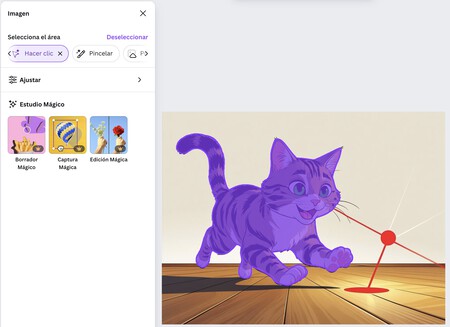
When editing an image, you can select a specific area or element and modify it using AI tools. There are magic draft options that enable you to eliminate elements or alter them seamlessly. However, note that many of these options require a paid subscription to be unlocked.
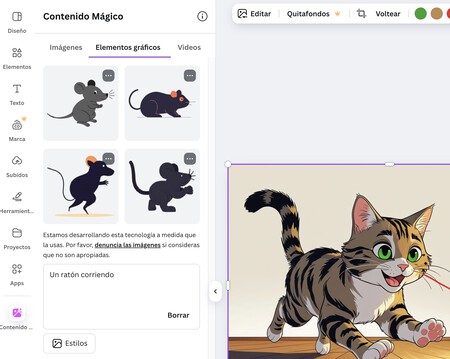
You can also add images that can either be complete with their background or simple with a transparent background. I recommend exploring all options to fully customize your slides, and once you’ve finished one slide, proceed to create the next to complete your presentation.

Using a Template
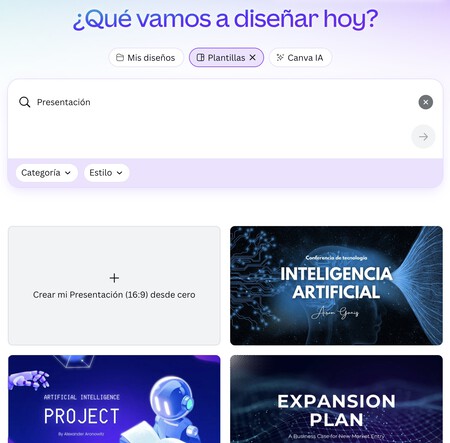
When you enter the Canva website, you can also click on Templates. Then, in the text box type “presentation.” Supplemental keywords describing the theme, colors, tone, or design type can further refine your search.

When you click on the results, you can preview the slides included in each template. Once you find a design that appeals to you, click on Customize template to access the editor.
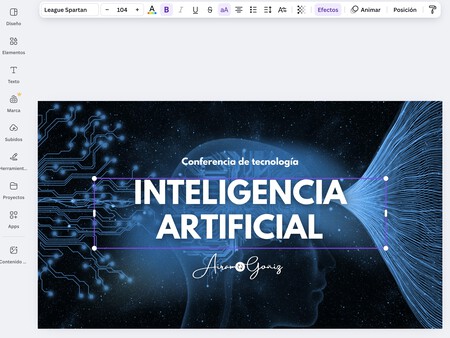
Once you enter the Canva editor, you can leverage all available artificial intelligence tools, including those highlighted earlier, to modify each template to your liking. Although you may have limited control, using a template can drastically speed up your design process if you find a design that meets your needs.
By incorporating artificial intelligence in your design process, you can create visually appealing presentations with ease. Whether you opt to start from scratch or choose a template, Canva’s versatile features enable you to craft stunning presentations that effectively communicate your ideas.