
We bring you a comprehensive list of 16 features of Android 16 that you can explore, along with some tips to make the most of them. This version of Android has already landed on Pixel smartphones, so let’s dive into the new features that come along with it.
In this article, we will focus on the new features and updates, sidelining the ones that were already present in previous systems. Our aim is to ensure that if you have received this update or when you do, you’re aware of what’s new.
A brief note before we begin: when Android 16 starts rolling out to other manufacturers, it might arrive with modifications. Every manufacturer uses its own customization layer, meaning some functions might be missing or some might be previously available.
The Main Novelty is an Absence
The main surprise for early adopters of this update on their Pixels is that the primary novelty of Android 16 is missing. This new version has minimal new functions, and its main attraction is a complete redesign featuring Material 3 Expressive, which hasn’t arrived yet and appears to be on hold.
Live Updates in Android
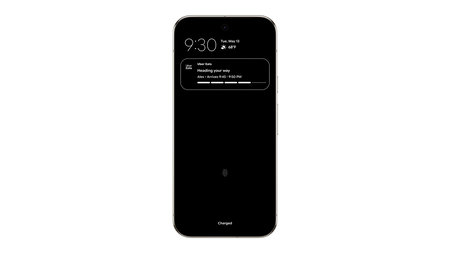
The first major novelty introduced is the Live Updates feature in Android. This consists of special notifications that show real-time status updates for an app, such as the expected time for your food delivery ordered online.
However, this function is not available for all applications; developers must adapt their apps to take advantage of it. Notifications with live updates will appear in the notification panel, on the lock screen, and on the always-on display.
More Control over Notifications
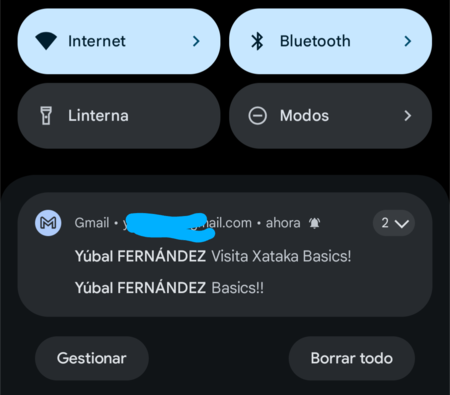
Android 16 enhances notification control by aggregating notifications from the same application. Thus, when you pull down the notification panel, you will see the number of notifications from each app in the upper right corner if there’s more than one. You can click on this number to expand and view all notifications more comprehensively.
Moreover, when you receive a high volume of notifications from a single app in a short time, Android 16 automatically reduces the alert volume for one minute. So instead of a cascade of notification sounds, they will be temporarily muted.
Unified Photo Selector for Apps
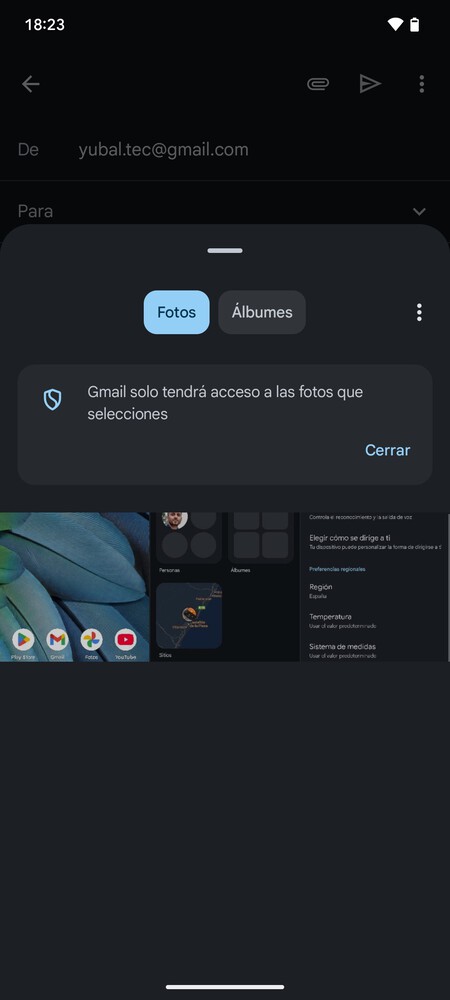
Android has introduced a feature to utilize a unified photo selector across apps. When uploading a photo in an app, instead of each app having its own selector, there will be a unified one that opens your photo gallery in a pop-up.
This improvement makes the process more aesthetically pleasing and considerably enhances access to your gallery. However, it relies on developers to integrate this function into their applications since it’s an API.
Enhanced Language Adjustment Options
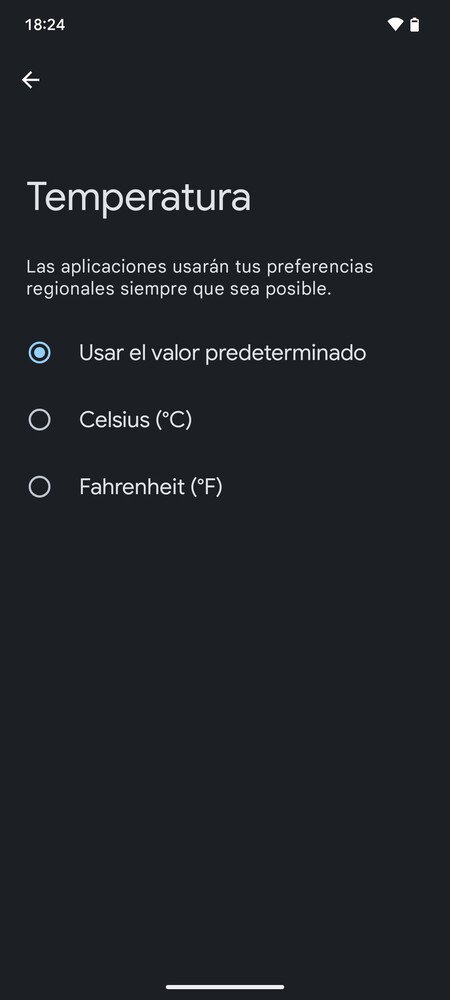
Using a mobile in different countries isn’t just a matter of language; various other aspects need consideration. In Android 16, under the Language and Region settings, you can change several regional preferences, such as temperature units, measurement systems, or the first day of the week.
For instance, in some countries, the week starts on Sunday instead of Monday, and temperature might be measured in Fahrenheit instead of Celsius. You can choose between metric, U.S., or British measurement systems, enhancing user adaptability considerably.
Tips for the App Background Viewer
When you swipe up from the bottom to the middle of your screen, you enter the app overview. Here, pressing an app’s icon reveals a menu with several options, including one for splitting the screen.
In Android 16, a screenshot can be taken directly from this viewer without entering the app. Additionally, a Select option is now available to choose a specific part of the app’s screen for capturing instead of taking a full screenshot.
You can also select and copy text from an app’s screen without having to enter the app, solely through the preview shown in this overview. It’s a handy feature that can save you time in certain situations.
Configure Double Tap to Activate
By double-tapping the power button, the camera opens up. However, many Android 16 devices now allow you to choose between opening the camera or Google Wallet if configured. Hence, you will have two options for this gesture that can be chosen under the Gestures section in the System settings.
Enhanced Device Protection
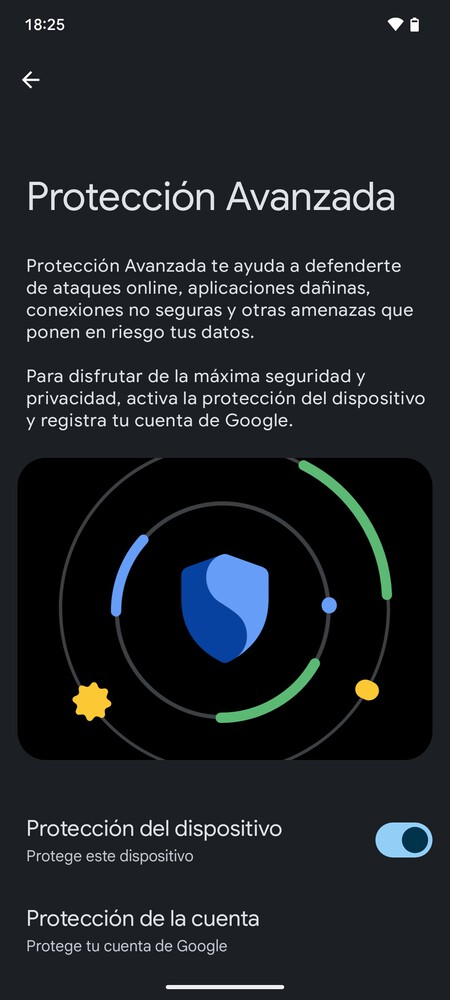
Android 16 integrates Google’s Advanced Protection feature, which allows you to block malicious applications, malicious websites, or harmful apps, in addition to detecting insecure connections and other threats. It’s like combining various security options into one, some of which were already existing, while others are new.
This protection mechanism is quite aggressive but completely optional and can be activated or deactivated at any time. Furthermore, this protection can automatically detect theft through movement, locking your device and blocking spam calls.
Maximize Gesture Navigation
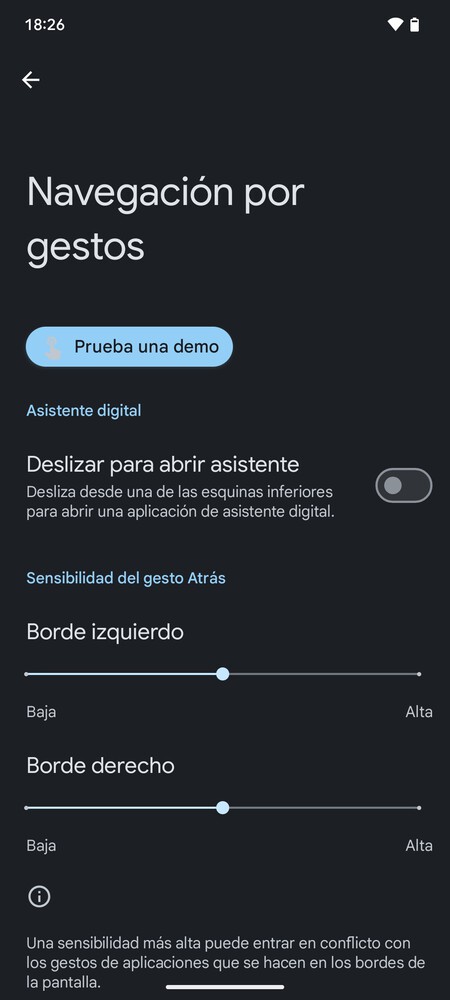
When you access the screen to choose a navigation mode for Android, you can decide between the classic three-button navigation at the bottom of the screen or gesture navigation. Additionally, there is a button to configure gesture navigation, allowing you to tweak aspects like gesture sensitivity.
Moreover, Android 16 has also introduced a Try a Demo button in this configuration screen, enabling you to test gesture navigation with any changes you’ve made. This can help you get accustomed to using it for the first time or see differences with adjustments made.
Predictive Back Gesture to Know Where You’re Going
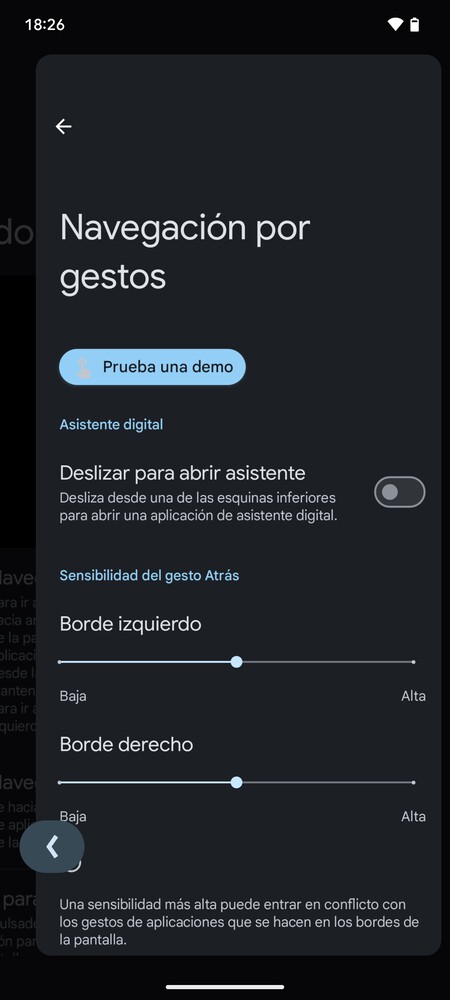
When you swipe from the edge of the screen to go back, the predictive back gesture activates, allowing you to see a preview of the screen you will return to before actually doing it. This visual cue helps prevent accidental closures of apps since you’ll know if the gesture will exit the current app entirely. Android 16 includes this for button navigation as well.
New Shortcut for the Apps List
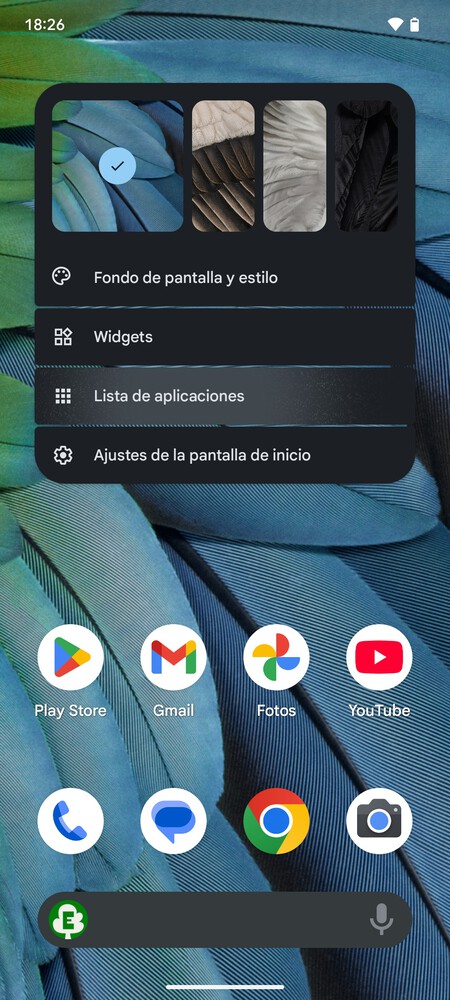
A small feature in Android 16 is that in the menu that appears when you long press on the home screen, there is now an option for Apps List.
This menu, which normally leads you to wallpaper settings or widgets, now allows quick access to the apps panel just like swiping up. It can be especially useful in contexts where this method may be more comfortable than the swipe gesture.
Close or Disable Notifications
When you press and hold a notification, a menu appears for configuring them. Now, at the bottom of this menu, options to close the notification or disable it for the app will appear, whereas previously, you only had the option to disable.
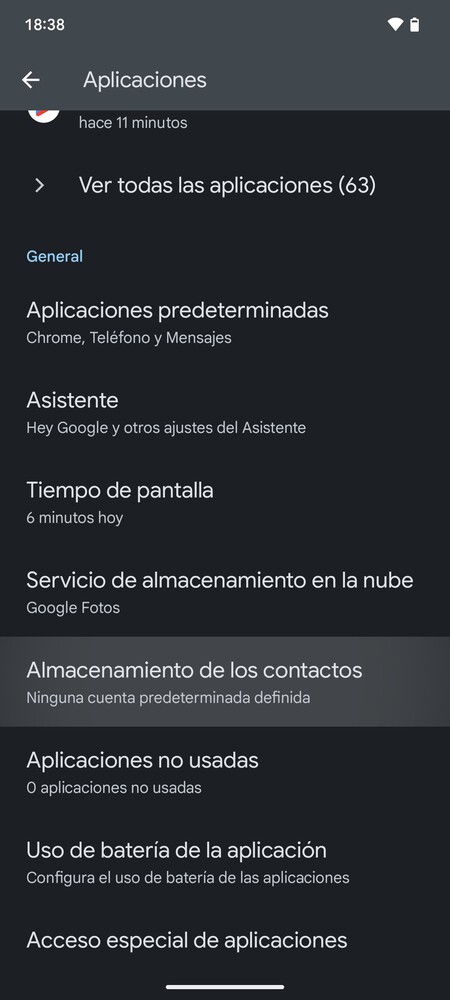
If you have two Google accounts linked to your device, saving new contacts might be a bit confusing. But now, you can choose the default account where new contacts will be saved automatically.
To do this, go to the Apps section in the settings and click on Contact Storage. You’ll see the linked accounts to save them to your preferred one or choose the Device Only option to store them only on the mobile instead of the cloud.
Check Battery Status
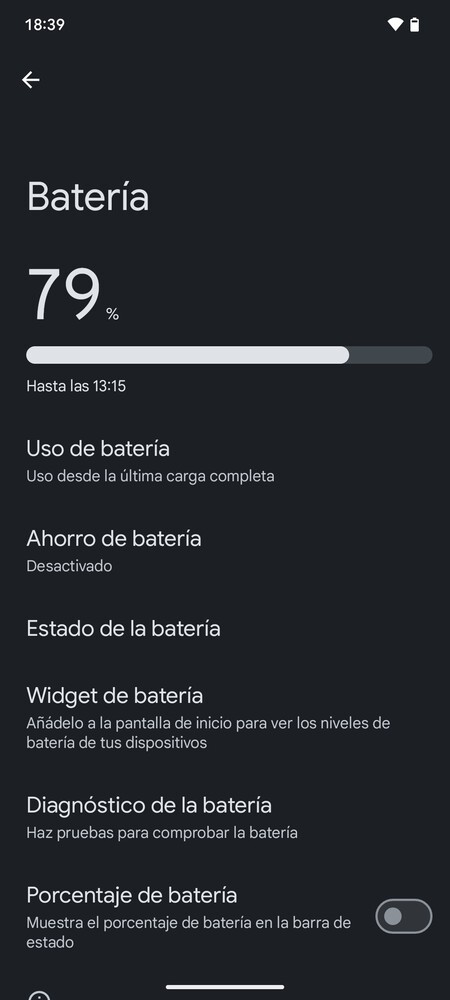
Within the battery settings, under the Battery Status section, you will find the condition of your battery and an estimate of its lifespan, which will adapt based on your usage. In these settings, you can also configure charge stabilization to limit it to 80% to extend battery life.
Check How Much Space Android 16 Occupies
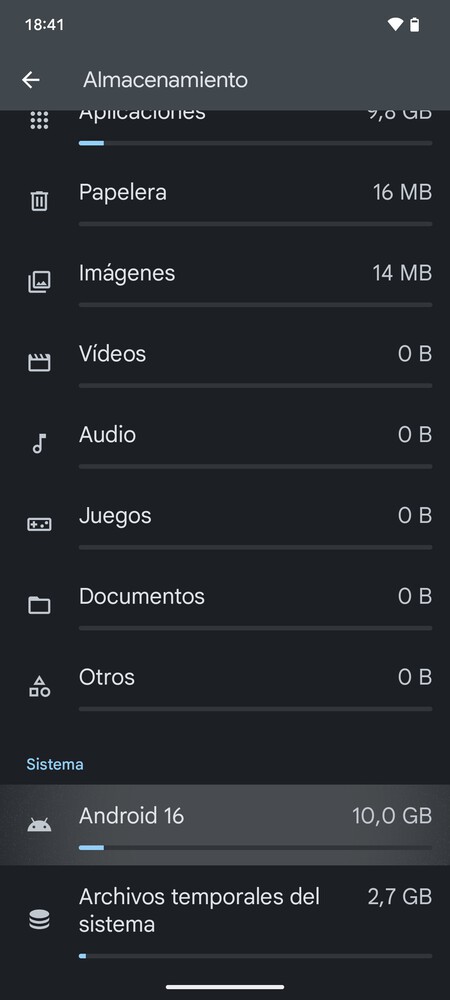
Although this function isn’t new, it has been adapted for the new system, allowing you to see how much space the operating system is consuming. Thus, along with the space taken by apps, videos, and other files, you can see how much Android itself occupies.
You can find this information by entering your mobile’s storage settings. Once inside, scroll down to the System section, and you will see the space taken up by Android. You’ll also be able to view the size of temporary files from the operating system itself.
Connected Health Improvements
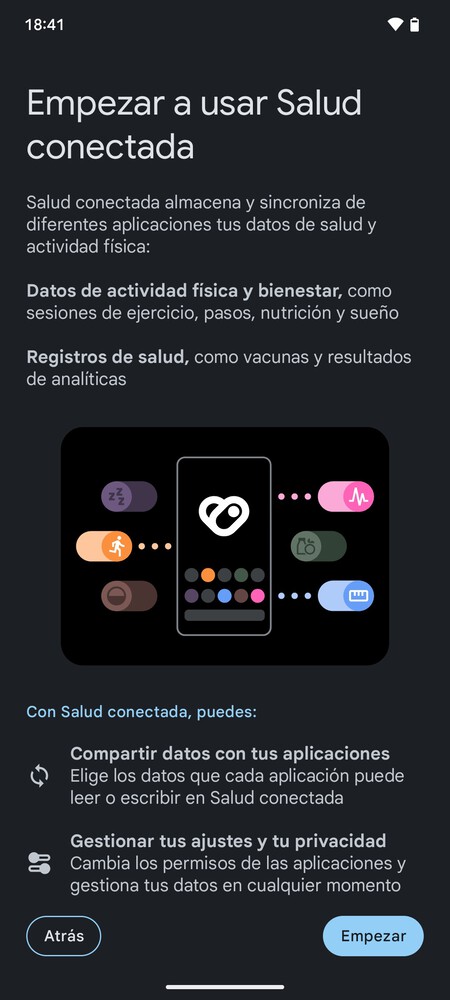
Another novelty in Android 16 is the enhancement of the system to unify access to your health data. The Connected Health feature synchronizes and stores data across various health and fitness apps. Now, there’s an API for medical history, allowing writing and reading in FHIR format, with users’ explicit consent.

Android Levels Up for Tablets
Finally, we have the Desktop Windowing feature available for tablets with Android 16. This mode allows apps windows to be resized and moved, in addition to full-screen and split-screen views. It’s reminiscent of a computer desktop, enabling multiple app windows to be open simultaneously without being in full-screen mode.
This transformation makes using a tablet with Android feel more like any desktop operating system, allowing you to have various overlapping app windows open simultaneously. Future updates also promise customizable keyboard shortcuts for physical keyboards connected.
In conclusion, Android 16 offers a variety of innovative features that enhance user experience, whether through improved health tracking, customizable settings, or new navigation options. These updates not only streamline functionality but also prioritize user security and accessibility, making Android 16 a pivotal update for mobile users.